Blender
 Cinema 4D
 Arnold
 3ds Max
 Houdini
 V-Ray
V-Ray Maya
Maya Unreal Engine
 Nuke
NukeC4D Tutorial: Using Field Forces to Create Diamond Dispersion Effect with Particle Motion on the Surface
The leading cloud rendering services provider and GPU & CPU render farm, Fox Renderfarm will share with you a C4D tutorial. In this project, will learn how to use field forces to create a diamond dispersion effect with particle motion on the surface.
I was looking for inspiration on the web when I overheard this dynamic effect and felt it looked good after rendering, so I wanted to replicate the effect using C4D:
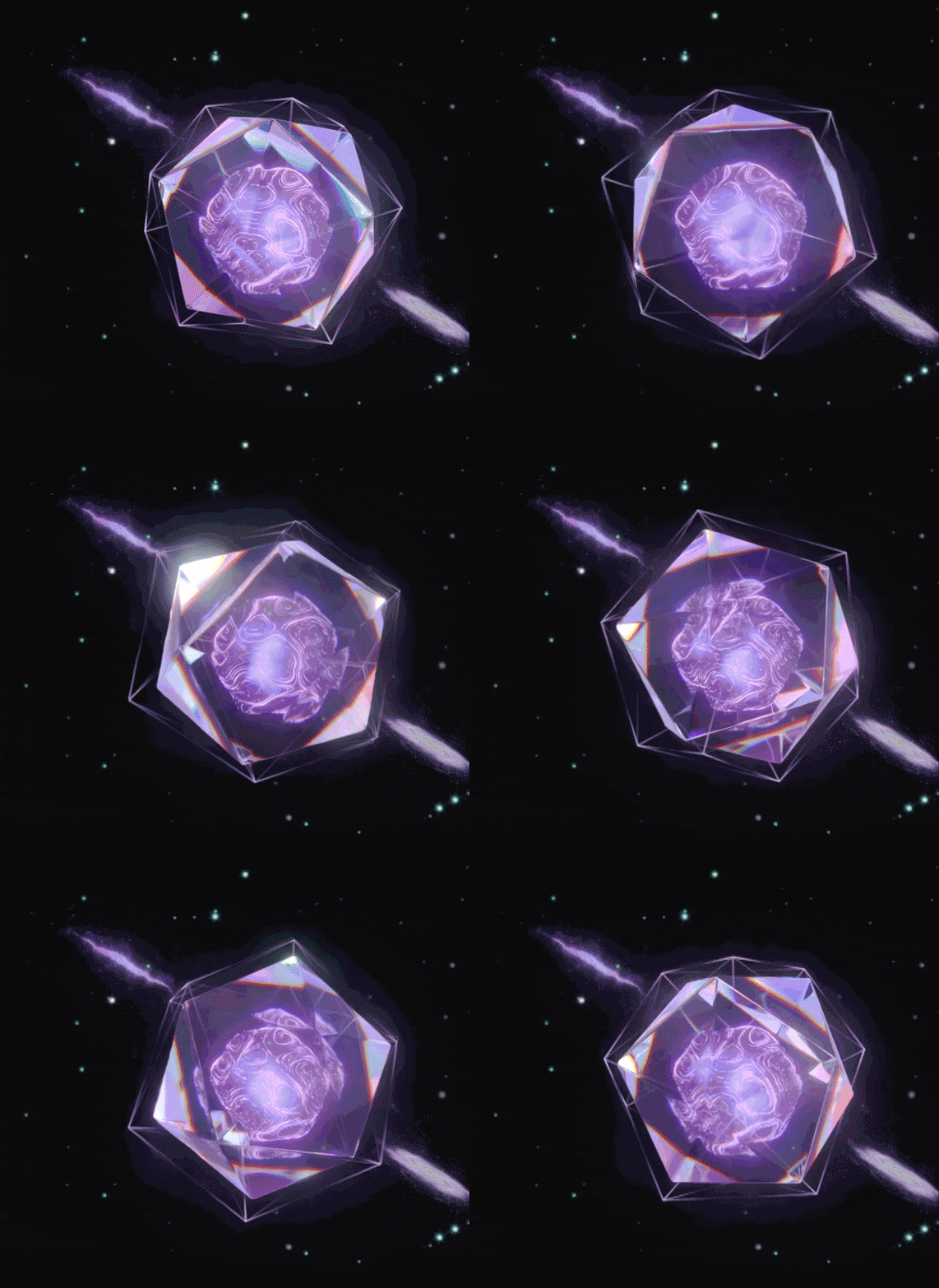
So today we'll use C4DR21's Field Forces to create this diamond dispersion effect with particles moving on the surface!
Let's Start Making
In C4D, first create a new sphere, segmentation can be appropriate to increase a little, type selection for Lcsahedron, Radius value slightly changed a little smaller:

Add a Disolacer deformer to the sphere, add a noise wave to the shader, and the global scaling of the noise wave can be slightly larger to create this bumpy sphere effect:

Then add a Subdivision Surface, Subdivision Editor and Subdivision Renderer under Object are set to 1:

Next is a new feature of C4D R21, we add a Volume Builder to the object. C4D R21's volume generation has added a new mode of vector, it can convert the object directly into a vector, we increase the accuracy of Voxel Size a little bit:

Next, create a new Random Field and drag it into the volume generation. By default, random fields are created in a cubic space:

First we can change the creation space to below the object, representing the creation of vectors based on objects:

But now the direction of the vector is not what we want, because by default it is the direction of the object normal, and for the sake of observation I have slightly enlarged the scale of the random field here:

Back in Volume Builder, we change the blending mode of the Random Field to Cross, so that the direction of the vector is the direction of the surface to which the object is attached:

But now the vector is not used, we need to convert it to a field force, so create a new Field Force and drag the volume object into it, selecting the type as Volume Object:

Now you may not see any effect, you need to create a new Matrix, with Subdivision Surface as the object Object. Distribute it as a surface is fine, then let the matrix generate TP particles, the number can be slightly more:

By default, the field force does not affect the particles, so you need to do some simple settings. First of all, create a new xpresso tag, and create a new particle transfer in the TP particle creation body: then add a PForce object in the TP dynamic item, which is also a new feature of R21, and then drag the field force into the PForce object, so that the TP particles can be affected by the field force:

Clicking on play will reveal that the particles will fly out after a period of motion:

This is because the mode of the field force is not correct, so change the mode of the field force to set the absolute rate, and then increase the intensity a little, you can see the particles hovering along the surface of the object:

Next we add Thinking Particles to the matrix, change the Limit to From End, then set the Amount to 50, and then play to see the beautiful circling lines:


I think the number of particles seems to be a little bit more, so I changed the number of particles to a smaller one:

When we feel it is almost ready, we can first convert the trace object to an ABC file, make a copy of the subdivision object, and back up the rest and turn it off:

Now the lines are appearing from nothing, we want it to be the same as the reference case that is always there, so we can offset a little bit in the animation of the ABC file, and then change the frame duration to 180 frames:

The next step is simple: create a new gem, resize it appropriately, and add a chamfer deformer to it. Create another larger gem, then add a lattice to this gem, with smaller cylinders and spheres. Rotate the angle of the lattice and the sphere, and put them into a group:

Set the keyframe in the group's rotation , remember to change the curve to linear, and then you can move on to the rendering.
Open Redshift, set the render size, first I still use the linear space, and then the scene does not need global lighting, so turn off the GI. Then I did not improve the number of reflections and refraction, because I compared and found that the default parameters seem to look better: create a new HDRI ambient light; you can try more mapping, preferably with the color of this dispersion so the effect will be better:

Add the RS object label to the sample bar, select the curve mode for the hair on it, and then properly adjust the curve to control the thickness of the beginning and end of the sample bar:


Next is the material, first use a gradient node to connect the material of the sample bar to the color of the luminescence. Change the mode of the gradient node to Alt. I gave the intensity of the glow to 10. Because we are rendering hair, we can give a hair position node to connect to the gradient, so that the hair will have a little gradient according to the position color:


The material of the sphere is nothing special, it is an ordinary dark green reflective material: the next is the material of the jewel body, in fact, is a glass material, I slightly gave it a little reflection of the rough, and then the dispersion I adjusted to 2:

In the optimization options deselect Weak internal reflections. Then in the lighting details, change whether to affect refraction to always:

The final lattice material is very simple, is a common luminous material, and then use a gradient color to control the color of the luminous and transparent channel. Sampling settings due to the glass and there is dispersion, my maximum and minimum uniform sampling 256/16, other local samples are 512:

The Final Result
Finally, add some glow and see the effect:

Fox Renderfarm hopes it will be of some help to you. It is well known that Fox Renderfarm is an excellent cloud rendering services provider in the CG world, so if you need to find a render farm for C4D, why not try Fox Renderfarm, which is offering a free $25 trial for new users? Thanks for reading!
BY:野鹿志