What Is Caustic in Optics? A Clear Explanation with Render Tutorial
As we enjoy sunlight sparkling through water or glass, many wonder what is caustic. These bright, focused light patterns appear naturally when light bends or reflects off surfaces. Therefore, understanding caustic helps explain everyday phenomena such as shimmering pools and shiny objects. Beyond curiosity, caustics are essential in visual effects and computer graphics to create realistic scenes. So, this article breaks down what caustic is and how to render caustic in detail.
Part 1. What is Caustic in Optics?
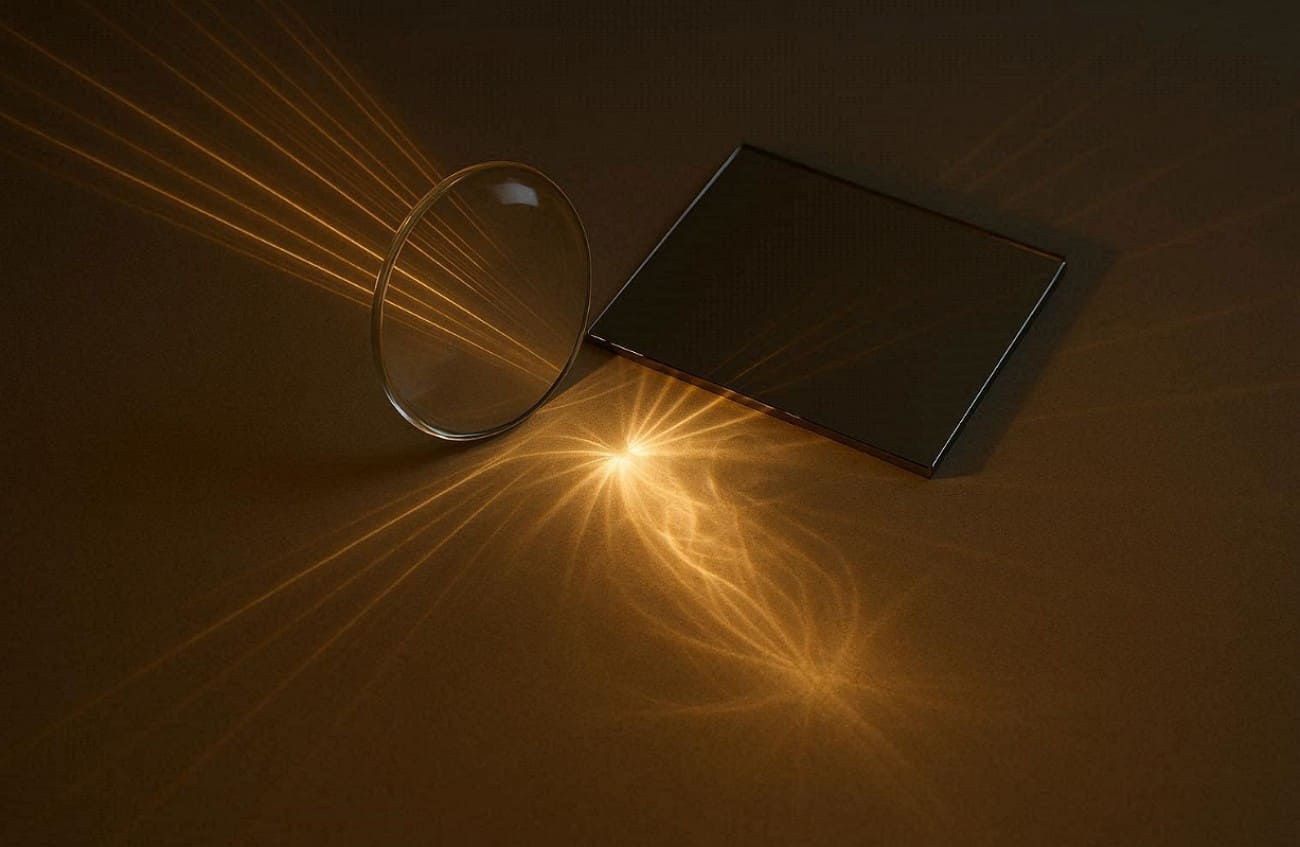
Caustics are bright patterns formed when light rays bend or reflect sharply. These patterns occur when curved surfaces focus multiple light rays onto smaller areas to increase brightness. Plus, everyday examples include sunlight passing through a glass of water or shiny metal objects reflecting light.
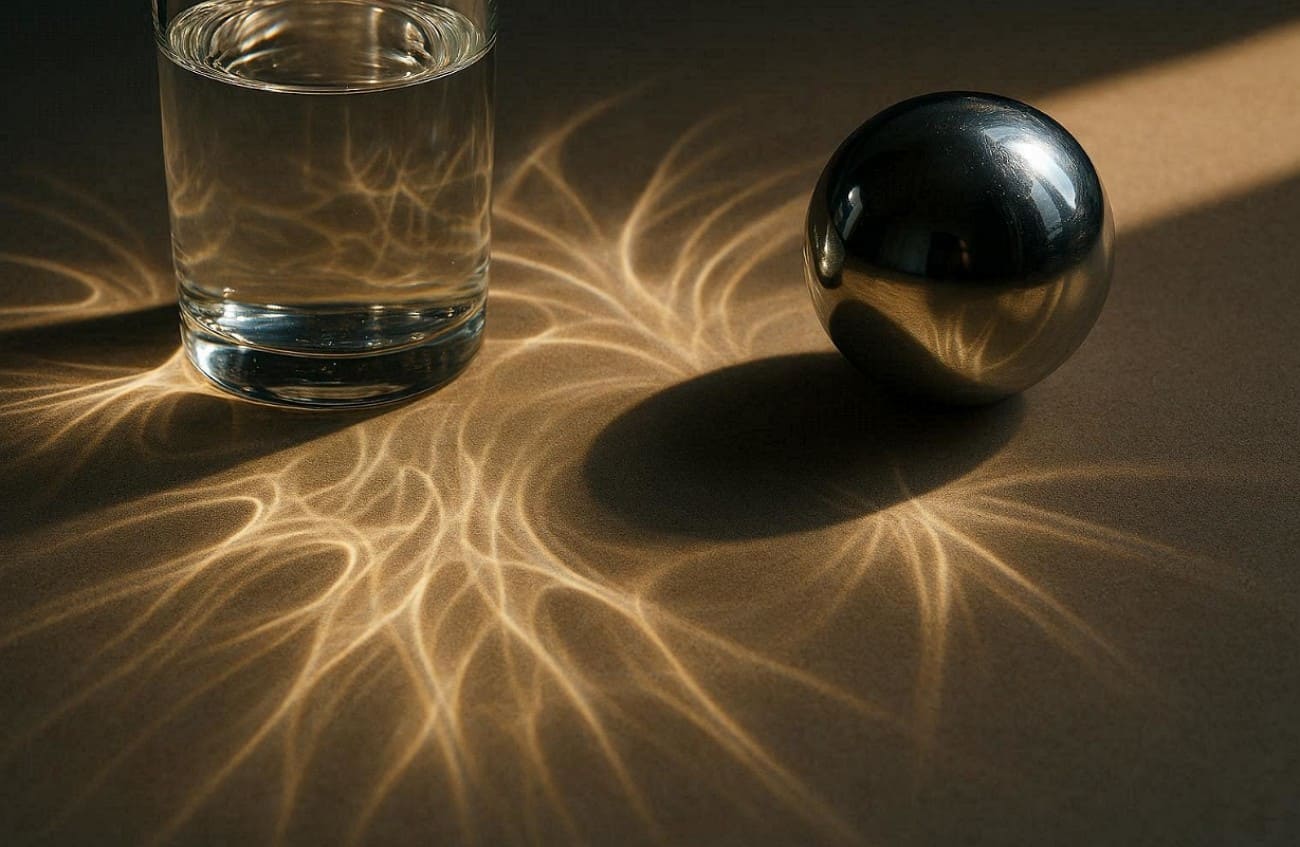
Caustics also appear on the bottom of swimming pools as rippling or concentrated light patterns. The effect depends on surface shape, material, and light angle. Also, studying caustics helps understand light behavior in digital simulations, bridging physics and visual applications in various fields.
How Does It Form?
It basically forms when many light rays bend and crowd together along curves or surfaces. This focusing creates regions with very high light intensity to produce bright patterns visible. When light reflects from curved mirrors or refracts through transparent objects like glass or water, each surface point redirects rays.
Moreover, the curved surfaces make some rays converge, forming an envelope of rays where density is highest. According to the caustic definition, this envelope determines the bright lines or curves observed. So, reflection from shiny curves makes reflective types like catacaustic.
Common Caustic Phenomena in Daily Life
1. Water Glass: Sunlight passing through a glass of water creates shimmering caustic light patterns. These patterns move gently as the water surface ripples and shifts constantly.
2. Shiny Metals: Reflective spoons or metal objects focus light into small, intense, bright regions. This reflection produces noticeable caustic light, especially under intense direct illumination.
3. Glass Bottles: Sunlight through a colored bottle forms colorful caustic light on surfaces. The curved bottle surface focuses light to produce vibrant and bright spots easily seen.
4. Eyeglasses: Light passing through curved lenses can project bright caustic light patterns nearby. Lenses bend rays differently to create concentrated lines or shapes on surfaces.
5. Water Fountains: Moving water in fountains bends sunlight, forming shifting caustic light reflections below. The constantly changing water surface produces lively and focused light areas.
Part 2. Why Caustics Look Brighter Than Surrounding Light?
Caustics appear much brighter than the surrounding light because rays converge in small areas. Understanding why light caustics intensify helps explain their unique appearance in everyday life:
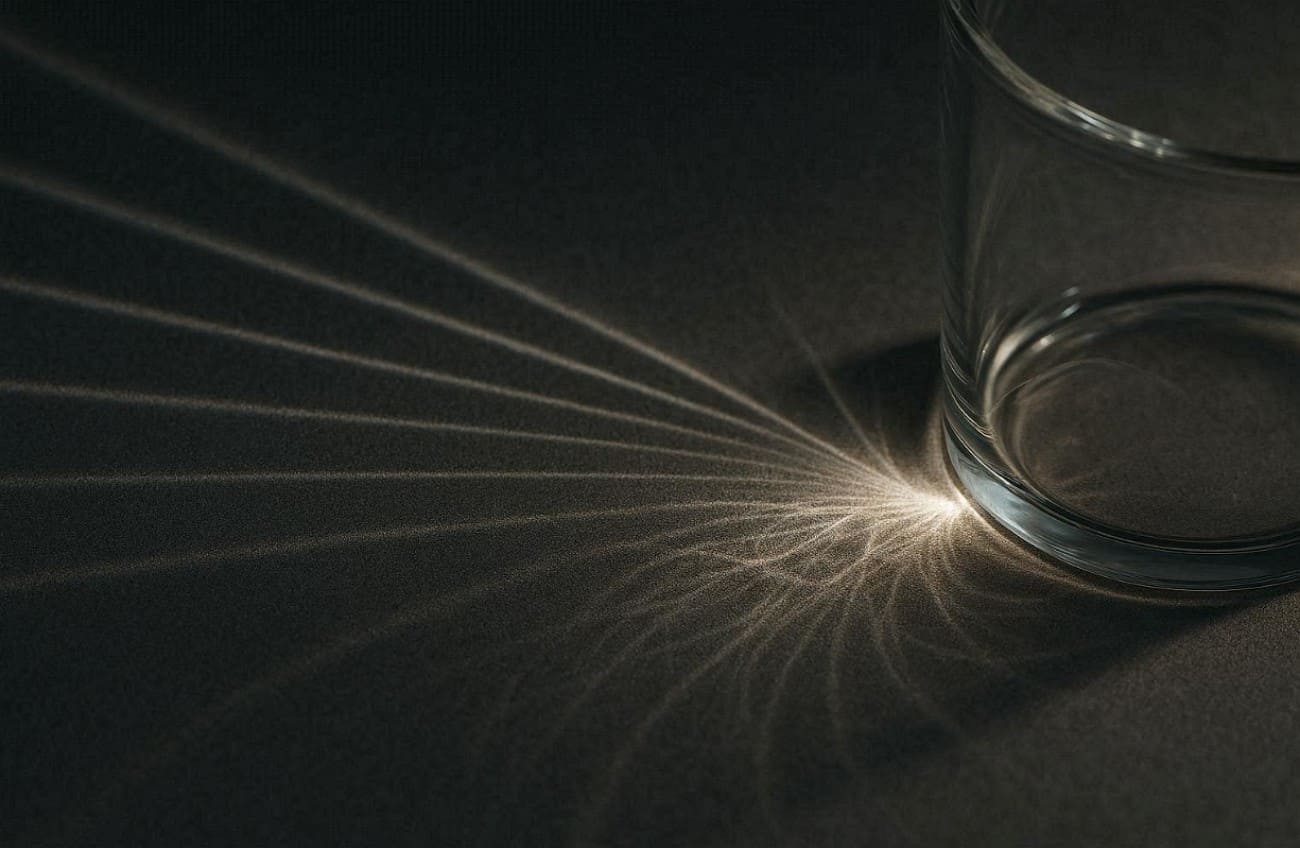
1. Ray Convergence: Many nearby light rays gather along a curve or small region, so the same light energy spreads over a smaller area, making caustics appear brighter.
2. Surface Curvature: Curved surfaces bend rays unevenly, directing more light toward certain small areas. These areas receive extra energy and make them brighter than their surroundings.
3. Reflection Focus: When light reflects from shiny surfaces to enhance intensity at concentrated spots. Reflective surfaces naturally produce strong, sharp light caustics easily observed by viewers.
4. Envelope Formation: The envelope of rays forms where density is highest, producing brighter regions. It appears along these envelopes due to concentrated illumination on surfaces.
5. Small Area: Focusing light onto a smaller surface increases intensity, enhancing visible brightness. The smaller the area, the stronger and clearer light caustics become naturally.
Part 3. Caustics in Computer Graphics and Rendering
In computer graphics, caustics recreate bright and focused light patterns for realistic scenes. The following part covers a few key points to help simulate how rays reflect or refract:
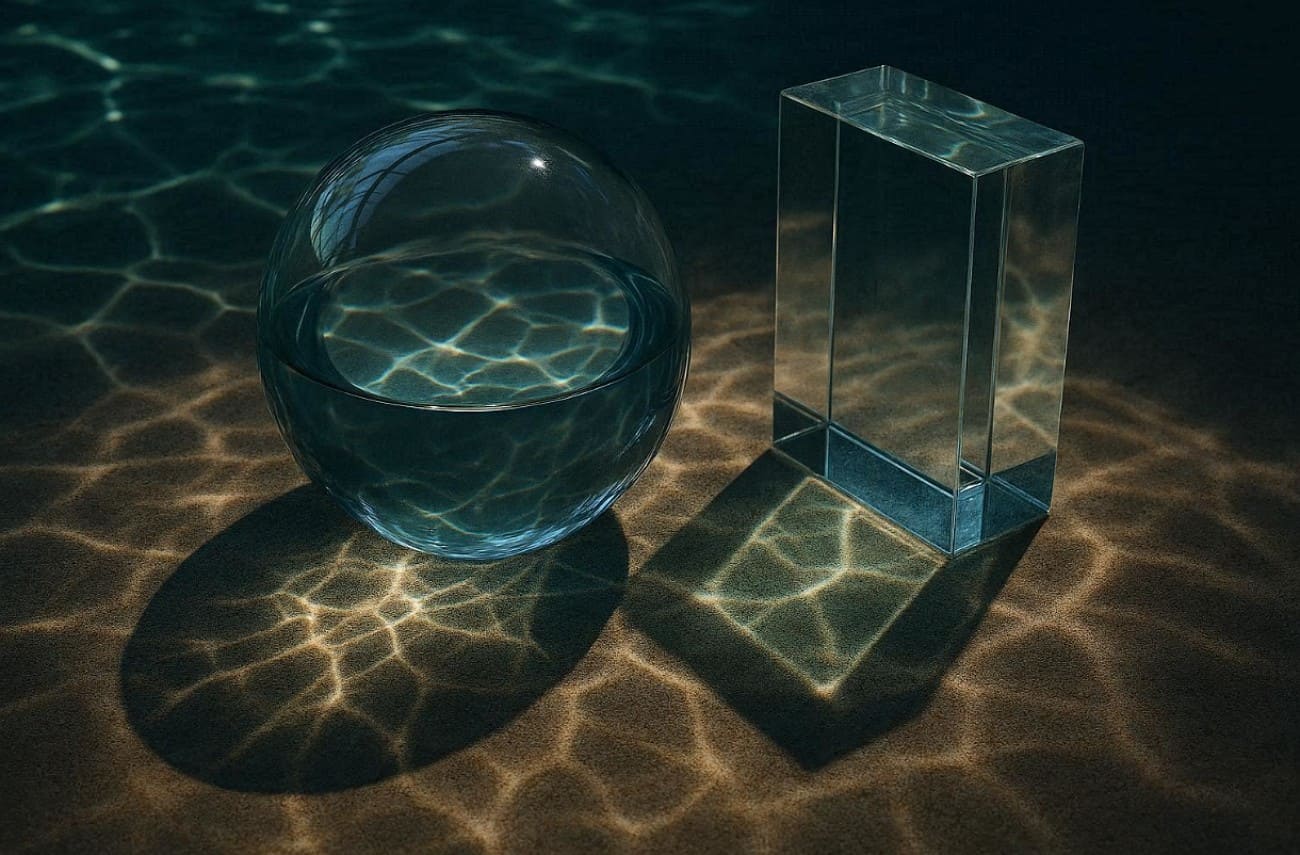
1. Realism Boost: Adding caustics increases scene realism by simulating natural light behavior accurately. Light caustics make reflections and refractions appear vibrant and believable to viewers.
2. Water Effects: Rendered water uses caustics to produce rippling patterns below moving surfaces. These simulations enhance depth and realism in pools, rivers, or fountains digitally.
>> Related: 6 Easy Steps to Create Water Shader in Blender
3. Glass Surfaces: Light passing through glass forms distinct caustics on nearby surfaces in renders. These concentrated patterns mimic physical behavior for a more lifelike result.
4. Photon Mapping: Renderers trace and record photon interactions to compute caustics efficiently and clearly. Photon mapping reduces noise while generating focused, accurate caustic lighting in final renders.
5. Real-Time: Modern GPUs allow near-real-time caustics in games or interactive applications. Light caustics enhance immersion by simulating dynamic reflections and refractions in real-time on screens.
Part 4. How Renderers Simulate Optical Caustics
Renderers simulate optical effects by tracing how light interacts with reflective or transparent surfaces. In this part, you will explore standard techniques to create realistic water caustic patterns:
1. Concentrating Light Paths
Concentrating light paths means tracing rays from the light to reflective or refractive surfaces. Rays that hit glass or mirrors are guided toward diffuse surfaces to form bright caustics. Standard path tracing often misses these difficult paths, so renderers use focused sampling to capture energy. So, this approach ensures that each light ray contributes properly to visible caustic patterns on surfaces.
2. Photon Mapping
It sends photons from light sources through reflective or refractive surfaces. Each photon's impact on diffuse surfaces is stored to create a photon map. When rendering, nearby photons are gathered to estimate brightness, producing focused caustics efficiently. According to the caustics definition, this method accurately reproduces bright light patterns with minimal noise to improve realism in complex scenes.
3. Bidirectional Methods
This method traces light paths from both the camera and light sources simultaneously. Connecting these paths increases the probability of capturing complex caustic light accurately. Algorithms like Vertex Connection and Merging combine path tracing with photon mapping for sharper results. This approach ensures concentrated caustic light patterns appear clearly, even in challenging scenes.

4. GPU Caustics
It uses graphics cards to accelerate photon tracing for real-time rendering efficiently. Photon samples are written into a caustics buffer as small footprints, reducing the need for costly density calculations. Adaptive methods adjust sample size and distribution over time to preserve sharp patterns. This approach creates interactive caustic effects while balancing performance and visual accuracy in games or simulations.
5. Artistic Controls
Artistic controls let artists adjust the caustics' intensity, radius, and photon counts. Renderers allow selective enabling of photon-based or hybrid caustics only where necessary. These settings help balance visual quality, noise, and rendering time efficiently. By tweaking parameters, artists can emphasize or soften caustic effects creatively while maintaining realistic light behavior.

Part 5. Why Is It Difficult to Render Caustic?
Rendering caustics is challenging because light paths are complex and highly concentrated. Here are a few points that explain why it is challenging to render caustic:
1. Complex Paths: Light rays have complex paths on the reflective or refractive surfaces. To achieve realism in caustic light, it is necessary to capture all the relevant rays.
2. High Intensity: Caustic light concentrates energy into tiny areas on surfaces. This makes the patterns extremely bright and difficult to simulate without artifacts.
3. Small Details: Tiny surface features affect how rays converge, altering the caustic light pattern. Missing these details can make renders look unrealistic or flat quickly.
4. Refraction Complexity: Clear substances refract light in diverse ways with respect to thickness and contour. These refractions are essential to be simulated correctly to create realistic effects of caustic light.
5. Dynamic Scenes: Moving objects or changing lights require the recalculation of caustics for each frame. This adds further difficulty in maintaining sharp, consistent caustic light patterns.
To overcome these challenges, a render farm is here to help. Fox Renderfarm offers a powerful cloud rendering solution that handles complex lighting effects, such as caustics. With high-performance GPU and CPU nodes, it enables faster, more accurate light calculations while maintaining stability in dynamic scenes. Its scalable infrastructure enables artists to render bright, detail-rich caustic patterns without artifacts, making it ideal for achieving realistic results under tight deadlines.

Conclusion
To conclude, caustics light up our world with bright patterns from bent rays. This guide showed what is caustic from pools to computer screens clearly. Simulating them accurately requires advanced rendering techniques and careful computation. Artists can also control intensity and sharpness to achieve desired results. For fast and efficient online rendering of complex caustics, using a reliable render farm like Fox Renderfarm is highly recommended.