Blender
 Cinema 4D
 Arnold
 3ds Max
 Houdini
 V-Ray
V-Ray Maya
Maya Unreal Engine
 Nuke
NukeOctane For C4D Tutorial - Making Forest Scene Model Light Rendering (2)
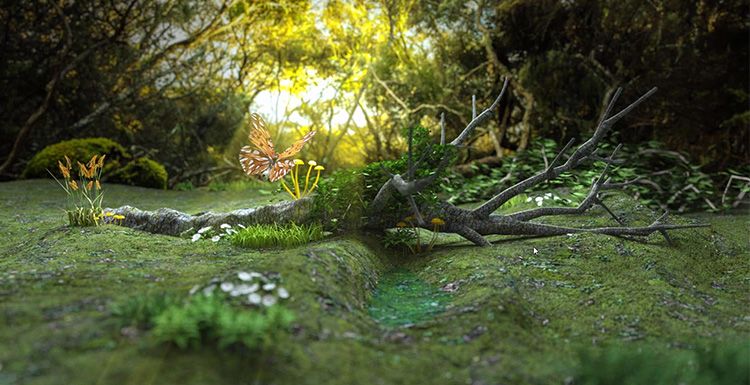
As the leading cloud rendering service provider, Fox Renderfarm, is going to share with you the second part of the tutorial of Octane for C4D, making forest scene model light rendering as an example.
In the previous tutorial, in order to make the scene more natural, many kinds of plants were added to the scene. After preparing to use the Octane renderer, all textures need to be converted to Octane's texture.
You can select all shaders that are not Octane, and convert all shaders to Octane shaders in Convert Matenials under Materials.

After converting the shader, remember to clean up the shaders before.
What you need to deal with now is the texture of the ground and the texture of the dead tree. The texture of the ground is Octane GLossy Material, which adds a total of Diffuse, Specular, Bump, Normal, Displacement.

Add a picture to the background and adjust it to the appropriate size and position.

Add the mushroom material, create a new Octane Specular Material shader, modify the Medium and Fake Shadows, change the mushroom to yellow and modify the butterfly material.


Now adjust the lights. Octane's Octane Arealight is used here, and the position of the light source simulates the sun's lighting effect according to the position in the background image. First illuminate the background with a light, then use another light to illuminate the tree.

Remember to turn off the light display and the lights will not be rendered in the rendered view. Be sure to adjust the intensity of the light with reference to the background image. Now adjust the light while rendering. This is a step that needs to be tested continuously.
The outlook is a bit dark, copying the care of the Octane Arealight supplement.


In the process, I feel that the position of the mushroom has exposed. Now put the mushroom in a lower position to avoid exposure.

Modify the camera settings, Kernels changed to Pathtracing option, Max samples changed to 1000, Diffuse depth changed to 8, the rendering speed will be slower. Change the GI clamp to 3 to reduce the noise of the exposure.
When Cameralmager's Response is changed to Linear, the rendering effect will be closer to reality.

Now focus on the butterfly and add some depth of field.

Now that the effect is nearing completion, you only need to add some light fog in the later stage.

Conclusion
The above is all of the tutorial of Octane For C4D for this time. Fox Renderfarm hope it will be of some help to you.
As you know, Fox Renderfarm is an excellent cloud render farm and leading cloud rendering services provider in the CG world, so if you need to find a render farm, why not try Fox Renderfarm, which is offering a free $25 trial for new users? Thanks for reading!