Blender
 Cinema 4D
 Arnold
 3ds Max
 Houdini
 V-Ray
V-Ray Maya
Maya Unreal Engine
 Nuke
NukeOctane For C4D Tutorial - Making Forest Scene Model Light Rendering (1)
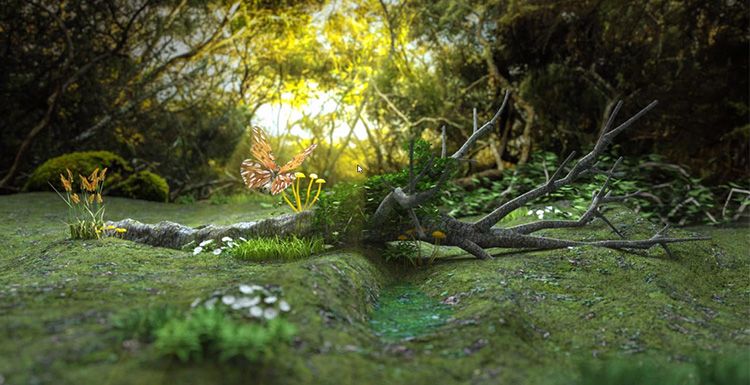
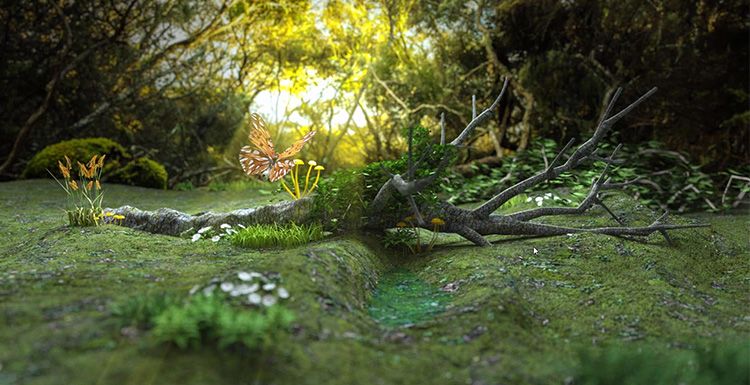
As the leading cloud rendering service provider, Fox Renderfarm, is going to share with you a tutorial of Octane for C4D, making forest scene model light rendering as an example.
This is a simple natural forest scene production, the main elements are composed of branches, butterflies, grass, mushrooms, vines and several kinds of grasses, divided into three parts including foreground, medium and background. The main production software and plugins for this small scene model lighting rendering tutorial include C4D, Forester, Levy Grower, Octane renderer.
Making Terrain
Create a new terrain, turn the function off to sea level that can get the terrain. Modify the terrain to achieve a satisfactory effect, and create a surface behind the scene for background texture.

Making Branches
Forester's plant library is very rich, and you can choose a satisfactory tree to generate. The tree used in this scene should be a relatively dry tree, so make some adjustments on the basis of the original. Remove excess branches and twist the trunk.

Adjust the Position of the Placed Tree.

Firstly, we should determine the camera position, then place the model of other objects according to the camera position. It is recommended to use the Octane renderer’s camera. Now adjust the lens position in the view, in this process you need to mainly reserve the foreground and the background position.

Now the interaction between the ground and the trunk is not enough, so you can use the brush to adjust some of the unevenness of the ground, so that the combination of the branches and the ground is more natural.

Add a mushroom to this step. You can make a cluster first, then copy the mushrooms and then scale and place them.

The butterfly directly uses an existing model to find the location directly in the camera. Now that the models that need to be prepared in the early stage are available, the rest of the elements can be created with plugins.
In order to look more natural, there should be some vines placed in the distant background map, and Lvy Grower is very simple to make vines. Some vines are also added to the trunk.


Don't forget to adjust the position of the plants in the lens. Remember that both the foreground and the mid-range need to be placed. Use Forester to continue adding other types of plants and adjust them while continuing to place.

In the real-time selection, change the ground mode to the vertex drawing mode, and then you can draw the area that needs to grow the grass, which can be random. You can now select the Objects/Octane Scatter in the Octane renderer and add the grass to the Octane Scatter and place the terrain on the Surface of the Octane Scatter. Change the Distribution mode to Surface mode, and then map the previously drawn vertices to the Vertex Map under Octane Scatter. Now only the area that was previously drawn will grow out.
Use the Octane renderer to see the effect.

We need to add a random effect for the grass. Add effects to the Effectsor under the Octane Scatter and turn off the position changes in the random effects. Just select the zoom size and rotate randomly.
Now the effect of the grass is ok, but some flowers are still missing. Continue to use Forester to plant some flowers for the grass.

In order to enrich the level, you need to add a few shorter shrubs. The more plant species, the richer the picture looks.

Now that the plant is almost finished, how to make it later, please follow the best cloud rendering services provider adn CPU & GPU render farm to our next article — Octane For C4D Tutorial - Making Forest Scene Model Light Rendering (2).