6 Free CAD Software for Students and CAD Beginners
 Ryan Thompson
Free CAD software for students and beginners makes it easy to create 2D drawings and 3D models without paying for expensive licenses. Whether you are learning design basics or starting your first project, choosing the right CAD software for beginners is an important first step.
In this guide, we compare 6 of the best free CAD software tools for students, covering different learning needs from simple browser-based platforms to more advanced 3D modeling programs. Keep reading!
Part 1. Side-by-Side Quick Comparison: Which Free CAD Software Is Right for You
The right CAD program helps in making your first design experience easier and productive. Such options are convenient in basic classroom learning, while others require more technical or creative work. The table below gives a quick look at which free option may fit your needs best:
|
CAD Tool |
Best For |
Platform |
2D/3D |
Ease of Use |
Free Access Type |
|
FreeCAD |
Open-source beginners |
Windows, Mac, Linux |
3D |
Moderate |
Fully free |
|
Tinkercad |
Students and school projects |
Browser |
3D |
Very easy |
Fully free |
|
Fusion 360 for Students |
Professional-grade learning |
Windows, Mac |
2D/3D |
Moderate |
Free educational license |
|
LibreCAD |
Simple drafting practice |
Windows, Mac, Linux |
2D |
Easy |
Fully free |
|
OpenSCAD |
Code-based model creation |
Windows, Mac, Linux |
3D |
Moderate to hard |
Fully free |
|
SketchUp Free |
Interior and architectural concepts |
Browser |
3D |
Easy |
Free web version |
Part 2. Top 6 CAD Software for Students or Beginners
This section focuses on 6 beginner-friendly options that provide different strengths for design, drafting, and 3D modelling. Others focus on simplicity, and some offer more room for advanced practice over time. The following options help you see which tool matches your study needs and skill levels:
1. FreeCAD
Best For: Students learning parametric 3D design without paying for CAD software.
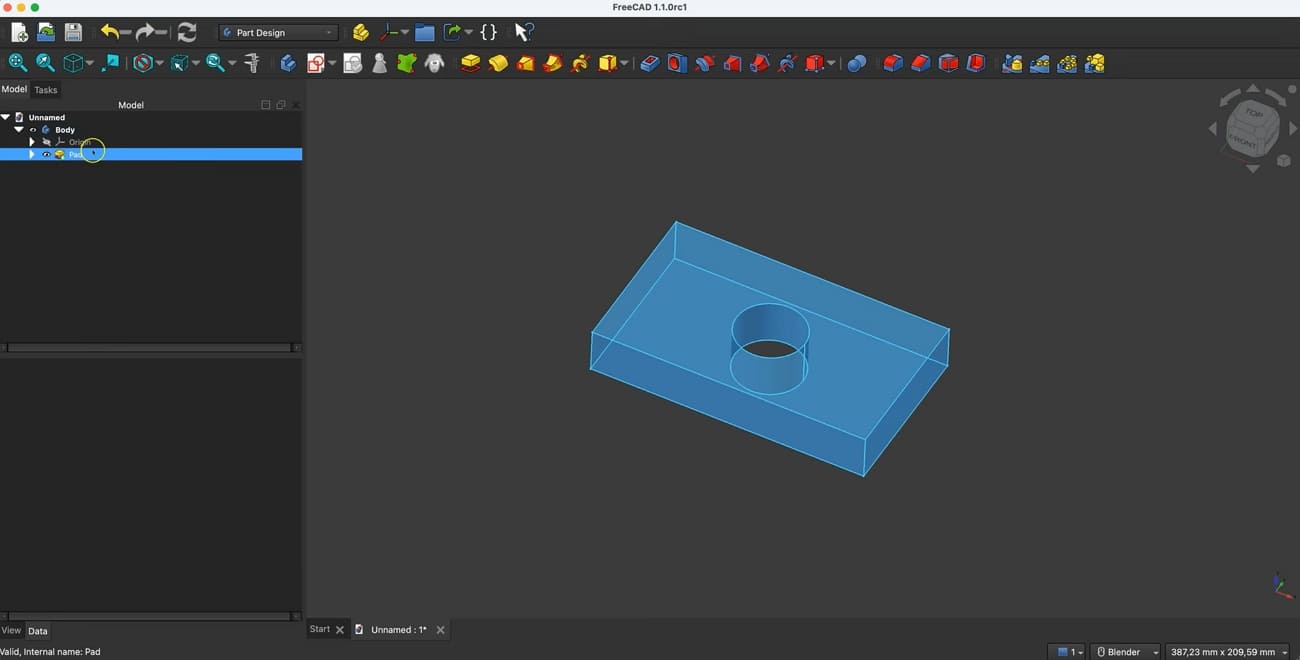
FreeCAD features a practical starting point for learners who require parametric 3D design for free. The platform is an open-source, cross-platform option, built for real object modelling. For students who want flexible CAD software with technical learning, it offers stronger long-term growth than many ultra-basic beginner tools.
Key Features
- Parametric modelling lets users revise dimensions later without rebuilding the full design.
- Its cross-platform support helps students use the same tool across Windows, macOS, and Linux.
- 2D drawing tools support technical documentation from existing 3D models more efficiently.
Pros and Cons
|
Pros |
Cons |
|
A large community of hobbyist engineers sharing models and examples. |
Interface can feel harder than simpler browser-based beginner tools. |
|
Strong parametric workflow supports technical and mechanical learning. |
Setup and workbench choices may confuse first-time users. |
Pricing Model
- Completely free to download and use across Windows, macOS, and Linux systems.
- No subscription plan, license fee, or upgrade payment is required.
- Open-source access allows long-term learning without usage restrictions for students.
- Community-built support and add-ons are available without extra cost.
2. Tinkercad
Best For: Young learners and students needing simple browser-based CAD for classrooms.
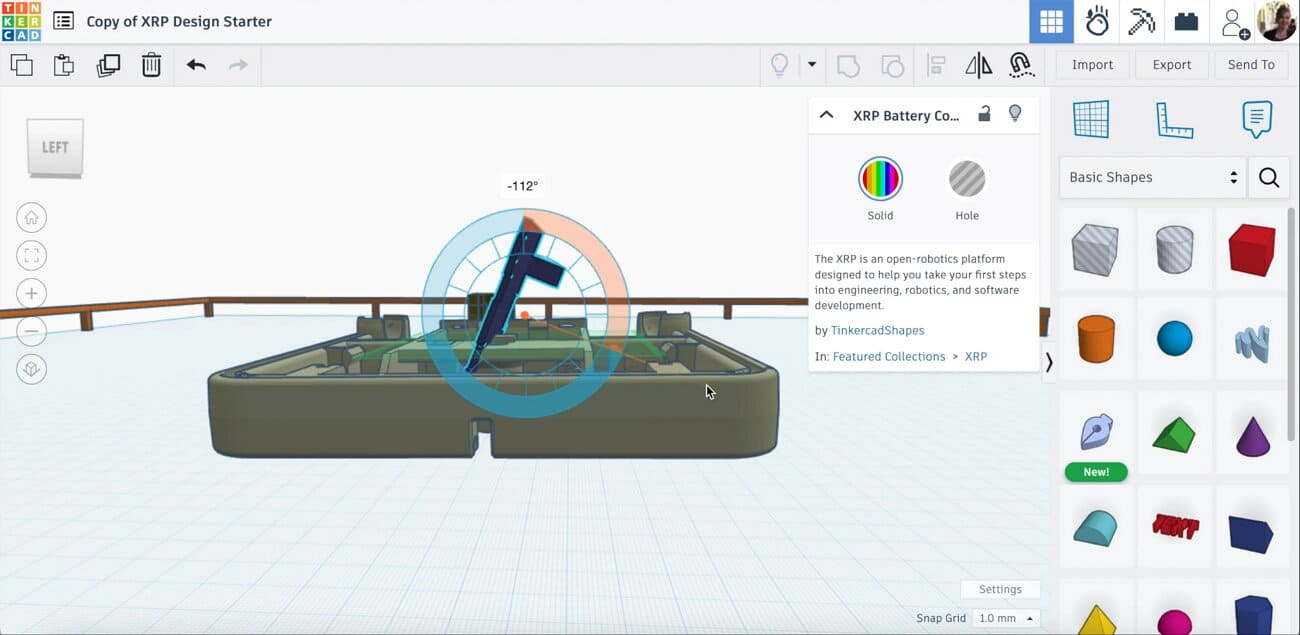
A browser-based setup makes this option especially useful for students who want quick access without installation. Tinkercad offers a simple workspace providing support for 3D design, electronics, and coding practice. Among various beginner-friendly CAD programs, this is one of the easiest options for classroom learning and first-time tasks.
Key Features
- Browser-based access removes installation barriers and works well on shared school computers.
- A simple 3D design workspace helps students understand shapes, spacing, and form quickly.
- Class code support makes it easier for schools to onboard students efficiently.
Pros and Cons
|
Pros |
Cons |
|
Very easy for first-time users and younger students. |
Too simple for advanced engineering-style CAD workflows. |
|
No installation required for quick classroom access. |
Limited export formats and precision tools are offered. |
Pricing Model
- Fully free web access supports 3D design, electronics, and coding practice.
- No paid installation or standard subscription is needed before starting.
- Personal accounts and classroom access both remain available at no charge.
- Students can begin browser-based learning without an entry-level payment plan.
3. Fusion 360
Best For: Students wanting professional CAD experience before entering engineering or industry.
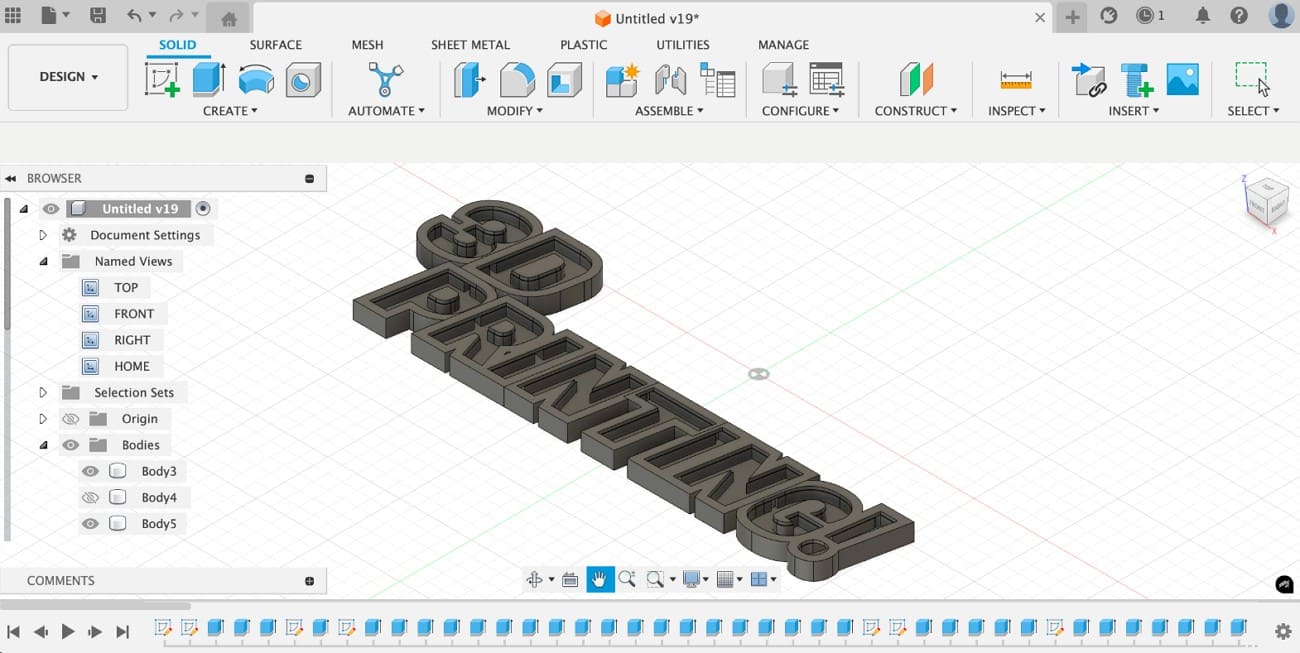
Fusion 360 offers a stronger learning path for students who want exposure to professional design workflows. Autodesk states that qualifying students and educators can get full-feature educational access, renewable annually, while eligible. For learners entering modern 3D CAD software environments, Fusion combines serious capability with a valuable student entry point.
>> Related: Blender vs Fusion 360: Full Comparison for Beginners
Key Features
- Educational access includes full features and functionality for qualifying students and educators.
- Integrated CAD, CAM, CAE, and PCB tools support broader product development workflows.
- Renewable annual student access supports longer academic learning without immediate subscription costs.
Pros and Cons
|
Pros |
Cons |
|
Professional-grade toolset prepares students for industry workflows. |
Learning curve is steeper than beginner-first tools. |
|
Free educational plan includes full functionality for eligible users. |
Free access depends on eligibility and renewal rules. |
Pricing Model
- Eligible students and educators receive free one-year educational access with full features.
- Annual renewal remains possible as long as eligibility requirements are met.
- A separate personal-use version is also available free for qualifying non-commercial users.
- Paid access is required for broader commercial use beyond those free terms.
4. LibreCAD
Best For: Beginners focused on precise 2D drafting on low-spec computers.
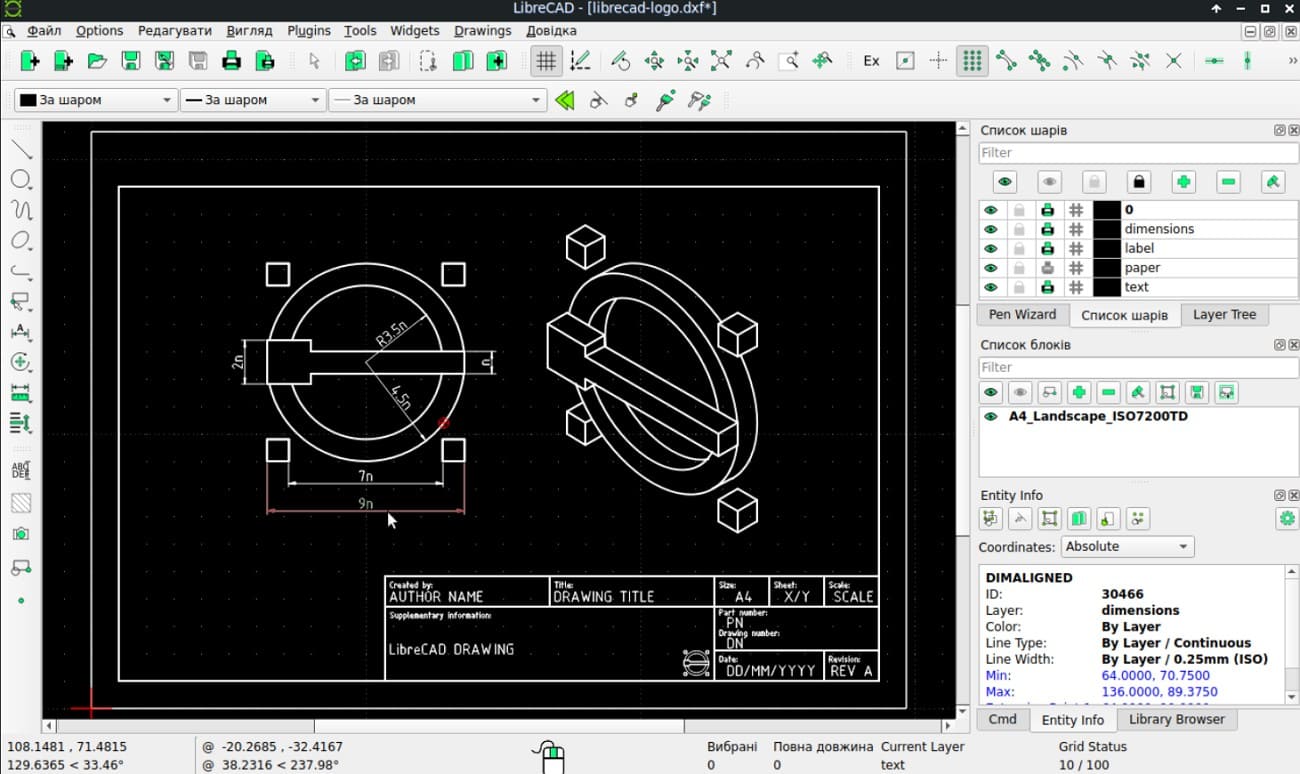
This is a lightweight drafting-focused setup, which is a smart choice for beginners who do not require full 3D modelling tools. LibreCAD is a free, open-source, cross-platform 2D design solution supported by community documentation. Users searching for CAD software free of heavy system demands should consider this as a practical option.
Key Features
- Focus on precise 2D drafting through clean tools for lines, arcs, and dimensions.
- Run smoothly on low-end computers without demanding heavy graphics performance.
- Export technical drawings in common formats for easier sharing and project use.
Pros and Cons
|
Pros |
Cons |
|
Completely free access makes it easier for students to practice without budget pressure. |
Not suitable for full 3D modelling workflows. |
|
A simple tool layout helps beginners learn technical drawing commands more comfortably. |
Lacks a built-in 3D path to grow into, so you may need to switch tools. |
Pricing Model
- Completely free access is available for Windows, macOS, and Linux users.
- No license purchase or recurring subscription is required for drafting use.
- Open-source availability supports long-term student use without payment barriers.
- Documentation and community support are also provided free of charge.
5. OpenSCAD
Best For: Code-minded learners creating repeatable 3D models through script-based design.
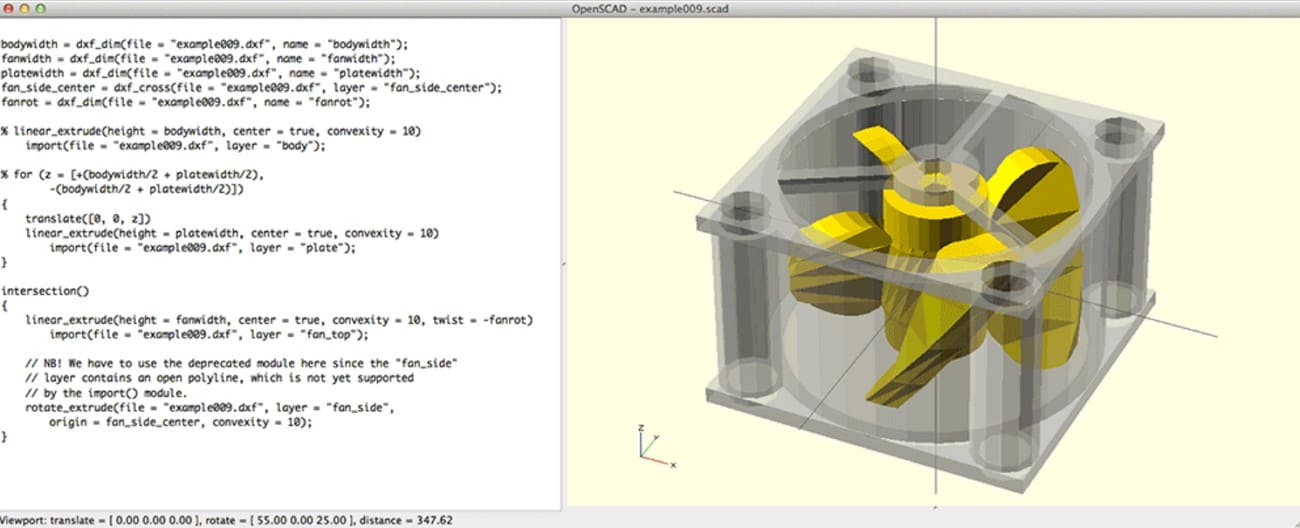
OpenSCAD is designed for users who prefer logic-driven modelling over mouse-based shape editing. Its official site describes it as software for creating solid 3D CAD objects, with free availability across Linux, Windows, and macOS. In any discussion of the best free CAD program for code-minded learners, OpenSCAD deserves serious attention.
Key Features
- Text-based modelling makes geometry inherently parameterized and easier to adapt later.
- Reuse script-based designs easily for repeatable parts and structured model variations.
- Built-in documentation, tutorial resources, and cheat sheets support self-paced learning.
Pros and Cons
|
Pros |
Cons |
|
Excellent for repeatable, parameter-driven technical model creation. |
Less intuitive for users who prefer a visual drag-and-drop design. |
|
Free and open-source across major desktop platforms. |
The coding approach can feel difficult for absolute beginners. |
Pricing Model
- Free software access is available for Linux, Windows, and macOS platforms.
- No subscription model or paid beginner tier is required before use.
- Long-term learning and project practice remain available without licensing costs.
- Official downloads, documentation, and learning resources are accessible at no charge.
6. SketchUp Free
Best For: Architecture students exploring space, interiors, and concepts through simple web modelling.
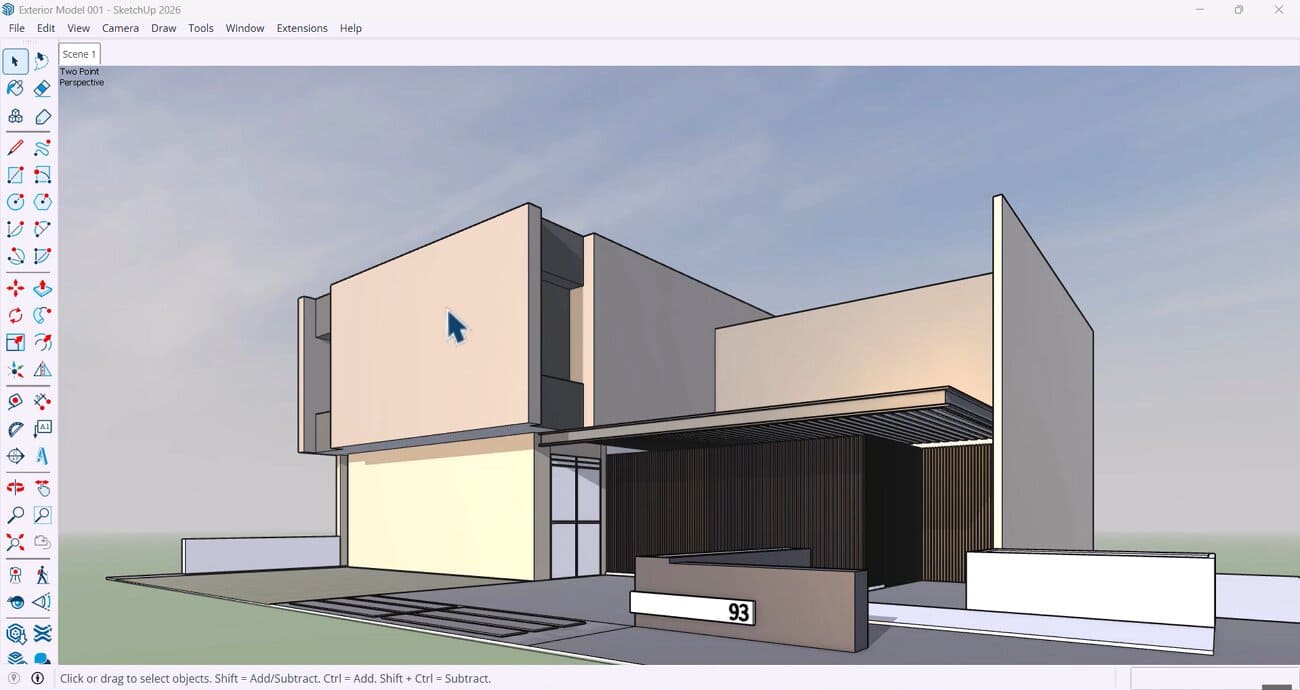
Quick visual modelling matters more when students need to explore space, layout, and form without a steep learning curve. SketchUp Free keeps the process simple while still supporting concept development and online access. For learners comparing free 3D CAD software, it offers an easy path for architecture and interior design practice.
Key Features
- Web-based modelling lets users create and edit projects without downloading software.
- Online project access helps students keep designs available across different devices.
- Strong architectural ecosystem supports designers, builders, and interior-focused visual workflows.
Pros and Cons
|
Pros |
Cons |
|
Very approachable for architecture and interior concept modelling. |
The free version is less suitable for detailed engineering workflows. |
|
Browser access keeps setup simple for students. |
Advanced professional features require paid plans. |
Pricing Model
- Free browser-based access lets users start modelling without downloading software first.
- The entry plan is available at no cost for web-based use.
- Paid upgrades unlock broader tools and more advanced professional features.
- Users can start free, then move to subscription plans only when needed.
Pro Tip. How to Render CAD Models Without Expensive Hardware
Once you’ve created models across tools like FreeCAD or Fusion 360, rendering becomes the next challenge. When using low-end student laptops, the practical way to handle this is through a cloud render farm. Instead of relying on local machines, upload the project to remote render services built for heavy workloads.
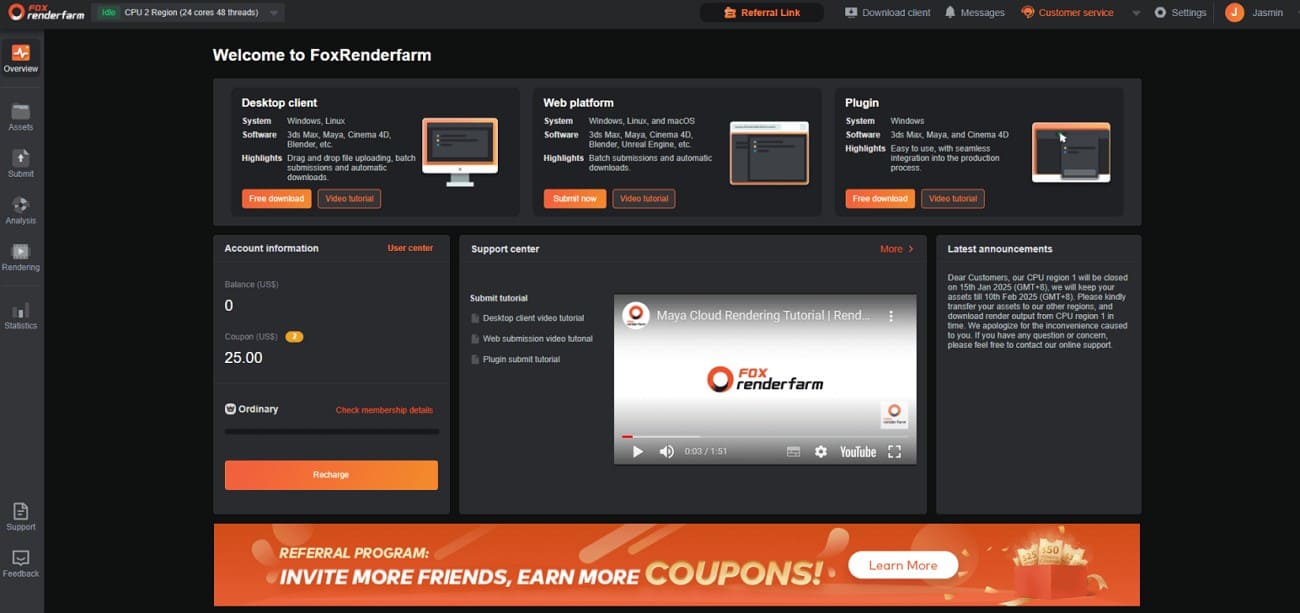
Fox Renderfarm helps solve this through CPU and GPU cloud rendering for demanding visual projects. It also offers thousands of render nodes, fast file transfer, broad software support, job tracking, and 24/7 assistance. For users working with CAD programs, this makes complex models and presentation visuals easier to render. It also reduces the need to invest in an expensive local workstation.
Key Features
- Includes high-speed SSD storage that minimizes I/O bottlenecks for handling complex and large-scale rendering projects.
- Supports Windows, macOS, and Linux with 99.99% uptime, ensuring consistent and uninterrupted rendering performance.
- Offers API integration to streamline workflows and automate tasks across large-scale production pipelines efficiently.
- Enables both CPU and GPU rendering, providing flexibility to optimize performance based on project requirements.
- Delivers stable cloud infrastructure that ensures reliable rendering during urgent academic deadlines and critical presentation schedules.
FAQs about Free CAD Software
1. Which free CAD software is closest to AutoCAD?
LibreCAD is often the closest option for users who mainly want 2D drafting. If you are looking for a tool that feels more technical and structured, FreeCAD is also worth trying. The right answer depends on whether your focus is drafting or modelling. Many learners comparing CAD software choices start with LibreCAD for 2D practice.
2. Is Blender considered CAD software?
Blender is mainly a 3D creation and animation tool, not a traditional CAD platform. It is excellent for artistic modelling, but it is not the first choice for dimension-driven technical drafting. Some users still combine it with the free CAD program options for visualization after modelling. So, it depends on whether you need design precision or artistic freedom.
3. Can I use free CAD software for professional projects?
Yes, options like FreeCAD, LibreCAD, and OpenSCAD support serious work depending on project scope and workflow expectations. Commercial work still requires extensive tools that come under licensed CAD software. Regardless, smaller professional projects are still doable across a free CAD program.
4. What free CAD software works best on low-end computers?
Tinkercad offers the easiest choices as it runs across the browser and avoids heavy installation. LibreCAD is also a better option for lightweight 2D drafting. If your device is struggling with demanding software, these are safer options to go with.
Conclusion
Free CAD software for students and beginners makes it easier to start learning 2D drafting and 3D modeling without a large upfront cost. The right tool depends on your goals, skill level, and preferred workflow, whether you are working in a browser or using more advanced desktop software.
As your projects become more complex, especially when working with detailed 3D models or rendering tasks, additional computing power may be required. In such cases, cloud rendering services like Fox Renderfarm can help process rendering efficiently without relying on high-end local hardware.