What Is Cinebench? CPU and GPU Benchmark Guide
 Ryan Thompson
Many users upgrade their PC but still don’t clearly know how strong their hardware really is. This is why tools like Cinebench are widely used. So, what is Cinebench exactly? Cinebench is a popular benchmarking tool that measures CPU and GPU performance by rendering realistic 3D scenes.
Through the Cinebench benchmark, you can test CPU single-core and multi-core performance, check GPU rendering speed, and compare your results with other systems. If you are wondering how to use Cinebench or whether Cinebench tests the GPU, this guide will walk you through how it works, its key features, and how to read Cinebench scores in real-world scenarios.

Part 1. What is Cinebench?
Cinebench is a free tool from Maxon that tests CPU and GPU performance using Redshift, Cinema 4D's default rendering engine. It provides a score that makes it easy to compare PCs and processors. Above all, Cinebench uses real tasks, not fake tests, so results feel practical. Reviewers, hardware makers, IT teams, and tech users rely on it to compare systems, check stability, and choose better hardware.
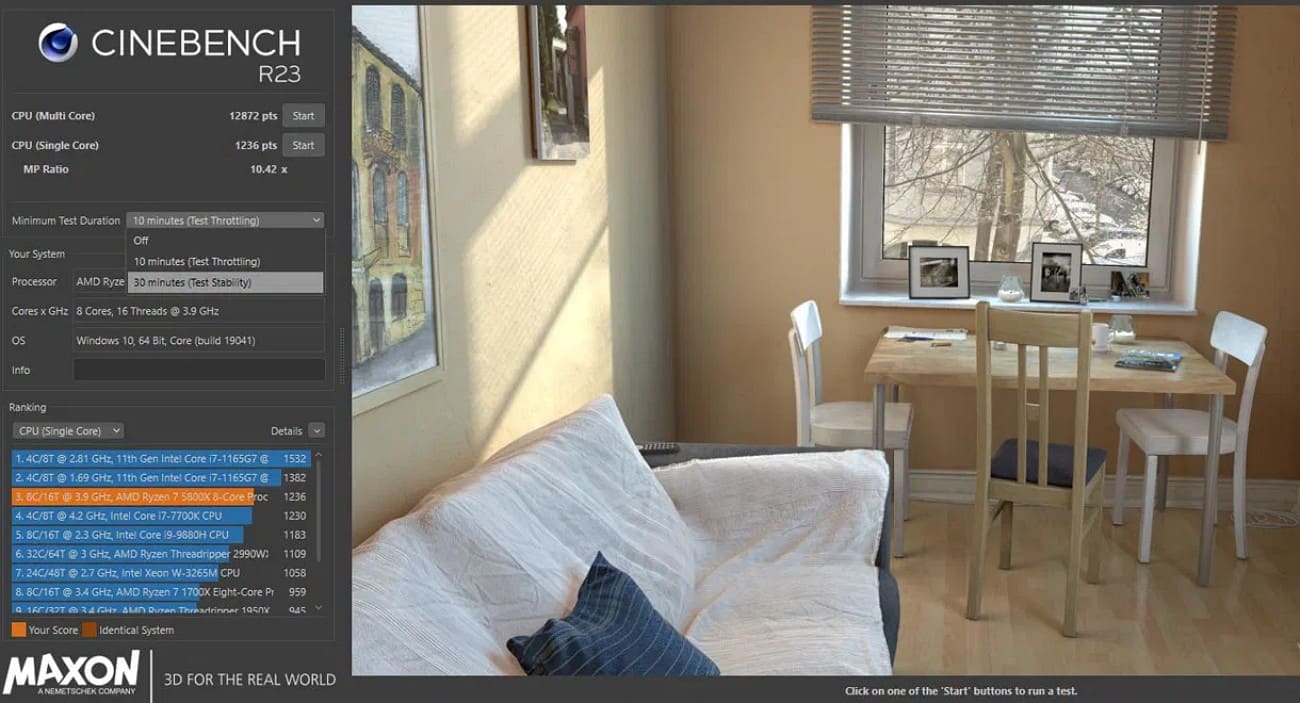
Key Features
Before you know how to use Cinebench, adhere to some of its key aspects and determine if it is worth considering:
1. Real-World Render Tests and Compatibility: Cinebench is compatible with the architecture of x86/64 (Intel/AMD) on Windows and macOS, and involves the use of real 3D scenes of Cinema 4D and Redshift. Therefore, this demonstrates real system power rather than bogus scores, and extends to Apple Silicon on macOS and Arm64 CPUs on Windows.
2. CPU and GPU Benchmark: Since the tool ensures compatibility with the latest advancements in hardware technology, the new versions test both CPU and GPU speed. They also show single-core and multi-core CPU scores and streamline the benchmarking by using consistent scene files for CPU and GPU testing. After extracting the results/score, users can compare them with other famous CPUs in the Ranking section.
3. Free and Simple Use: The tool is free to download and easy to run, and you can start tests and see scores fast. Most importantly, the tool has a simplified interface that renders the benchmarking process user-friendly to every user, particularly the novices. In the Your System tab, one can also see system details like Processor, GPU, Operating System, etc.
4. Hardware Stress and Stability Check: Repeat test runs help show how heat builds over time and also reveal speed drops and cooler limits. Thus, this helps users adjust fan curves and power settings for better system balance.
How to Download Cinebench?
From the Official Site
To download Cinebench, go to Maxon’s Cinebench official site and choose the latest version by selecting the “Download Cinebench (Version)” menu. After that, download the installer, run it, and follow the on-screen instructions to start the benchmark.

From App Store
- On Windows, older versions, such as Cinebench R23, are available in the Microsoft Store.
- On macOS, download from Maxon or, if available, from the Mac App Store.
Part 2. How Does Cinebench Work?
Cinebench renders a complex 3D scene and measures how fast your CPU or GPU completes it, giving a numeric score. So, if you want to learn how to use Cinebench, review the listed working and understand how it works first in detail:
Testing Principles
To make the test closer to reality, Cinebench employs the Cinema 4D and Redshift engines to display a detailed scene, 3D with lights, textures, and reflections. The scene is divided into tiles, and each tile is executed by a CPU thread or a GPU core here. The test makes full use of all the hardware in a few minutes.
New versions run for at least 10 minutes to let the processor reach a steady temperature and full speed. Thus, this also helps show if the system gets too hot or has stability problems, giving a clear view of real performance.
Scoring Criteria
The key score in Cinebench is the amount of time that the CPU or the graphics card took to complete the 3D scene. Therefore, the faster the number of tiles is completed, the higher the score. The score mostly shows the amount of work that the hardware can process per unit of time, but long tests may show limits on heat or power consumption, which can reduce the score.
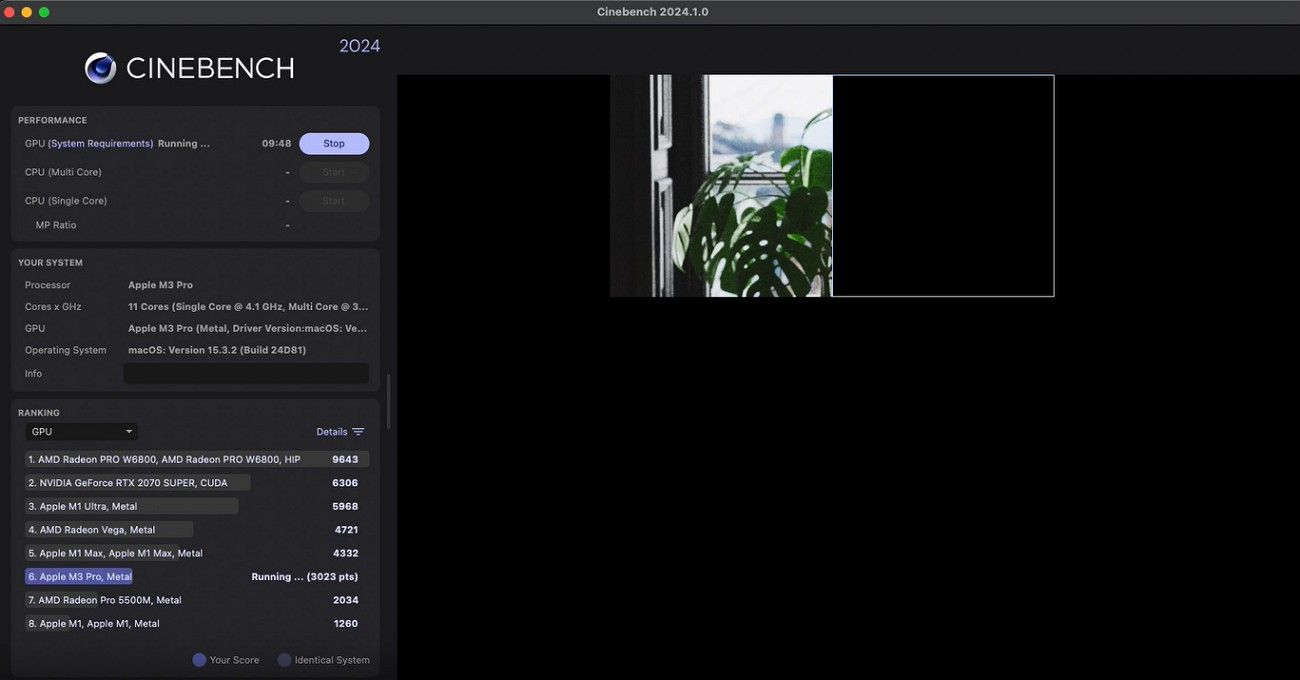
Additionally, scores from different versions, such as R15, R20, R23, 2024, or 2026, cannot be directly compared. This is because each version uses a different scene, engine, and set of optimizations, so each generation has its own scale.
Single-Core Vs Multi-Core Vs GPU
To further uncover the working of the Cinebench CPU benchmark, review the difference between single-core vs multi-core, and GPU:
|
Aspect |
Single-Core CPU |
Multi-Core CPU |
GPU (Redshift) |
|
What It Uses |
One CPU core/thread |
All available CPU cores/threads |
Graphics card (GPU compute units) |
|
Main Purpose |
Measure per-core speed and efficiency |
Measure total parallel CPU rendering 1performance |
Measure GPU rendering and compute performance |
|
Typical Workloads Mapped |
Lightly threaded apps, UI responsiveness, and many games |
3D rendering, video encoding, heavy multitasking, and simulations |
GPU-accelerated 3D rendering, some creative/pro workloads |
|
How The Scene Is Rendered |
Same scene, but restricted to a single thread |
Scene is split into many tiles, each tile on a different thread |
Scene rendered via GPU shaders/cores using the Redshift engine |
|
Score Interpretation |
Higher = Faster single-thread performance |
Higher = Greater total CPU throughput under full load |
Higher = Faster GPU rendering and better GPU throughput |
|
Bottlenecks Revealed |
Weak core design or low boost clocks |
Poor scaling, low core count, thermal/power limits |
Weak GPU, low VRAM bandwidth, or imbalance vs strong CPU |
Part 3. How to Use Cinebench for CPU/GPU Benchmark?
Now that you have gathered detailed information and accessed Cinebnet.com, let’s learn how you can use Cinebench for benchmarking:
Prerequisites:
- Close browsers, games, and apps so the CPU and GPU are free.
- Update drivers and OS, ensure normal cooling and plugged-in power.
- Let the PC idle for a minute to finish background tasks.
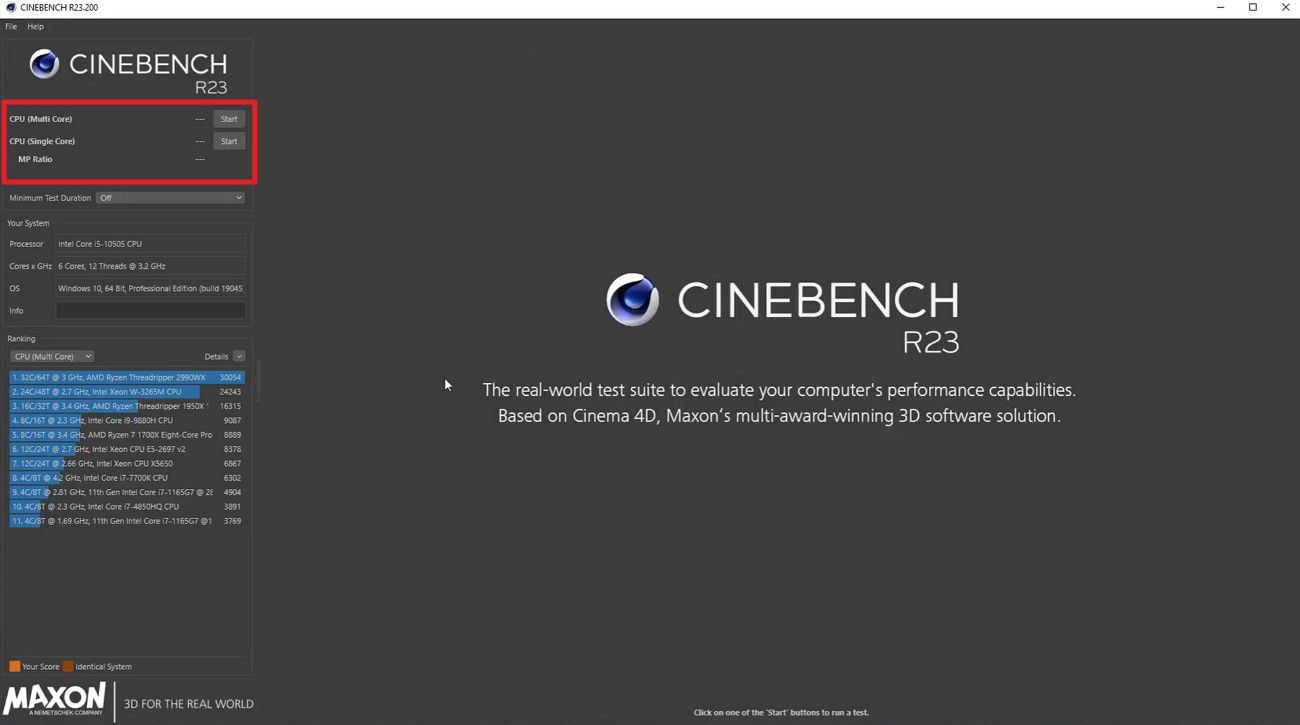
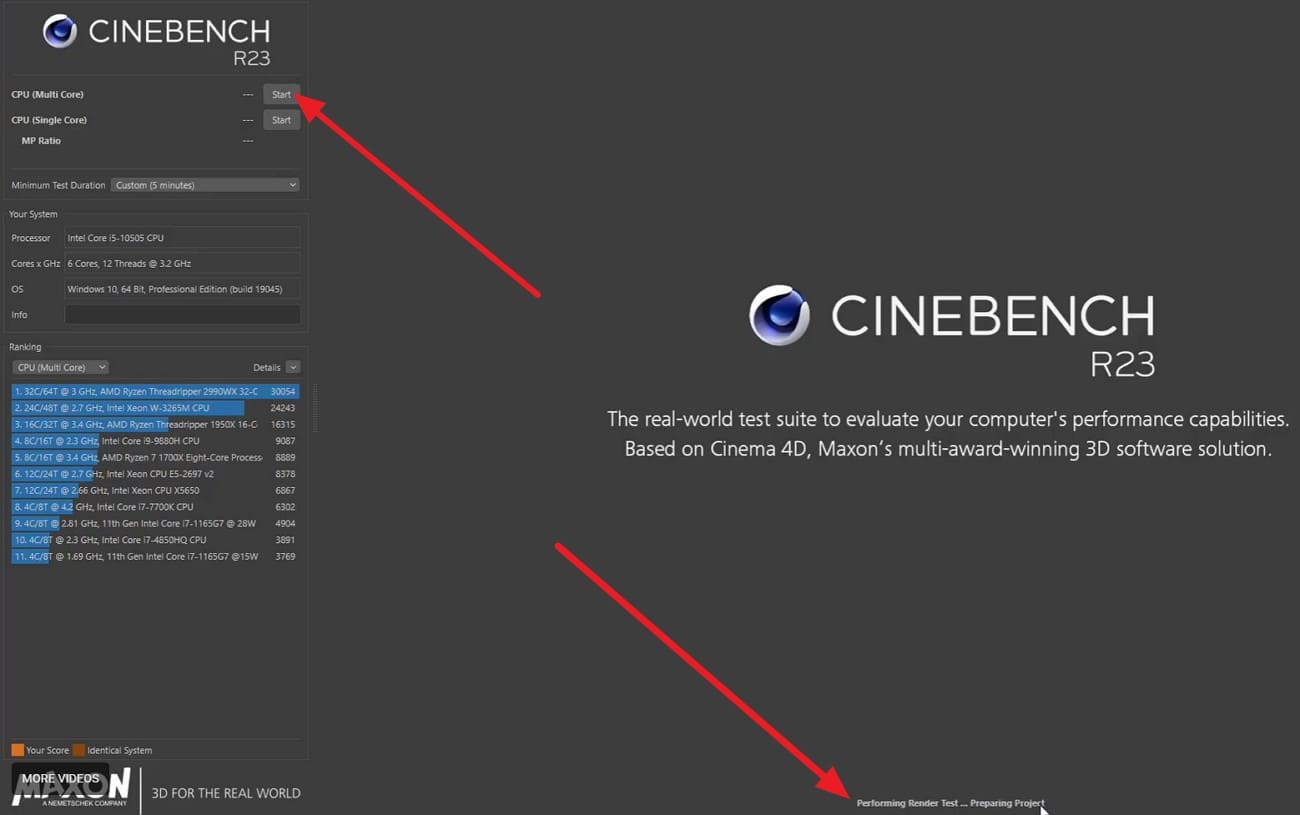
Step 1: Launch Cinebench and run the CPU (Multi Score) test to test all cores and threads, and the CPU (Single Core) test to test one core performance. Once you determine which one to use, press the “Start” button in front of the given option.
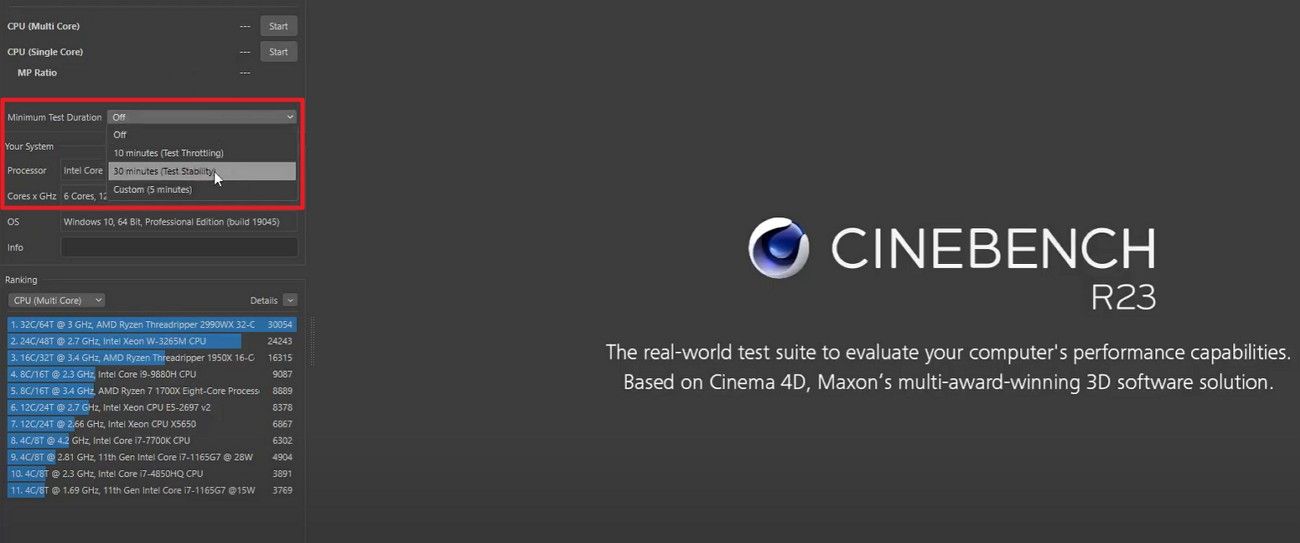
Step 2: Before that, go to the “Files” menu and choose the “Advance Benchmark” option. Then, expand the “Minimum Test Duration” menu and select the benchmarking time.
Step 3: Since the Multi-Core test is faster, press the “Start” button and get the “Performing Render Test...” alert at the bottom.
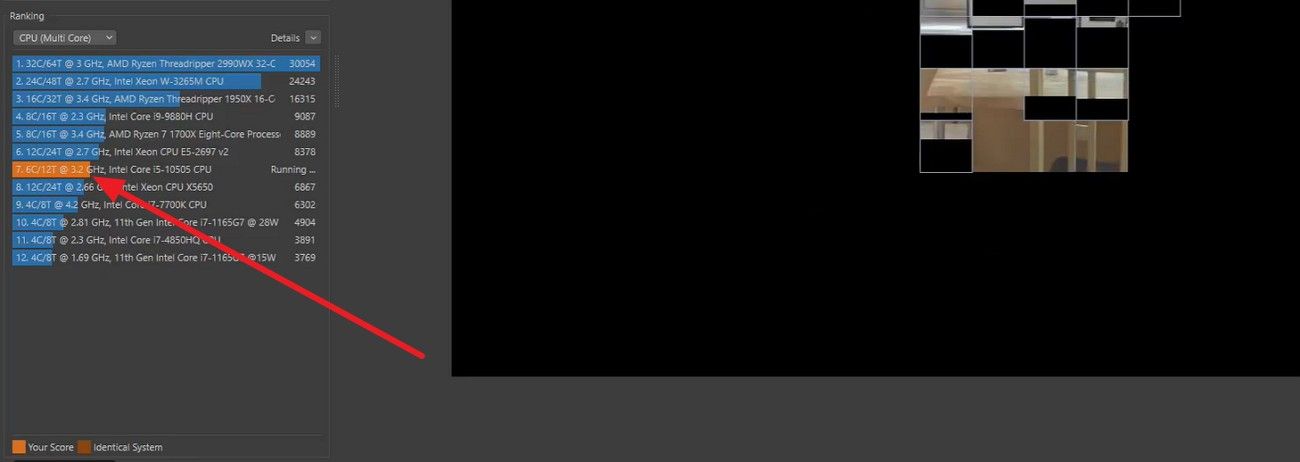
Step 4: Once the process continues, choose to “Stop” it or monitor its progress in the “Ranking” section, labelled in “Orange/Blue.” When it finishes, note your score in the ranking list on the right.
Tips: What If Cinebench Scores Too Low?
Before testing, check system cooling, power settings, BIOS options like XMP or power limits, and driver versions, because these can change Cinebench scores. If your Cinebench scores show that local hardware is a bottleneck for heavy scenes or final-quality renders, offloading those jobs to a cloud render farm like Fox Renderfarm can be a practical option. It allows you to submit large rendering tasks to remote CPU and GPU nodes while you keep working locally in tools such as Cinema 4D, Maya, Blender, or more.

Part 4. Cinebench 2026 vs 2024 vs R23
Cinebench versions use different engines and scenes, so scores aren’t comparable. So, as you get the answer to “Does Cinebench test GPU?” Review the listed table and learn the core differences in these versions:
|
Feature / Aspect |
Cinebench R23 |
Cinebench 2024 |
Cinebench 2026 (Latest) |
|
Render Engine |
Cinema 4D CPU renderer |
Redshift (earlier version) |
Latest Redshift engine, harsher workload |
|
CPU Tests |
Single‑core, multi‑core CPU |
Single‑threaded and multi‑threaded CPU |
Single‑thread, single‑core (SMT), multi‑core CPU |
|
GPU Test |
No GPU benchmark; CPU only |
Adds GPU benchmark via Redshift |
Updated GPU test, more realistic & heavier load |
|
Workload Intensity |
Long CPU run (min ~10 min) for stability |
Heavier, modern Redshift scenes |
Up to ~6× tougher multi‑thread load vs 2024 |
|
Platform Support |
Windows, macOS; support for Intel & Apple M-series |
Windows & macOS; Redshift‑capable hardware |
Windows x86 64, Windows ARM64, macOS; supports the latest Apple M series, Nvidia Blackwell, AMD 9000, and data center GPUs |
|
SMT / Hyper‑thread Insight |
Only indirect via single vs multi‑core |
Basic CPU scaling view |
Dedicated SMT‑enabled CPU test to see SMT gains |
|
Score Comparability |
R23 scores are only comparable within R23 |
Not comparable to R23 or 2026 |
Not comparable to 2024 or R23; new range and engine |
|
Best Use Case |
Simple CPU‑only comparison & stability checks |
Early Redshift‑based CPU+GPU checks |
Most accurate for modern CPU+GPU and future‑proof hardware testing |
Part 5. Troubleshooting Common Issues
Many users face problems with Cinebench, such as not running, crashing, or getting low scores. So, if you have faced any such issue while using it, here are some causes and fixes you can consider:
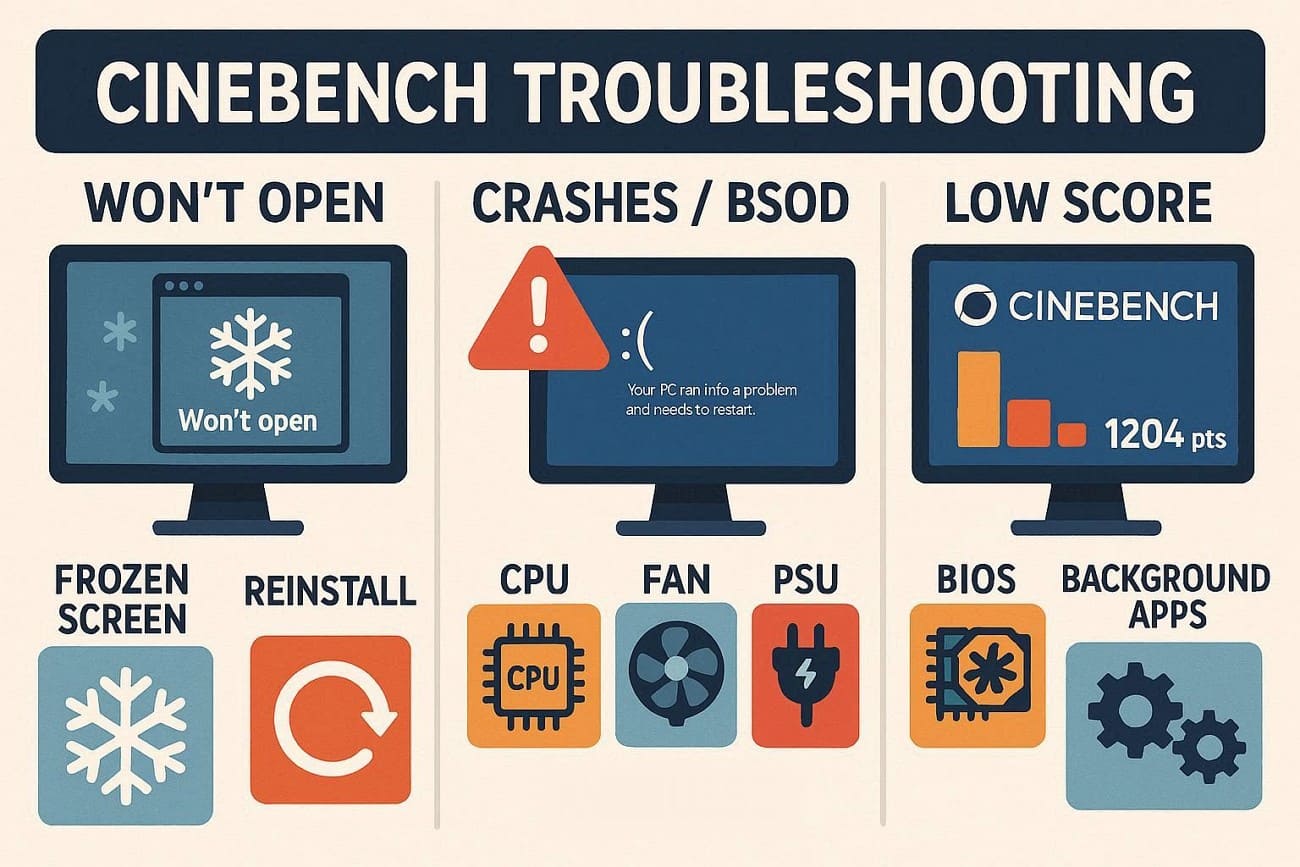
Cinebench Won’t Open or Shows an Error
- Check OS and Drivers: Cinebench 2026 has problems on some Windows 10 systems and certain AMD GPU drivers. Therefore, as you update the driver or move to Windows 11, it will fix this issue.
- “Broken Files” or Certificate Errors: If a broken or corrupt file error appears, reinstall Cinebench and add the latest Maxon certificate as shown in their support notes.
Crashes, Blue Screens, or Shutdowns
- Undo Overclocking: Problems under Cinebench load often go away as you rest the CPU or RAM, or turn off strong PBO or voltage tweaks in the BIOS.
- Check Cooling and Power: High heat or weak power supplies can cause reboots or BSODs during heavy multi-core tests. Therefore, it is suggested to reseat the cooler, check fan settings, and if needed, test with a good PSU.
Scores are Lower Than They Should Be
- BIOS and OS Settings: Incorrect power plans, outdated BIOS, wrong core settings, or missing chipset and GPU drivers often cause very low Cinebench scores. So, update the BIOS, install all chipset and GPU drivers, set the correct power plan, and check core settings in BIOS.
- Hidden Bottlenecks: Background apps, overlays, capture tools, GPU utilities, bad thermal readings, or faulty motherboards can slow the CPU/GPU and lower scores until the problem is fixed.
Part 6. What is a Good Cinebench Score for Maya, Blender, and C4D?
Know that Maya, Blender, and C4D use multi-core CPUs for rendering and physics, and GPUs for viewport and modern engine performance. Therefore, as per the Benchmark Database, scores in Cinebench 2026 are about three times higher than those in 2024 because the scoring system was recalibrated. To know what an ideal score for Maya, Blender, and C4D should be, adhere to the given table:
|
Tier |
Cinebench 2024 (CPU Multi) |
Cinebench 2026 (CPU Multi) |
Typical Hardware (2025-2026) |
|
Entry Level |
800 – 1,200 |
2,400 – 3,600 |
Ryzen 7 7800X3D / Intel i7-13700K |
|
Mid-Range |
1,500 – 2,500 |
4,500 – 7,500 |
Ryzen 9 9900X / Intel Core Ultra 9 285K |
|
High-End |
3,000 – 5,000 |
9,000 – 15,000 |
Ryzen 9 9950X / Threadripper 7000 Series |
|
Workstation |
8,000+ |
24,000+ |
Threadripper 9980X (64-core) / Dual Epyc |
Part 7. FAQs of Cinebench Benchmark
1. Is the Cinebench benchmark free?
Yes, Cinebench is completely free for everyone to download and use on any system. It lets users test CPU and GPU speed without cost or extra software requirements.
2. Which version of Cinebench is best?
The latest version, Cinebench 2026, provides the most accurate results for modern CPUs and GPUs. Older versions exist, but they do not accurately reflect current hardware performance or features.
3. What is a good Cinebench score?
A good score depends on your processor type and the number of cores or speed. Hence, Single-core below 1,000 is entry-level, 1,000 – 1,800 is decent, and above 1,800 is high-end. However, Multi-core below 10,000 is basic, 10,000 – 20,000 is good, and above 20,000 is excellent performance.
Conclusion
To wrap up, this guide has explained what Cinebench is and how its key aspects make benchmarking seamless. To determine if it's worth using, a detailed Cinebench guide for CPU and GPU benchmarking is shared with you, with fixes if you face any issues.
If your local hardware becomes a bottleneck for heavy or final production renders, using a cloud render farm such as Fox Renderfarm can be a practical way to offload rendering workloads and save local system time.