
 Blender
 Cinema 4D
 Arnold
 3ds Max
 Houdini
 V-Ray
V-Ray Maya
Maya Unreal Engine
 Nuke
Nuke5 Best Rendering Workstations for 3D and Animation
 Ryan Thompson
Choosing a rendering workstation depends on more than CPU core count or GPU model. The right system needs enough memory for your scenes, sufficient GPU VRAM for your renderer, and room to expand as projects become more demanding.
This guide compares 5 rendering workstations from Dell, HP, and Lenovo for different 3D workflows and budgets. It covers the hardware that matters, the trade-offs to consider, and when a local workstation may no longer be enough for your rendering workload.
What Is a Rendering Workstation?
A rendering workstation is a desktop computer designed for demanding creative and technical workloads. For 3D artists, this can include modeling, animation, simulation, lighting, rendering, compositing, and visual effects.
Compared with a typical office PC, a workstation can offer higher-end processors, professional graphics options, ECC memory, more storage, and greater expansion capacity. These features help when working with complex scenes, large assets, high-resolution textures, and long production sessions.
However, there is no single best configuration for every artist. CPU renderers such as Arnold CPU and V-Ray CPU benefit from strong multi-core performance. GPU renderers such as Redshift and OctaneRender depend heavily on GPU performance and available VRAM. Animation and VFX workflows may need both, especially when simulations and final rendering run on the same machine.
The best rendering workstation is the one that matches your renderer, scene complexity, and daily workload without paying for capacity you rarely use.
What to Look for in a Rendering Workstation
Before comparing models, focus on five hardware factors.
1. CPU: Core Count and Per-Core Performance
CPU rendering benefits from multiple cores, but core count is not the only consideration. Modeling, animation playback, scene preparation, and some simulation tasks can depend more on per-core performance.
If you render mainly with the CPU, prioritize a processor with enough cores for your renderer and enough memory bandwidth for large scenes. If you spend most of your day modeling and rendering with a GPU, a balanced CPU may offer better value than the highest-core-count option.
2. GPU: Rendering Speed and VRAM
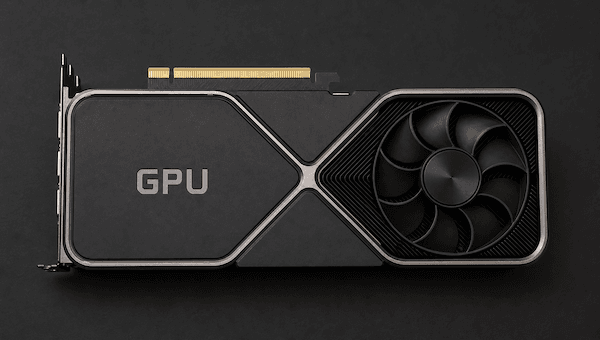
For GPU rendering, check the renderer's supported hardware and the memory required by your scenes. A powerful GPU can still be a poor fit if its VRAM cannot hold the scene and its rendering data.
Professional GPUs may offer larger memory capacities and workstation-oriented drivers. Consumer GPUs can also deliver strong rendering performance, so compare actual benchmarks, compatibility, VRAM, and total system cost before choosing.
3. RAM: Capacity Matters for Complex Scenes
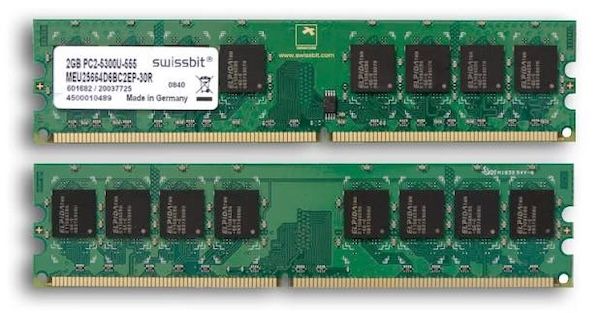
Insufficient memory can slow down a workflow or prevent a scene from rendering. Smaller projects may run comfortably with 32GB or 64GB, while large simulations, detailed environments, heavy geometry, and complex VFX scenes may need 128GB or more.
ECC memory is available on many professional workstation platforms. It can detect and correct certain memory errors, which is useful in some professional environments, but it does not automatically make every workstation faster.
4. Storage: Separate Active Projects from Archives
A fast NVMe SSD helps with application loading, project files, caches, and large assets. Consider at least 1TB for an active workstation if your budget allows, then add storage according to the size of your asset library and project archive.
Simulation caches and image sequences can consume space quickly. A workstation used for animation or VFX should have a clear plan for project storage, backup, and transfer.
5. Expansion, Cooling, and Power
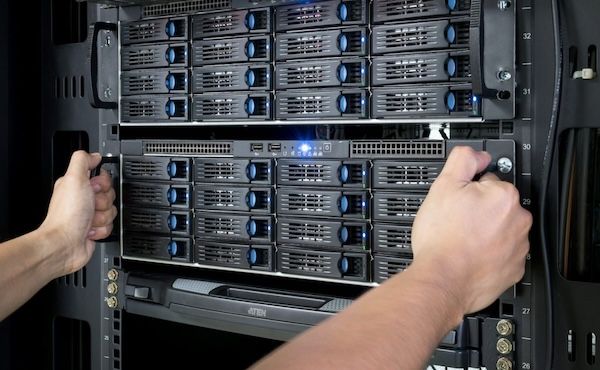
Check how many GPUs the chassis supports, how much memory it can accommodate, and whether the power supply and cooling system can handle your intended configuration. A workstation that supports multiple GPUs on paper may still require careful configuration to fit the cards, power limits, and airflow requirements.
Also check software compatibility and vendor support. If the workstation is used in a studio pipeline, stability and serviceability may matter as much as peak performance.
Best Rendering Workstations for 3D and Animation
The following picks serve different needs rather than representing a universal performance ranking. Configurations and prices vary by region, and the cost of a workstation can change substantially when you upgrade its CPU, GPU, memory, or storage.
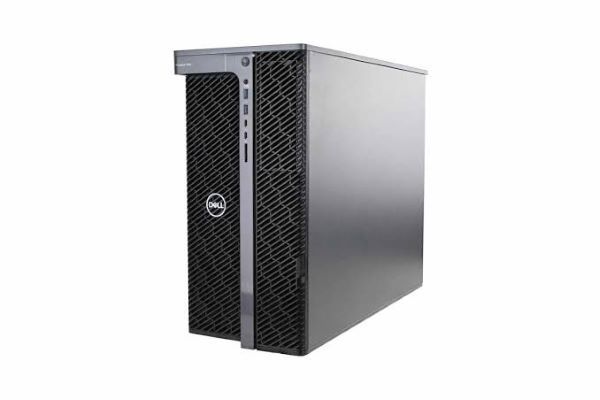
1. Best Overall Rendering Workstation: Dell Precision 7960 Tower
Best suited for: Professional 3D artists and studios that need a highly scalable workstation for mixed CPU and GPU workloads.
The Dell Precision 7960 Tower is a strong all-round option because it supports a broad range of Intel Xeon W-3400 series processors and multi-GPU graphics configurations. Dell lists processor options ranging from mid-tier models to high-core-count flagship CPUs, along with graphics options that include professional NVIDIA RTX professional cards and selected consumer configurations.
That range makes the 7960 more flexible than a workstation built around one fixed configuration. A studio can choose a CPU with more cores for CPU rendering, or allocate more of its budget to GPU capability for a GPU-based workflow. It is also worth considering if you expect your workload to change over the life of the machine.
Why Choose It
- Wide CPU and GPU configuration options.
- Suitable for mixed creative workloads rather than one narrow task.
- A workstation platform to consider when expansion and service support matter.
What to Consider
The base configuration is not necessarily suitable for 3D rendering. Dell's listed starting configuration may include an entry-level GPU, limited memory, and a modest SSD. Budget for the components your renderer actually needs rather than judging the machine by its entry price.
For GPU rendering, compare the cost of the selected professional or consumer GPU, including VRAM. For CPU rendering, consider whether the additional cost of a higher-core-count processor will reduce enough render time to justify the upgrade.
Verdict: Choose the Dell Precision 7960 Tower if you want a configurable professional workstation that can be tailored to different rendering workloads. It is not automatically the fastest option for every renderer, so compare the final configuration rather than the model name alone.
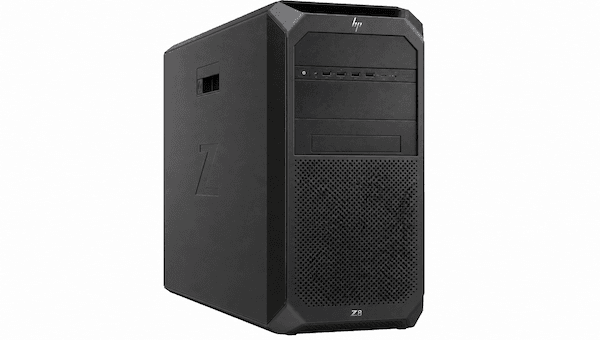
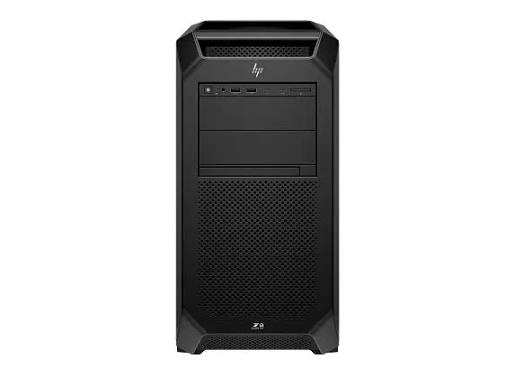
2. Best Rendering Workstation for GPU Rendering: HP Z8 Fury G5
Best suited for: GPU rendering, real-time ray tracing, high-resolution visualization, and GPU-intensive VFX workflows.
The HP Z8 Fury G5 is designed for workloads that benefit from high-end graphics and substantial expansion capacity. HP lists support for up to four high-end NVIDIA RTX professional GPUs (such as the RTX 6000 Ada Generation), up to 2TB of DDR5 ECC registered memory, and massive internal storage options, depending on configuration.
That ceiling makes the Z8 Fury G5 worth considering for studios running large GPU workloads or planning to expand beyond a single graphics card. It can also accommodate demanding production workflows that combine rendering with simulation, compositing, or other memory-intensive tasks.
Why Choose It
- Supports up to four high-end professional GPUs.
- High memory capacity for large scenes and demanding production tasks.
- Substantial storage and PCIe expansion options.
What to Consider
Multi-GPU capability is valuable only if your renderer and workflow can use it effectively. GPU scaling varies by application, scene, and configuration. Adding GPUs also increases the system's power, cooling, and purchase-cost requirements.
VRAM should be part of the decision. The amount of GPU memory available to a scene can be more important than the number of GPUs if your projects contain large textures, dense geometry, or other memory-heavy data.
Public Blender Open Data results provide one useful reference point for comparing GPU devices. In the database, professional workstation GPUs have reported competitive median scores in compute-type device views. However, these are device-level results collected from different systems and submissions, not a controlled comparison of complete workstations. The result should not be treated as proof that every multi-GPU configuration will outperform every single-card system.
Verdict: The HP Z8 Fury G5 is a high-end choice when GPU capacity, memory, and expansion are central to your work. For a single-GPU artist, a less expensive workstation with one well-matched GPU may offer better value.
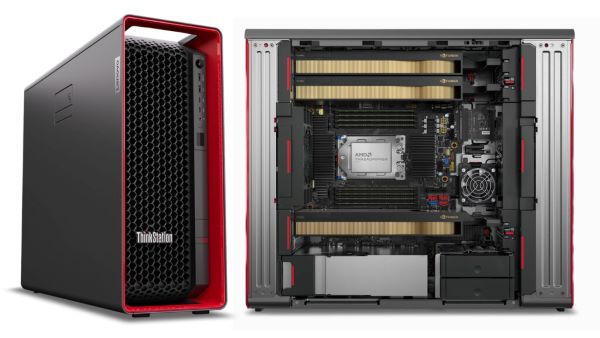
3. Best Workstation for CPU Rendering: Lenovo ThinkStation P8
Best suited for: CPU-based rendering, multi-threaded workloads, and professional projects that need high memory capacity.
The Lenovo ThinkStation P8 uses AMD Ryzen Threadripper PRO 7000WX processors, offering up to 96 cores. Lenovo lists support for massive amounts of DDR5 8-channel memory and multiple high-end NVIDIA RTX professional GPUs.
Its high-performance CPU platform makes it an exceptional candidate for workloads that scale across multiple processor cores. That includes CPU rendering with compatible engines, as well as complex simulation and computational tasks. The high memory ceiling also helps when scenes or caches exceed the capacity of mainstream desktop systems.
Why Choose It
- AMD Ryzen Threadripper PRO options with up to 96 cores.
- Massive DDR5 8-channel memory support for large projects.
- Can also be configured with professional GPUs for hybrid workloads.
What to Consider
A workstation with more CPU cores is not guaranteed to render every scene faster. Performance depends on the renderer, software version, scene, memory configuration, and processor behavior under sustained load.
Before paying for a high-core-count CPU, test a representative scene if possible. Record the render time using the same settings and compare it with a more affordable configuration. For GPU rendering, the P8 may also be suitable, but its high-core CPU positioning does not make it automatically better than a workstation selected around GPU capacity.
Lenovo's official specifications establish the supported configurations, but they do not provide a single universal render-time figure for all supported applications. For that reason, the P8 is recommended here for its CPU and memory options rather than an unsupported claim that it is the fastest CPU rendering workstation.
Verdict: Consider the Lenovo ThinkStation P8 if your renderer scales well across CPU cores and your projects need a professional platform with substantial memory capacity. Choose the processor based on measured performance in your actual software, not core count alone.
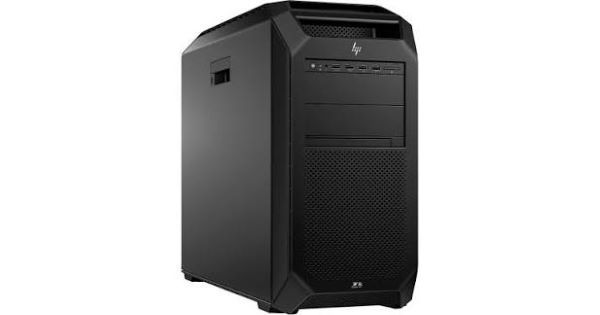
4. Best Workstation for 3D Animation and VFX: HP Z4 G5
Best suited for: Animation production, modeling, look development, compositing, and mixed 3D workflows in a professional desktop environment.
The HP Z4 G5 provides a more accessible entry into HP's current workstation range than the flagship Z8 Fury. HP lists the Z4 G5 with support for Intel Xeon W-2400 series workstation processors, professional graphics options, and configurations aimed at demanding creative and technical workloads. Its official desktop workstation page lists competitive starting price points, although the final price depends on the selected configuration and current availability.
For animation and VFX, the important question is how the machine will be used across the production pipeline. Artists may spend time editing scenes, preparing assets, adjusting materials, running simulations, rendering previews, and compositing output. A balanced configuration can be more useful than an expensive component that only accelerates one part of the workflow.
Why Choose It
- A professional workstation option for mixed 3D and VFX work.
- Professional graphics configurations are available.
- A potential fit for teams that need workstation-class hardware without starting with the largest multi-GPU system.
What to Consider
Animation and VFX cover a wide range of workloads. A character artist working mainly in a viewport has different needs from a Houdini artist running large simulations or a lighting artist rendering complex frames.
For viewport-heavy work, prioritize a suitable GPU, CPU responsiveness, and enough memory for your scenes. For simulation-heavy work, assess CPU performance and RAM capacity. For GPU rendering, choose the graphics card and VRAM around your renderer's requirements.
The Z4 G5 should not be treated as a direct replacement for a fully configured dual-socket or multi-GPU system in every scenario. If you expect to use multiple high-end GPUs or need very large memory capacity, compare the platform's supported expansion against your long-term requirements before buying.
Verdict: The HP Z4 G5 is worth evaluating for professional animation and VFX workflows that need a configurable workstation but do not require the highest possible multi-GPU capacity. Choose the final configuration around your main software and the most demanding stage of your pipeline.
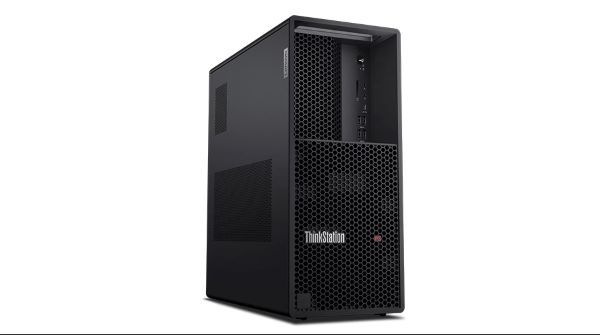
5. Best Mid-Range Rendering Workstation: Lenovo ThinkStation P3 Tower
Best suited for: Independent 3D artists, small studios, and users who need a capable desktop workstation without moving to a dual- or multi-GPU system.
The Lenovo ThinkStation P3 Tower is a more budget-conscious option within the workstation category. Lenovo's specifications list Intel Core processor configurations, support for high-capacity memory on supported models, and discrete professional or consumer graphics options that vary by configuration.
This platform can make sense for artists who spend most of their time modeling, animating, preparing scenes, and producing previews. It can also be configured for GPU rendering, but the graphics card selected at purchase will have a major impact on rendering capability.
Why Choose It
- A more approachable workstation platform for smaller teams and independent artists.
- Processor and graphics configurations to match different budgets.
- High memory capacity support on supported configurations.
What to Consider
Do not assume that a workstation's base configuration is ready for demanding 3D rendering. Some listed configurations include entry-level graphics or no discrete GPU, so check the exact model and selected components.
If GPU rendering is your main workload, compare the price of a P3 Tower configured with a suitable GPU against a more powerful workstation or a custom-built desktop. If your work includes large simulations or CPU rendering, verify that the selected processor and memory configuration meet your needs.
Expansion also matters. A tower workstation can be a practical choice, but the supported GPU, power supply, memory type, and available slots vary by configuration. Confirm these details before planning a future upgrade.
Verdict: The ThinkStation P3 Tower is a sensible starting point for artists who need a professional desktop platform but do not require the expansion capacity of a high-end multi-GPU workstation. The best value depends on the GPU and memory configuration you actually buy.
Rendering Workstation Comparison
|
Workstation |
Main strength |
CPU platform |
GPU and expansion focus |
Best fit |
|
Dell Precision 7960 Tower |
Configuration flexibility |
Intel Xeon W-3400 series |
Broad graphics options, including professional RTX |
Mixed CPU/GPU workloads |
|
HP Z8 Fury G5 |
High-end GPU capacity |
Intel Xeon W-3300/W-3400 series |
Up to four professional RTX GPUs |
GPU rendering and demanding VFX |
|
Lenovo ThinkStation P8 |
CPU and memory capacity |
AMD Threadripper PRO 7000WX |
Multi-GPU professional support |
CPU rendering and memory-heavy work |
|
HP Z4 G5 |
Professional mixed workloads |
Intel Xeon W-2400 series |
Professional graphics options |
Animation, 3D, and VFX |
|
Lenovo ThinkStation P3 Tower |
Lower-cost workstation entry |
Intel Core processor options |
Discrete graphics vary by configuration |
Independent artists and smaller teams |
Specifications describe supported configurations, not necessarily the base model available for purchase. Verify the exact SKU, local price, GPU, memory, storage, power supply, and expansion limits before ordering.
Recommended Workstation Specs for Different 3D Workflows
The following ranges are starting points, not universal minimum requirements. The right configuration depends on your software, renderer, scene size, and production schedule.
|
Workflow |
CPU |
GPU |
Memory |
What to prioritize |
|
Modeling and animation |
Strong per-core performance and a balanced core count |
Mid-range or high-end GPU, depending on scene complexity |
32–64GB for many projects; more for large scenes |
Responsive viewport performance |
|
GPU rendering |
Balanced modern CPU |
High-performance GPU with enough VRAM for the scene |
64–128GB for demanding projects |
GPU performance, VRAM, and renderer compatibility |
|
CPU rendering |
High multi-core performance |
A suitable GPU for viewport work and other tasks |
64–256GB or more for large scenes |
CPU throughput and memory capacity |
|
Simulation-heavy VFX |
Strong multi-core CPU, depending on software |
GPU based on the simulation and viewport requirements |
128GB or more may be appropriate for large simulations |
RAM capacity, CPU behavior, and cache storage |
|
Architectural visualization |
Balanced CPU and GPU |
GPU with enough VRAM for large assets and textures |
64GB or more for complex projects |
Scene size, texture memory, and final output resolution |
These ranges are not substitutes for software-specific requirements. For example, two scenes created in the same application can have very different memory needs. A detailed interior with high-resolution textures may stress GPU memory, while a large simulation may place greater demands on system RAM and storage.
For a useful comparison, test your own representative scene. Keep the software version, render engine, output resolution, samples, and quality settings consistent. Record both render time and memory usage. This gives you a more reliable basis for choosing hardware than a specification sheet alone.
How to Choose the Right Rendering Workstation?
Use these questions to narrow down your options.
1. Which renderer do you use most?
Start with the renderer rather than the workstation brand. Check whether it renders on the CPU, GPU, or both, and review its supported GPUs and memory requirements. A system optimized for CPU rendering may not be the best use of your budget if nearly all your final frames run on the GPU.
2. What is the most demanding part of your workflow?
If the bottleneck is scene interaction, prioritize responsive CPU performance, a suitable GPU, and sufficient RAM. If final rendering dominates your schedule, estimate how much time a faster CPU or GPU would save. If simulation caches regularly fill your memory or storage, address those limits before buying more graphics power.
3. How large are your current and expected projects?
Consider polygon counts, texture resolution, simulation data, scene complexity, and the number of applications you run at once. Buy enough memory and storage for your real workload, with reasonable room for growth.
4. Will you upgrade the machine later?
Check the number of supported GPUs, memory slots, PCIe slots, storage options, and power supply. If you expect to upgrade, confirm that the chassis and power configuration support the intended components.
5. Does buying more hardware solve the actual bottleneck?
A workstation upgrade makes sense when it reduces a recurring bottleneck. But if your local machine handles modeling and previews comfortably while final rendering creates a queue, adding more local hardware may not be the only answer. Compare the cost of upgrading with the cost of using additional rendering capacity only when you need it.
Workstation vs. Cloud Render Farm
A local rendering workstation gives you direct control over your software environment and keeps modeling, scene setup, animation, look development, and previews close at hand. It is a practical everyday tool for artists and studios.
A render farm serves a different purpose: it provides additional rendering capacity when local hardware cannot finish a large workload quickly enough. This can be useful for animation sequences with hundreds or thousands of frames, tight delivery deadlines, or projects that create occasional peaks in rendering demand.
Fox Renderfarm is a cloud rendering service for 3D artists, animation studios, and VFX teams. It provides remote CPU and GPU computing resources to help render 3D scenes and animation frames without relying entirely on local hardware. Artists can use it for projects created with supported 3D applications, including Blender, Maya, 3ds Max, and Cinema 4D. Rather than purchasing additional workstations for occasional rendering peaks, you can use cloud rendering when a project needs more computing power.

A workstation and a cloud render farm serve different roles. Your workstation remains the main tool for interactive work, while Fox Renderfarm can provide additional rendering capacity when final-frame rendering becomes a bottleneck. This combination lets you keep working locally while larger rendering jobs run remotely.
Conclusion
The best rendering workstation depends on your renderer, scene complexity, and production needs. The Dell Precision 7960 Tower offers broad configuration flexibility, the HP Z8 Fury G5 targets demanding GPU workloads, and the Lenovo ThinkStation P8 provides high-core-count CPU options and substantial memory capacity. The HP Z4 G5 and Lenovo ThinkStation P3 Tower are worth evaluating for different professional and budget requirements.
Compare the exact configurations, not just the product names. If local rendering becomes the bottleneck after scene preparation is complete, cloud rendering can add capacity without requiring you to build every part of your pipeline around a larger workstation.
FAQs about Rendering Workstation
What is the best rendering workstation?
There is no single best rendering workstation for every workload. The Dell Precision 7960 Tower is a flexible option for mixed CPU and GPU work, while the HP Z8 Fury G5 is designed for configurations that need substantial GPU capacity. The Lenovo ThinkStation P8 is worth considering for CPU rendering and memory-intensive projects. Your renderer and actual scene requirements should determine the final choice.
How much RAM does a 3D rendering workstation need?
For many modeling and animation workflows, 32GB to 64GB is a reasonable starting point. Complex scenes, high-resolution textures, simulations, and VFX projects may require 128GB or more. Monitor memory use in your actual projects before deciding how much to buy.
Is a CPU or GPU more important for rendering?
It depends on the render engine. CPU renderers benefit from strong multi-core performance, while GPU renderers depend heavily on graphics performance and available VRAM. Some production pipelines use both. Check which hardware your renderer supports and benchmark a representative scene before upgrading.
Is a workstation GPU better than a gaming GPU for rendering?
Not automatically. Professional GPUs can offer larger VRAM capacities and workstation-oriented features, while high-end consumer GPUs can deliver strong rendering performance. Compare the specific GPU, supported software, memory capacity, benchmark results, and total system cost. The better choice depends on your renderer and production requirements.
Can I use a regular PC as a rendering workstation?
Yes. A well-configured desktop PC can handle 3D modeling and rendering effectively. The key factors are CPU performance, GPU capability, RAM, cooling, storage, and compatibility with your software. A professional workstation may offer more expansion options, ECC memory, or business-oriented support, but those features are not essential for every artist.
Is a cloud render farm better than buying a more powerful workstation?
A cloud render farm can be useful when you need more rendering capacity for a limited period or must finish a large frame sequence under a deadline. A local workstation remains useful for modeling, scene preparation, and previews. Compare the cost of additional hardware with your expected rendering demand, including how frequently you need the extra capacity.
How do I compare workstation rendering performance?
Use benchmarks that match your software and render engine. Blender Open Data, for example, provides public results for specific CPU and GPU devices. For a meaningful comparison, use the same software version, scene, settings, and output resolution where possible. Device-level scores should not be treated as direct measurements of complete workstation performance.



 Ryan Thompson