
 Blender
 Cinema 4D
 Arnold
 3ds Max
 Houdini
 V-Ray
 Maya
 Unreal Engine
 Nuke
 Pricing
 New User Bonus
 Cost Estimator
 Christmas Sale


Recharge records
Overview
Every movement of money or coupon value produces one row, and the rows are kept in two ledgers:
- Balance recharge records — every change to the account balance: online payments, offline recharge, and transfers between the master account and its sub-accounts. Rows for money actually paid offer Download invoice.
- Coupon recharge records — every coupon that enters or leaves the account, whatever its source: campaign gifts, the reward for choosing your software at sign-up, redeemed codes, and transfers between the master account and its sub-accounts. Each row shows the coupon's value and expiry.
On a coupon row, Amount is the face value and Balance is what is still left to use.
Notes
- Two ledgers, two sets of columns. Money and coupons are recorded separately; a coupon recharge never shows up in the balance ledger.
- Transaction ID is the reference of a row. Quote it when you contact support about a payment.
- Current status is either Pay success or Pay failed. A failed payment does not change the balance.
- Download invoice appears only on records that actually took money. Transfers between accounts and failed payments have no document.
- A sub-account sees only its own records: the transfers it received from the master account, with no download action.
- A coupon becomes unusable at Expire time, and the remaining value is not refunded.
- Recharge itself starts from the Recharge button on the Profile account card; this page only records what already happened. Coupon movements shown here are also reflected in Coupon.
Before you start
-
Signed in, able to open User center → Recharge Records.
-
Knowing which kind of movement you are looking for — money in the balance ledger, or a coupon in the coupon ledger.
Steps
Open the ledger you need
-
Sign in and go to User center → Recharge Records.
-
Select the other tab, Coupon recharge records, to see coupon movements. The columns change with the tab.
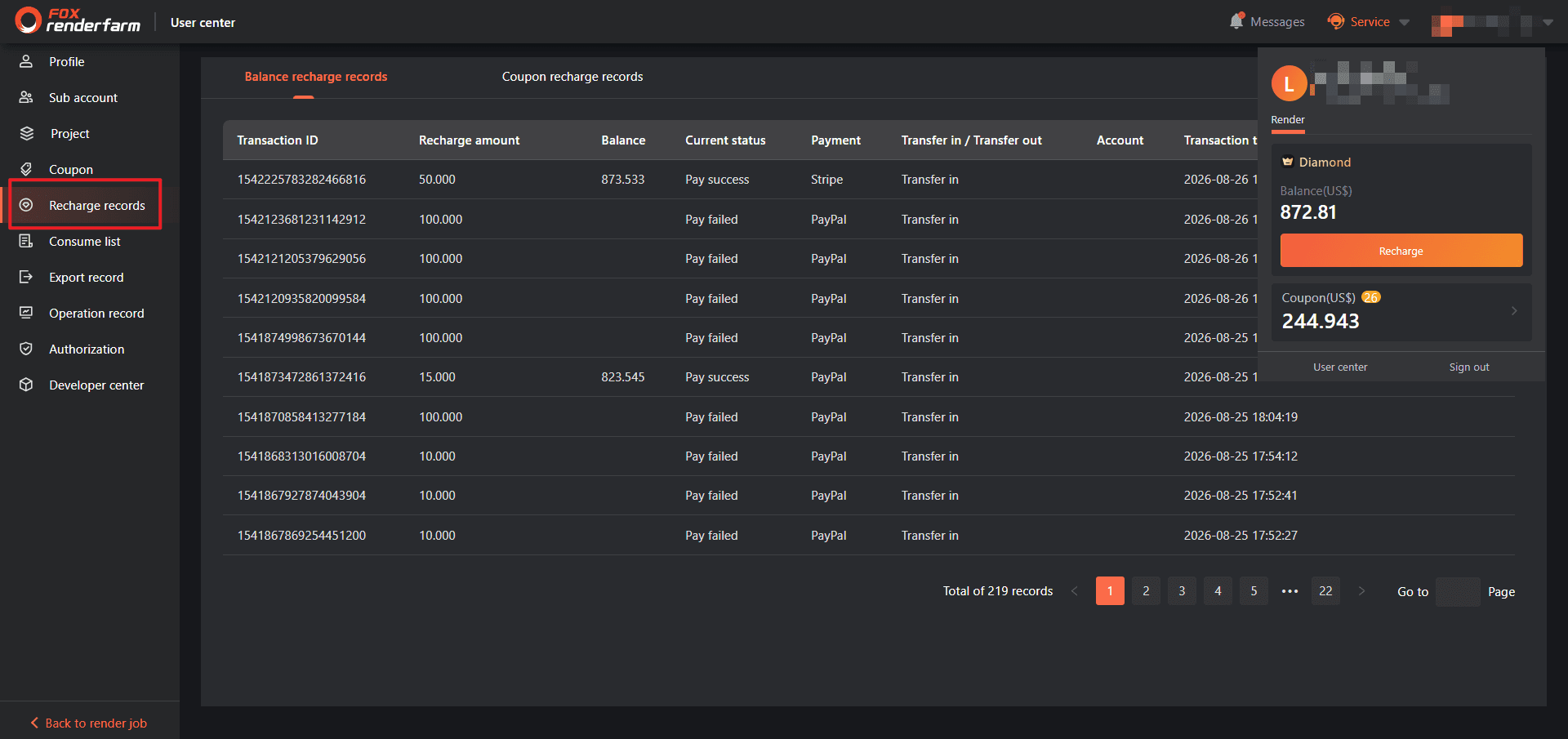
Download the invoice of a payment
-
In Balance recharge records, find a row whose Current status is Pay success and whose Payment is a real payment method such as PayPal or Stripe.
-
Select Download invoice in the Operate column.
-
The browser downloads a PDF generated from that record.
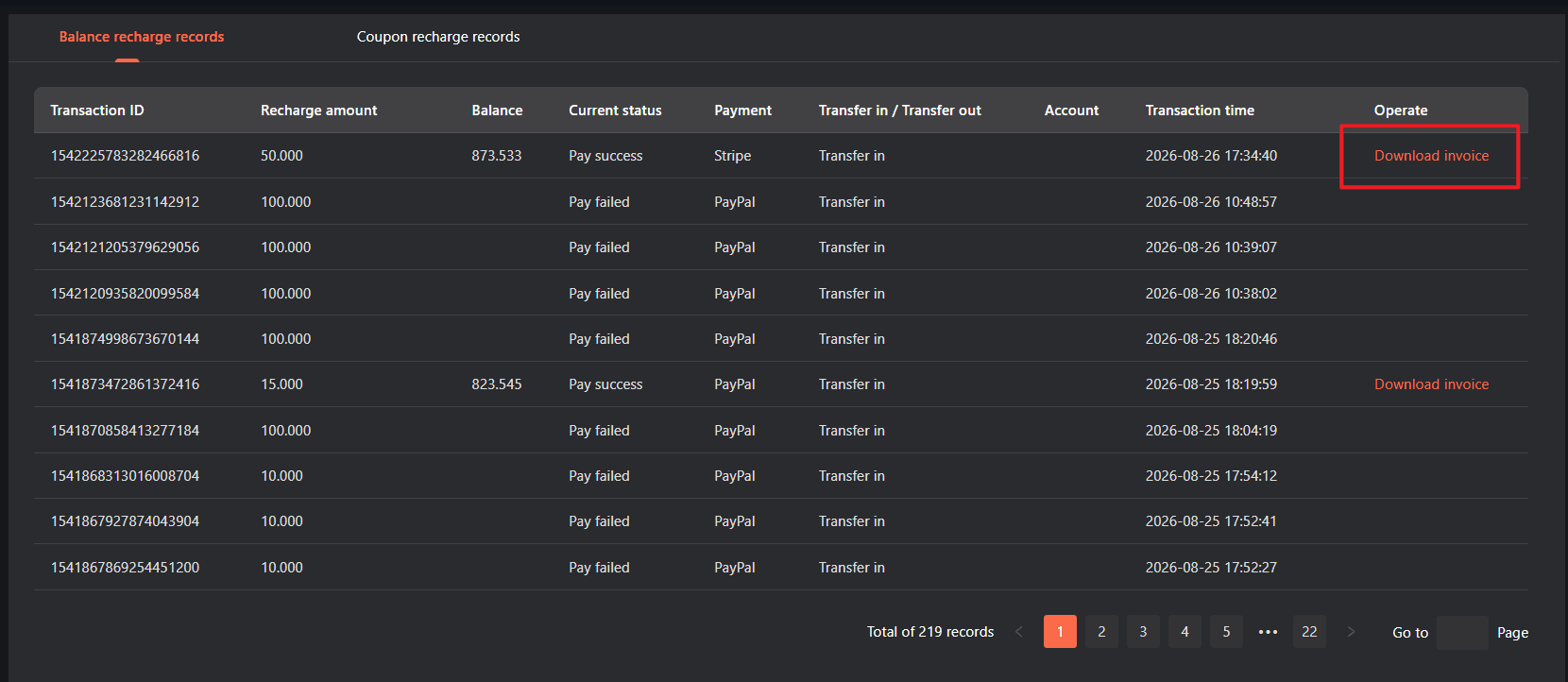
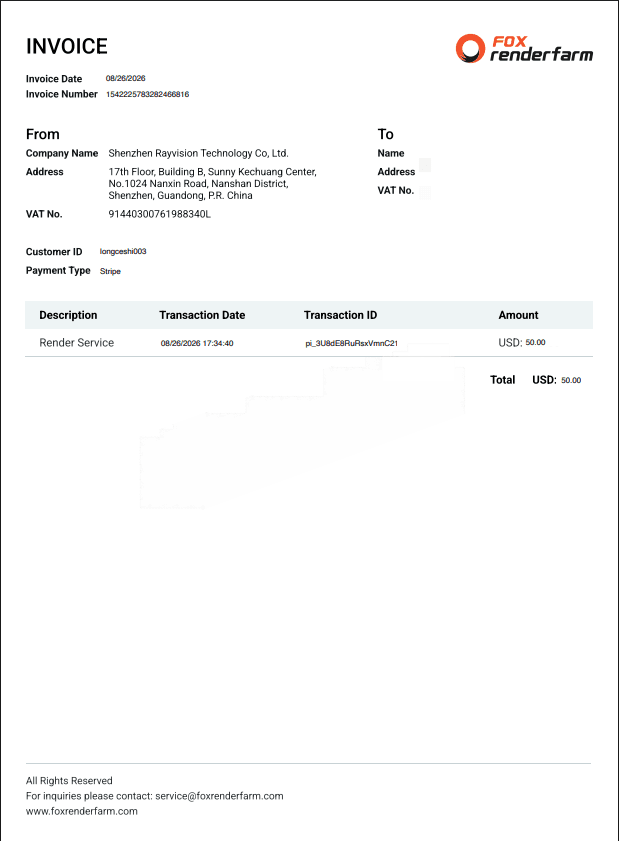
This PDF is the only invoice produced for a recharge. Rows without a real payment — transfers between accounts, failed payments — have no action because no money was received.
The company details on the invoice come from Profile → Invoice information. If they are out of date, correct them there and download again; see the next section.
Change the invoice company information
-
Open User center → Profile and find the Invoice information card at the bottom.
-
Select Modify, update the billing details — company name, address and VAT number — then confirm and save.
-
Go back to User center → Recharge Records, Balance recharge records, and select Download invoice on that payment again. The new PDF carries the updated details, with the same invoice number.
Invoices already downloaded stay as they are; download the record again to pick up the change.
FAQ
I paid, but the balance did not change.
Check Current status first: a Pay failed payment does not credit the account. If the row is a Transfer out, the money moved to another account under the same master account.
Why is there no Download invoice on a record?
The action exists only for records that actually took money. Transfers and failed payments show nothing in Operate.
What is the difference between the two ledgers?
Balance recharge records tracks money; Coupon recharge records tracks coupons, with their remaining value and expiry. A coupon never appears in the balance ledger.
The company details on my invoice are wrong. Can I fix them?
Yes. Update them in User center → Profile, Invoice information — Modify, save — then download the invoice from Recharge Records again. The new PDF uses the updated details.
Can a coupon be used after Expire time?
No. It becomes unusable and the remaining value is not refunded. Check Expire time before planning a job that depends on it.
Do sub-accounts have their own records?
They see the same page, but only their own rows: the transfers received from the master account, with no download action.
Where do I find my payment history?
User center → Recharge Records, the Balance recharge records tab. Every online payment, offline recharge and transfer is listed there, newest by time, ten rows per page.
Where can I download an invoice for a recharge?
In the same list: find the row with Current status Pay success and a real Payment method, then select Download invoice in the Operate column. The PDF is generated from that record.


