
 Blender
 Cinema 4D
 Arnold
 3ds Max
 Houdini
 V-Ray
 Maya
 Unreal Engine
 Nuke
 Pricing
 New User Bonus
 Cost Estimator
 Christmas Sale


Install the desktop client
Install the desktop client
Overview
The desktop client lets you submit render jobs straight from your own machine, with batch submission, drag-and-drop and automatic download of results. This page covers installing it on each system.
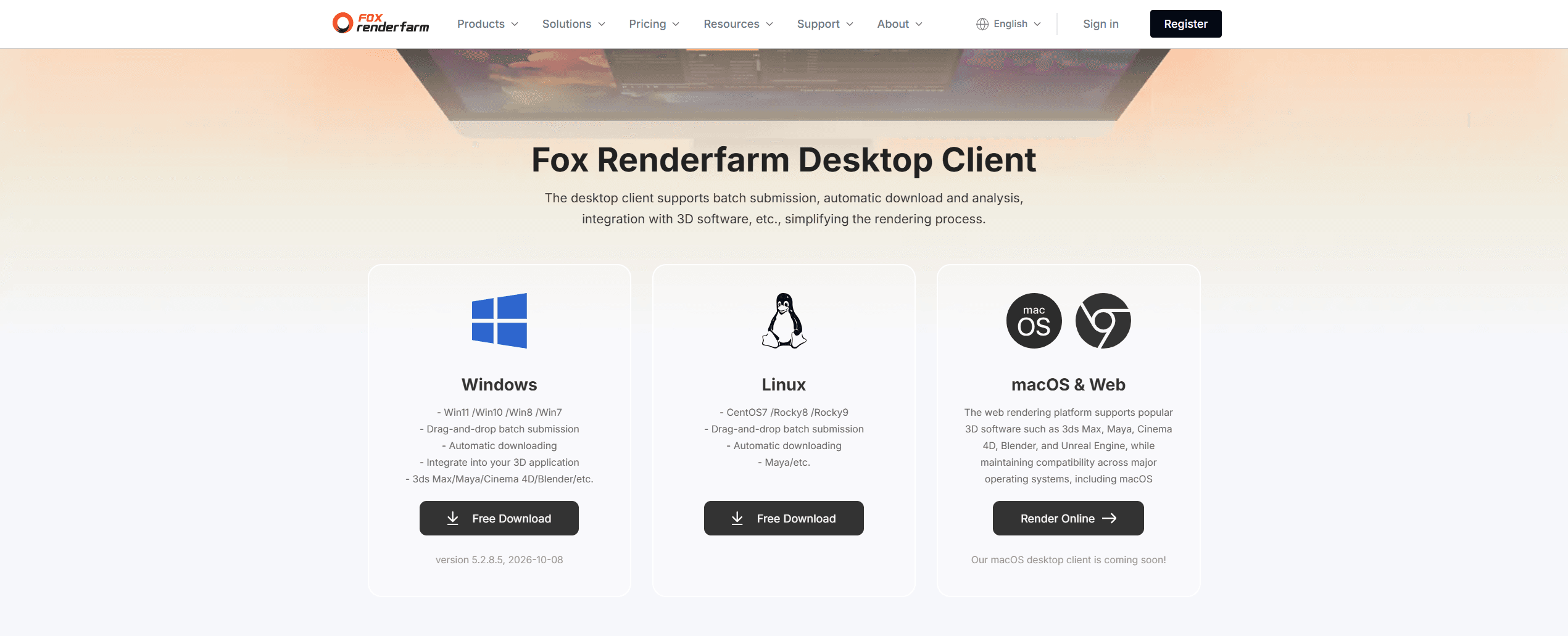
Note: there is no macOS desktop client yet — the download page marks it as coming soon. On macOS, use the web console instead: click Render Online on the macOS & Web card.
Supported platforms
|
Platform |
Supported systems |
|
Windows |
Win11 / Win10 / Win8 / Win7 |
|
Linux |
CentOS 7, Rocky 8/9, Ubuntu 18 |
Install on Windows
1、Open the download page and click Free Download on the Windows card. Wait for the download to finish.
2、Open the file you just downloaded and follow the installer — click through each step until it reports that the installation is complete.
When it finishes, open the client from its desktop icon and sign in with your website account.
Install on Linux
The Linux client comes in three builds. Pick the one that matches your system before installing.
1、On the download page, click Free Download on the Linux card. Three options unfold — choose by your system:
2、When the download finishes, open the folder it went to and open the package.
3、As on Windows, follow the installer — click through each step until it reports completion, then close the window.
Open the client and sign in with your website account.
FAQ
Is there a desktop client for macOS?
Not yet — the download page says coming soon. On macOS, use the web console and click Render Online.
Does the client need its own registration?
No. Sign in with the same account you use on the website.
Which Linux build should I choose?
Match your system: CentOS 7, Rocky 8/9 or Ubuntu 18.
Antivirus blocked the installer.
Windows flags it as an unknown publisher. Allow the file through, or ask IT to whitelist it, then run it again.


