
 Blender
 Cinema 4D
 Arnold
 3ds Max
 Houdini
 V-Ray
 Maya
 Unreal Engine
 Nuke
 Pricing
 New User Bonus
 Cost Estimator
 Christmas Sale


Intranet submission
If your studio runs on an intranet only and your machines cannot reach the Internet directly, you can still submit render jobs with the desktop client. Set up one Windows PC that can reach the Internet (called the Internet-connected PC below), run RayProxy on it, and point the client on each artist's machine at that PC. Signing in and submitting jobs then work the same way as usual.
Note: you do not need to open Internet access on every machine, and you do not need to look up the platform IP addresses listed in Network requirements.

How it works
|
Machine |
Internet access? |
What to do |
|
One Internet-connected PC (Windows) |
Required |
Run the RayProxy program |
|
Each artist's PC (intranet) |
Not required |
Install the desktop client, then configure the proxy and transfer engine |
The proxy program is installed on the Internet-connected PC only. No other machine needs it.
Step 1: Start the proxy service on the Internet-connected PC
1、Download the proxy package,Copy the proxy deployment package to the Internet-connected PC and double-click RayProxy.exe.

2、Click Start. There is no need to look up the platform IP addresses; leave the port at its default, or change it if that port is already in use.

3、If several IP addresses are detected, check which one is actually in use: open cmd, run ipconfig/all, and find the active IPv4 address. For example, if three IPs are detected, the interface may show 169.254.233.30 by default — that address is not necessarily reachable, so replace it with one that is. If you are not sure, ask your company's IT team.
Step 2: Configure the client proxy on each intranet machine
Do this once on each artist's machine.
1、Install and open the desktop client, then click Proxy settings in the top-right corner.

2、Select SOCKS5 Agent as the type, enter the Internet-connected PC's IP (the one actually in use on that machine) and the port (the same port as Client settings in RayProxy), then click OK.
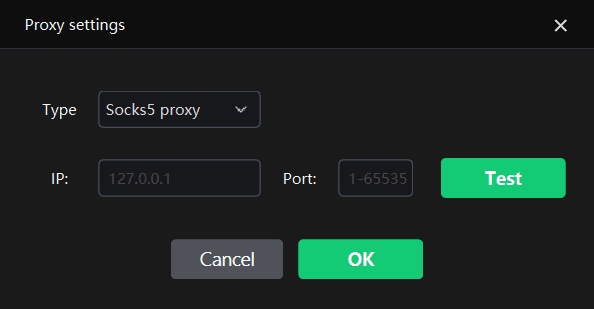
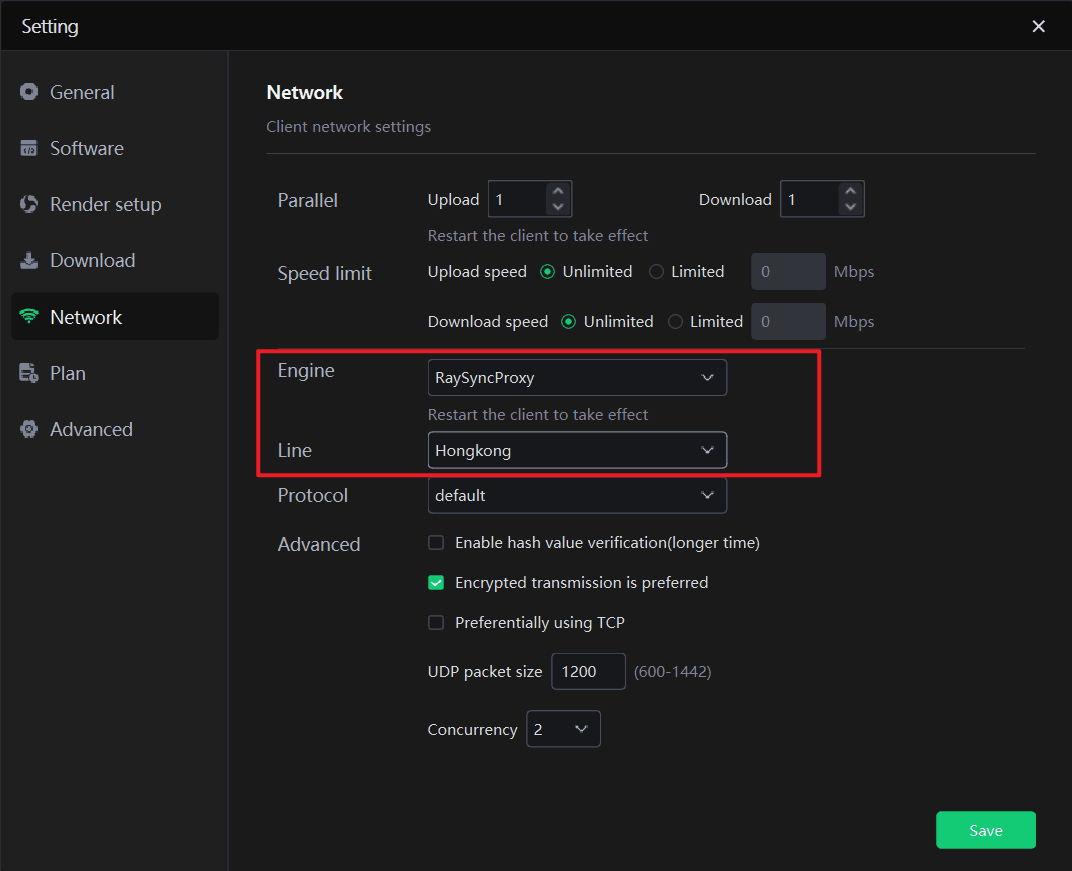
3、After signing in, click Settings in the top-right corner and choose Network Settings. Set the transfer engine to RaySyncProxy, and keep the selected network line consistent with the one used by the proxy program on the Internet-connected PC.
You are done — you can submit jobs now. Even when the studio cannot connect to the Internet directly, your team can still use Fox Renderfarm.


