
 Blender
 Cinema 4D
 Arnold
 3ds Max
 Houdini
 V-Ray
 Maya
 Unreal Engine
 Nuke
 Pricing
 New User Bonus
 Cost Estimator
 Christmas Sale


Consume List
Overview
Consume list shows the same spending at three levels of detail.
- Overview — consumption summarised by billing period.
- Billing — one row per monthly bill, and the place where a bill is downloaded, confirmed or disputed.
- Billing detail — down to the individual job, so each charge can be traced.
For trends and proportions rather than individual bills, use Statistics; this page is where the individual numbers come from.
Notes
- The current month is not final. The final bill is generated at the start of the following month and can be viewed and exported from the 1st. Until then the query result is for reference only.
- Billing detail updates with a one-day delay, so today's charges may not appear yet.
- Reconciliation status reads Not confirmed until the bill is confirmed — by you from the Billing tab, or automatically by the system.
- Billing status is either Settled or Not settled — whether that bill has been settled.
- Every export on this page is asynchronous — the file does not download directly. It goes to User center → Export Record.
Before you start
-
Signed in, able to open User center → Consume list.
-
Knowing which level you need: a period total, a bill to reconcile, or a single job's charge.
Steps
Open the list
- Sign in and go to User center → Consume list.
Read the overview
-
Open the Overview tab.
-
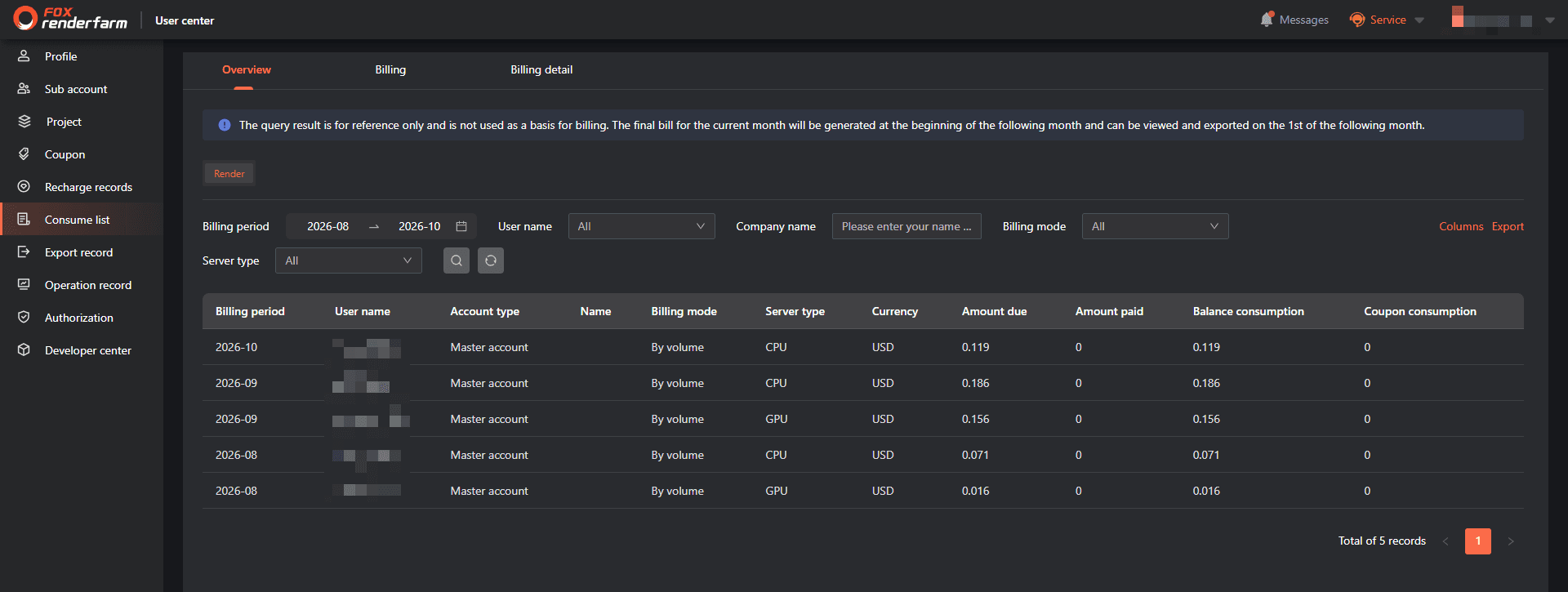
Filter by Billing period, User name, Company name, Billing mode and Server type, then run the search.
-
A period's money is split across columns rather than shown as one number: Amount due, Amount paid, Balance consumption, Coupon consumption. Use Columns on the right to hide the ones you do not need.
-
Export follows the current filters, and the file arrives in Export Record like every other export here.
The columns add up: amount due = amount paid + balance consumption + coupon consumption. A period showing a paid amount of zero is not a period without consumption — it may have been covered entirely by balance or by coupons.
Read the billing list
-
Open the Billing tab.
-
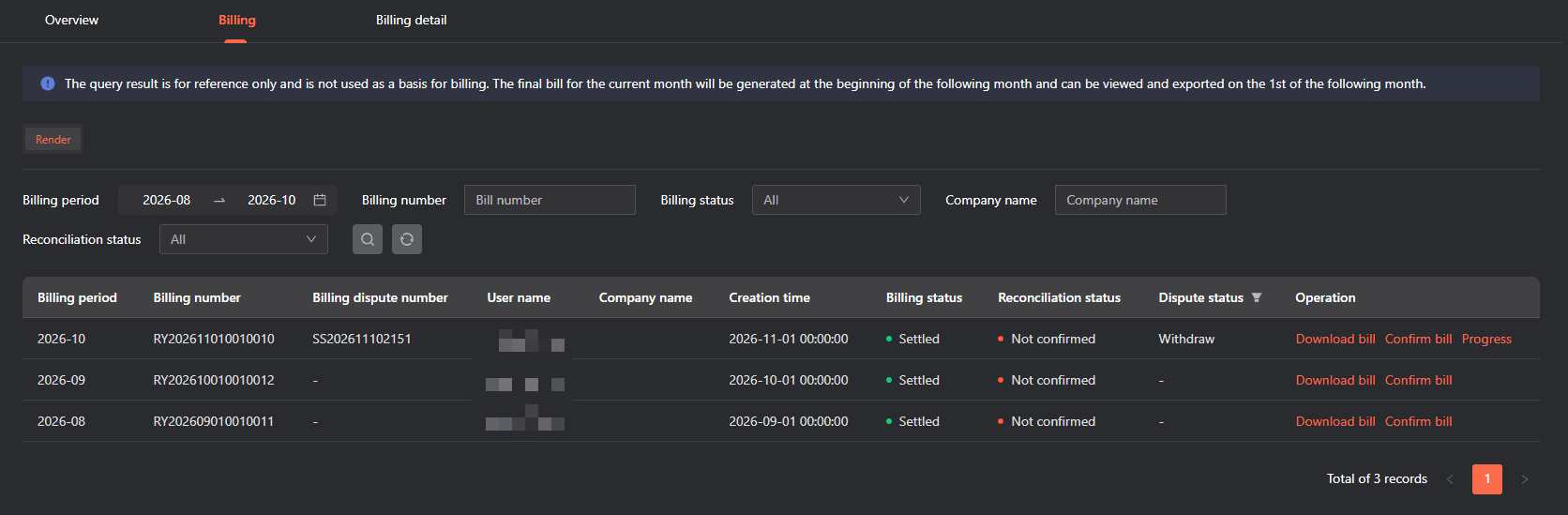
Narrow the list with Billing period, Billing number, Billing status, Company name and Reconciliation status, then run the search; the reset icon clears the filters.
-
Each row is one billing period. The Operation column carries Download bill and Confirm bill, plus Dispute while the bill can still be disputed or Progress once a dispute is open.
A banner on top of the tab repeats the rule: the query result is for reference only, and the final bill for the current month is generated and becomes exportable on the 1st of the following month.
Confirm or dispute a bill
Confirm bill — once the bill has been checked, select Confirm bill in the row. If you disagree with the amount, do not confirm it: file a dispute (below) or ask your salesperson or customer service for a reconciliation. Once you confirm, Reconciliation status in the list changes to Confirmed.
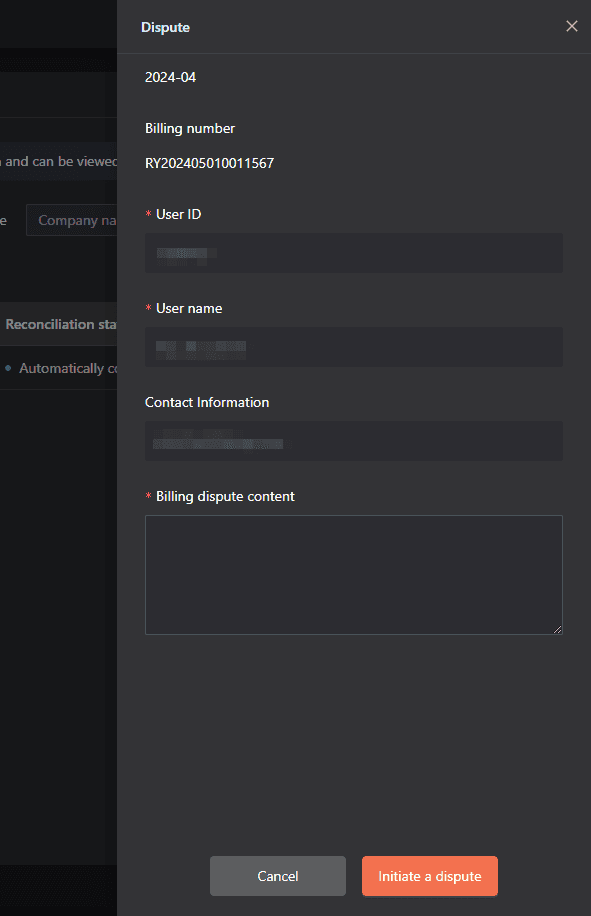
Dispute — when something on the bill does not add up, select Dispute in the Operation column. The drawer opens on that billing period and bill number and shows the details the dispute will be filed under — User ID, User name, Contact Information — then a required Billing dispute content field.

Three limits decide whether Dispute appears at all:
- Current period only, and only while the bill is open. A bill can be disputed while Reconciliation status reads Not confirmed or Automatically confirmed. Once it has been confirmed by hand, it is closed to dispute.
- One dispute per bill. Once a bill has carried a dispute it cannot raise another, so a bill that already shows a dispute number gets Progress instead of Dispute.
- Master account only. A sub-account cannot file one and has to switch to the master account.
An earlier billing period still offers Download bill and never Dispute — the bill stays readable and downloadable for your records. If an old period needs to be questioned, raise it with customer service through Service in the top bar.
Because the form is submitted once, put the whole case in Billing dispute content before you select Initiate a dispute — the reason, and the evidence it rests on.
Follow or withdraw a dispute — Progress in the Operation column opens the dispute drawer. It repeats the billing period, billing number and dispute number, then runs the timeline: Submit a complaint, In progress, Dispute results. Withdraw at the bottom of the drawer cancels the dispute after a confirmation. The bill's status does not change at that moment; a bill more than 7 days old is then confirmed automatically.
Read the billing detail
-
Open the Billing detail tab.
-
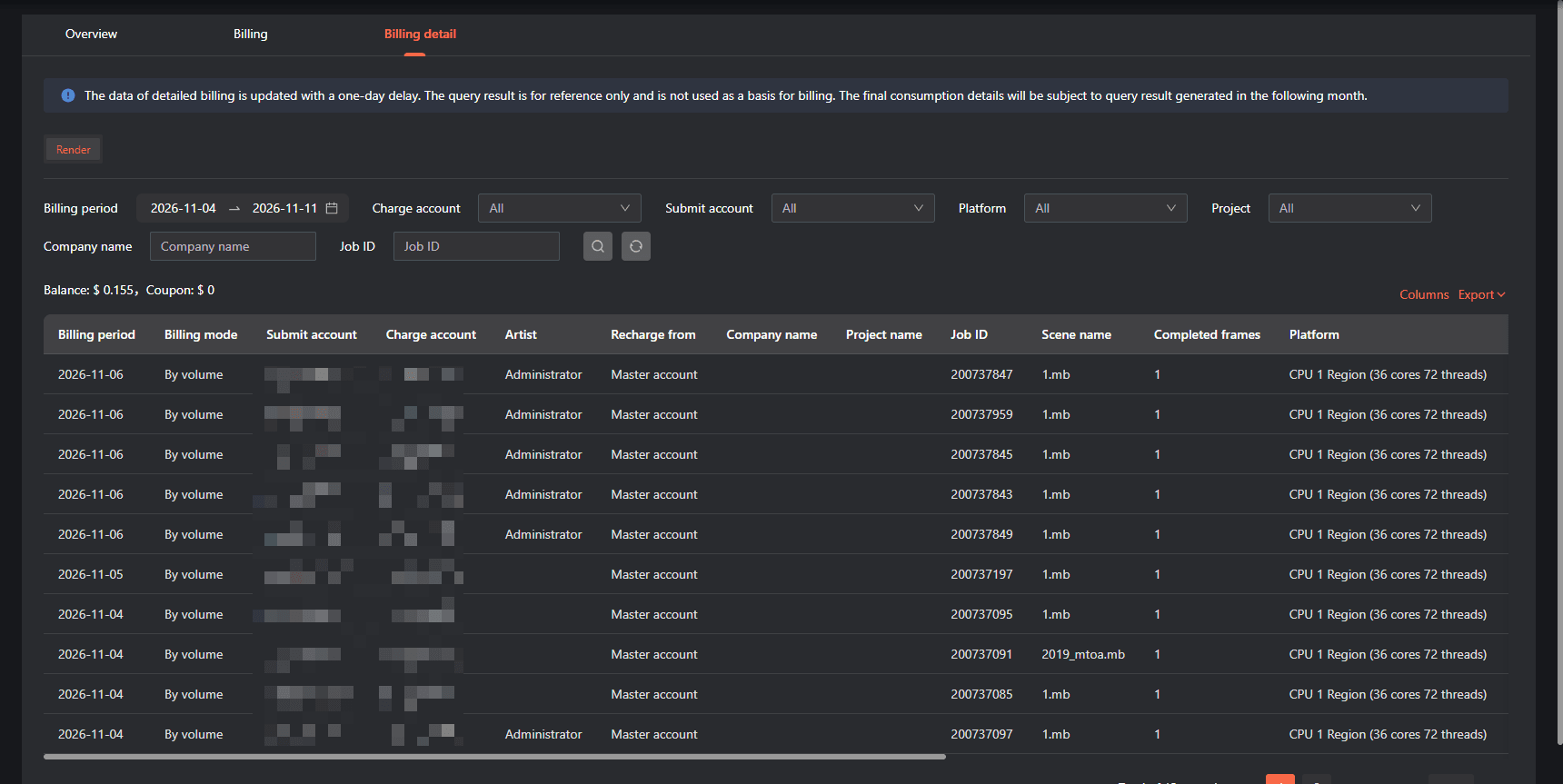
Filter with Billing period, Charge account, Submit account, Platform, Project, Company name and Job ID.
-
The summary line above the list shows Balance and Coupon for the current query — how much of the consumption came from each.
A banner reminds that detail data updates with a one-day delay and that the final consumption details come from the query run in the following month.
The Project filter scopes the detail — and any export run from this tab — to one project, which is how billing is broken out per project. Projects themselves are created and managed in User center → Project.
Three columns are easy to confuse. Submit account is the platform account that sent the job; Artist is the user name read from the machine that submitted it, so the same person submitting from another computer shows a different artist. Charge account is which account actually paid, and Recharge from says whether that was the master account or a sub-account.
Export a bill
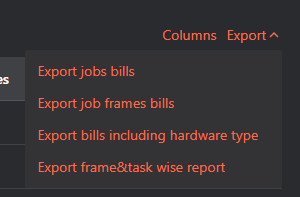
Select Export at the top right of the list and pick one of four options:
| Option | What it produces |
|---|---|
| Export jobs bills | consumption per job |
| Export job frames bills | consumption per frame |
| Export bills including hardware type | consumption grouped by hardware type |
| Export frame&task wise report | a combined frame and task report |
Columns beside it chooses which columns the list shows, and the export follows the current filters.
Nothing downloads immediately: the file is generated in the background and collected in User center → Export Record.
Where the export goes
Every export started in the console is handed to Export record under User center. That page builds the file and keeps it until you delete the row or run the export again.
Each row is one export job rather than one document, so running the same query twice leaves two rows.
Status has three values:
- Exporting — the file is still being built. Large ranges sit here for a while, and nothing can be downloaded until it finishes.
- Export done — the file is ready, and Download appears on the row.
- Export failed — no file was produced. The row keeps Delete, and the export has to be run again from the page that produces it.
Delete removes the exported file and its row; the bill or consumption record behind it stays, and the export can be run again.
The list is filtered by List type and by Date, with no keyword search — find a row by its Name. The name comes from what was typed when the export was started; left blank, the system generates one from the report type and the timestamp.
The types offered include Consume list, Render list, Consumption breakdown by volume, Consumption details of still image VIP, Monthly bill overview and Frame job consumption details.

FAQ
Where do I see how much I spent in a month?
User center → Consume list → Billing, one row per billing period. The Billing detail tab breaks that period down to individual jobs.
Why does this month still show numbers that are not final?
The current month is not closed yet. The final bill is generated at the start of the following month and can be viewed and exported from the 1st; before that the query is for reference only.
Why is a job I just rendered missing from Billing detail?
Detail data updates with a one-day delay, so today's charges may not be there yet. Check again the next day.
What is the difference between Submit account, Artist and Charge account?
Submit account is the platform account that sent the job; Artist is the user name read from the machine that submitted it; Charge account is the account that actually paid, with Recharge from telling you whether it was the master account or a sub-account.
How do I confirm a bill?
Billing tab, the row of that bill, Operation column, Confirm bill. Reconciliation status then moves off Not confirmed. If you disagree with the amount, do not confirm — file a dispute instead, or ask your salesperson or customer service for a reconciliation.
How do I dispute a bill?
Billing tab, the row of that bill, Dispute in the Operation column. Describe the problem in Billing dispute content, then select Initiate a dispute.
How do I follow up or withdraw a dispute?
Select Progress in the Operation column to open the dispute drawer: the timeline shows Submit a complaint, In progress and Dispute results, and Withdraw cancels the dispute after a confirmation. A bill more than 7 days old is confirmed automatically once the dispute is withdrawn.
Why can I not dispute this bill?
One of the limits is in the way: the bill is not from the current period, it was already confirmed by hand, it has already carried a dispute, or you are signed in with a sub-account instead of the master account. An old period is never disputable — question it with customer service instead, and download the bill for your records.
Why does the overview show a paid amount of zero for a period that clearly rendered a lot?
The money can be covered entirely by balance or by coupons. Amount due equals amount paid plus balance consumption plus coupon consumption, so check the other columns before assuming something was not charged.
I clicked Export but nothing downloaded.
Exports are asynchronous. Open User center → Export Record and download the file from there.
Why is the Balance figure smaller than the total of the jobs listed?
The summary line above Billing detail counts only what was paid from balance and from coupons in the current filter, not the face value of everything rendered. Widen the period or clear filters to compare like with like.


