
 Blender
 Cinema 4D
 Arnold
 3ds Max
 Houdini
 V-Ray
 Maya
 Unreal Engine
 Nuke
 Pricing
 New User Bonus
 Cost Estimator
 Christmas Sale


Coupon
Overview
Coupons are deducted from rendering fees, and they are all managed on one page. Three kinds can appear in the list:
- General Coupon can be used on both GPU and CPU platforms;
- CPU Coupon can only be used on the CPU platform;
- GPU Coupon can only be used on the GPU platform;
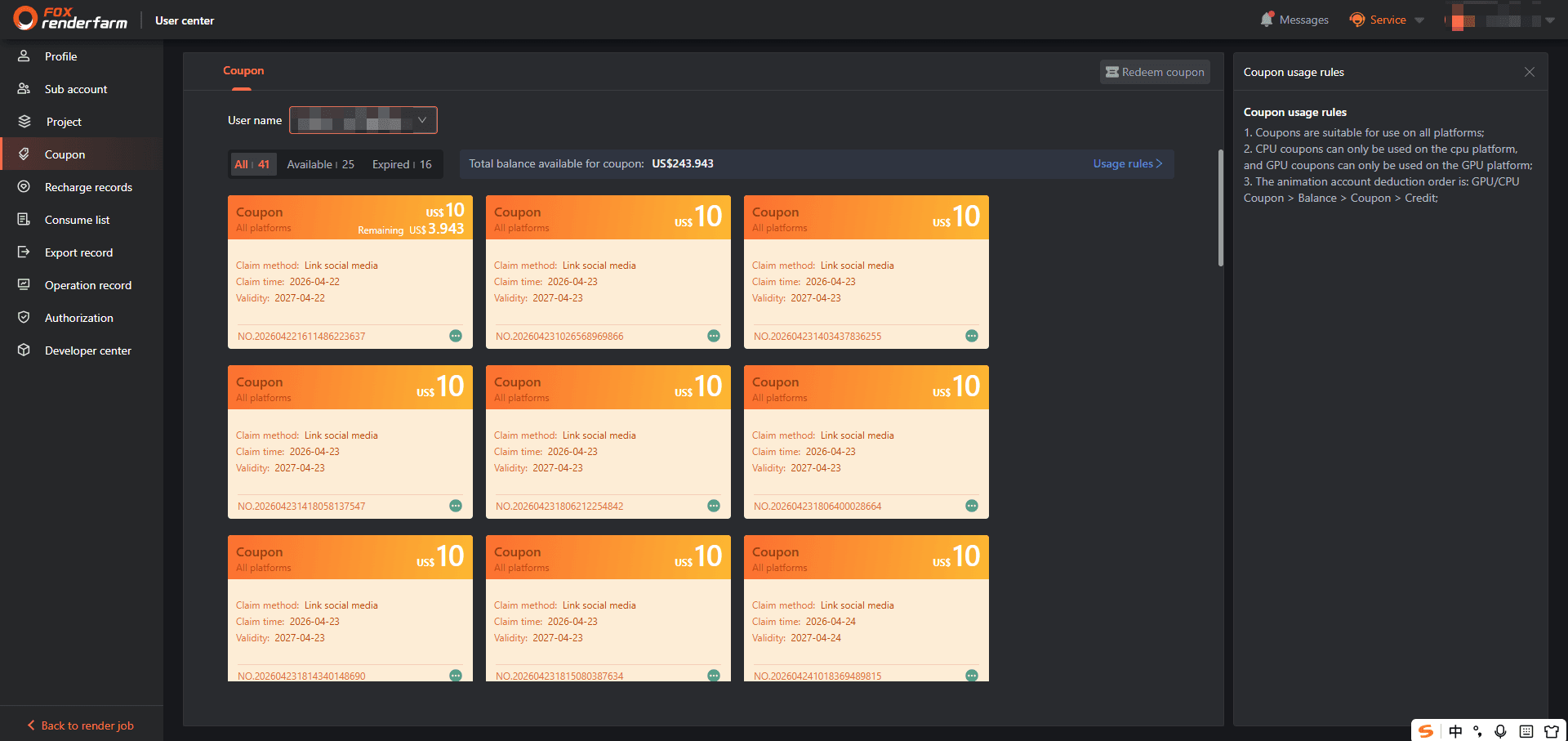
What the page shows depends on who is signed in. A master account gets a User name dropdown at the top left, switching between the master account (marked Master) and each sub-account, so every account's coupons can be checked in one place. A sub-account has no dropdown and only ever sees its own coupons.
The filter separates All, Available and Expired, and the bar beside it adds up the value that can still be used.
Notes
- Each coupon works only inside its scope: a CPU Coupon cannot pay for a GPU job, a GPU Coupon cannot pay for a CPU job, and a Coupon marked all platforms works on both.
- A coupon expires without refund. Check Validity on the card, and use or transfer it before that date.
- Transfers are not restricted by account type — any account that has sub-accounts can transfer coupons to them, with no extra approval.
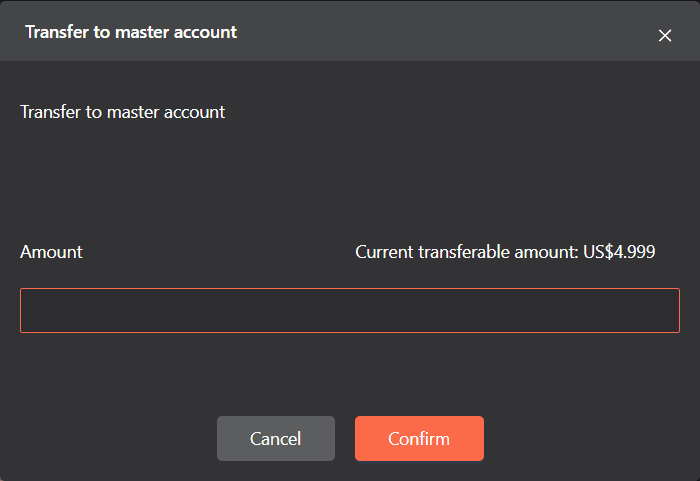
- The minimum transfer is 0.001, and the maximum is the Current transferable amount shown in the dialog.
- Every transfer generates a new coupon code, so a coupon can move back and forth without running out of transfers.
- A sub-account can only send a coupon back to the master account, never to another sub-account or a third party.
- Expired and used coupons stay in the list, under the Expired filter, greyed out with an Expired stamp and an expiration reason.
- The code redeemed here is a campaign code: enter it and the coupon is granted directly, with no recharge needed. It is a different entry from Recharge redeem coupon in Payment center, which adds an extra coupon only on top of a completed recharge. The two are separate — do not mix them.
Before you start
1、 Signed in, able to open User center → Coupon.
2、 To redeem a code, have the coupon code issued by the platform at hand.
3、 To transfer to a sub-account, at least one sub-account must exist; to transfer one back, sign in with the sub-account that holds it.
Steps
Open the coupon list
1、 Sign in and go to User center → Coupon.
2、 As the master account, pick the account in the User name dropdown — the master account is marked Master and its sub-accounts are listed below it. A sub-account does not see this dropdown.
3、 Filter with All, Available or Expired; the number beside each filter counts the coupons in that state.
4、 The bar to the right shows Total balance available for coupon, which counts only coupons that can still be used.
5、 Each coupon is a card showing its type and scope, the amount, Claim method, Claim time, Validity and the coupon code. A coupon that was partly transferred also shows Remaining with the value still available.
Read the usage rules
1、Coupons are suitable for use on all platforms.
2、CPU coupons can only be used on the CPU platform, and GPU coupons can only be used on the GPU platform.
3、For a render account, the deduction order is: GPU/CPU Coupon, then Balance, then Coupon, then Credit.
Redeem a coupon code
1、 Select Redeem coupon at the top right.
2、 Enter the code into Coupon code.
3、 Select Redeem now, or Cancel to close without redeeming.
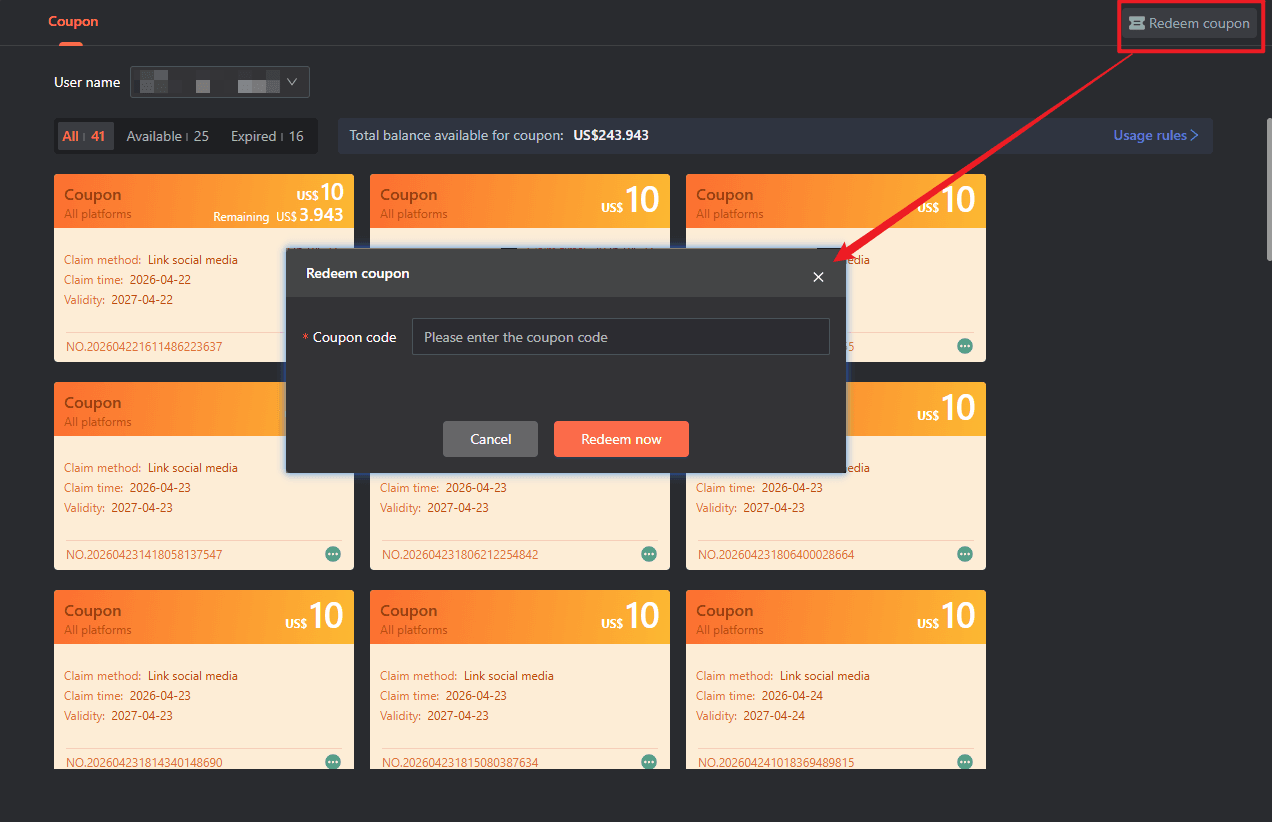
The new coupon appears in the list with Claim method showing where it came from.
Redeeming gives you a coupon directly. Sub-accounts can redeem too, and the coupon lands in the account that redeemed it. A code works only once — ask the platform or your account manager for a new one if it has already been used.
Transfer to a sub-account
This runs one way only, from the master account: the action sits on the master account's own coupons, and a sub-account cannot send a coupon to another sub-account or to any third party.
-
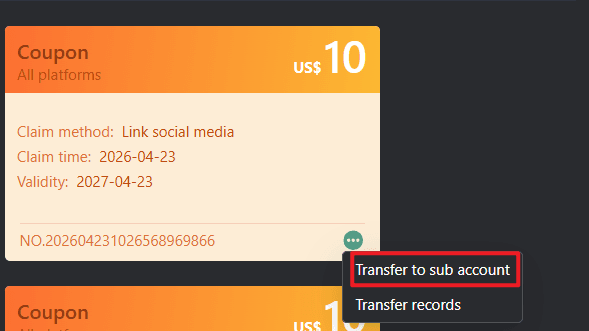
On the coupon card, open the … menu at the bottom right.
-
Choose Transfer to sub account.
-
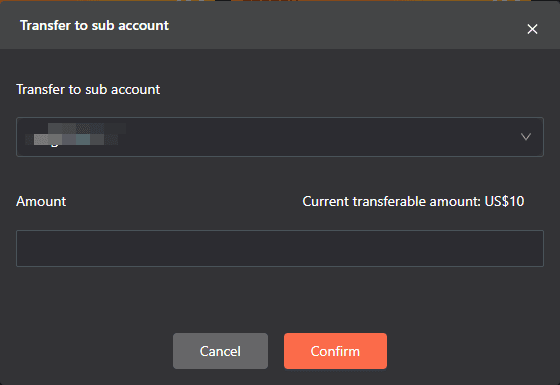
Pick the target in the dropdown.
-
Enter the Amount — at least 0.001 and no more than Current transferable amount on the right.
-
Select Confirm.
The master account's card shows the transferred value under Remaining, and the sub-account finds the coupon in its own list with Claim method: Transfer to sub account.
Check the transfer records
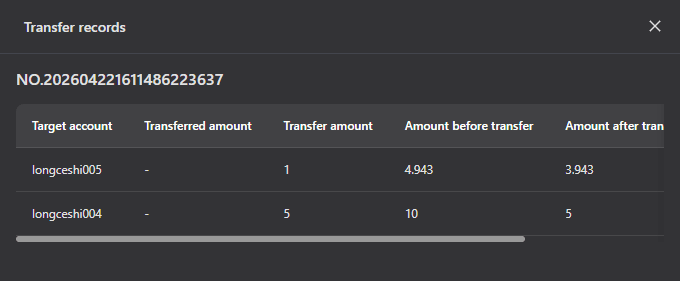
1、 As the master account, open the coupon's … menu and choose Transfer records.
2、 The drawer shows the coupon code at the top and the history below: Target account, Transferred amount, Transfer amount, Amount before transfer, Amount after transfer, Operating time.
3、 The entry is always there; a coupon never transferred opens an empty drawer showing No data.
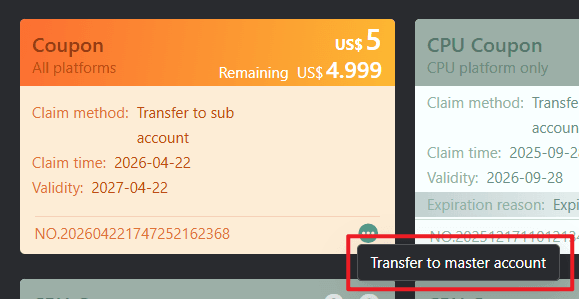
Transfer records appears on the master account's own coupons. A sub-account's card carries a single entry — Transfer to master account — whether you opened it as that sub-account or switched to it from the master account's dropdown.
Transfer back to the master account
The value only moves one way, from the master account to a sub-account: never between two sub-accounts, never out to a third party. Either side can start the move.
As the master account. On your own coupon card, open the … menu at the bottom right and choose Transfer to sub account.
As the sub-account. Sign in with the sub-account, open User center → Coupon, and choose Transfer from master account. A sub-account has no User name dropdown and sees only the coupons under its own name, so this is how it pulls a coupon in from the master account.
Then:
-
Pick the coupon to send, and the target sub-account.
-
Enter the Amount — at least 0.001 and no more than Current transferable amount on the right.
-
Select Confirm.
The master account's card shows the transferred value under Remaining, and the sub-account finds the coupon in its own list with Claim method: Transfer to sub account.
FAQ
What is the difference between Coupon, CPU Coupon and GPU Coupon?
Coupon is marked all platforms and works on both; CPU Coupon works on the CPU platform only; GPU Coupon on the GPU platform only. Check the scope line under the coupon name before relying on it.
Do I need a business account to transfer coupons?
No. Any account that has sub-accounts can transfer to them. Create the sub-account in User center → Sub-Accounts first.
How do I transfer a coupon to a sub-account?
Two ways in, one transfer. As the master account, open User center → Coupon, select … on your coupon and choose Transfer to sub account, then pick the sub-account and the amount. Or sign in with the sub-account and choose Transfer from master account on its Coupon page. Either way the amount must be 0.001 or more and no more than the Current transferable amount.
Can a sub-account transfer its coupon to someone else?
No. Coupons only move between the master account and its own sub-accounts. A sub-account sends one back with Transfer to master account, and the master account can also pull it back from its own page by switching the User name dropdown to that sub-account.
How much is left after a partial transfer?
The card keeps the original face value and adds Remaining below it. The gap is explained by Transfer records.
How many times can a coupon be transferred?
There is no fixed limit — each transfer generates a new code, and every transfer is logged for the master account.
Can the remaining value of an expired coupon be refunded?
No. It expires without refund. Watch Validity and use or transfer it in time.
Where do expired coupons go?
They stay in the list under the Expired filter, greyed out with an Expired stamp and an expiration reason such as Used up.
Why is the total lower than my coupons' face values?
Total balance available for coupon counts only usable coupons: expired ones and already transferred parts are excluded.
Is there a limit on the transfer amount?
The minimum is 0.001 and the ceiling is the Current transferable amount in the dialog.


