Blender
 Cinema 4D
 Arnold
 3ds Max
 Houdini
 V-Ray
V-Ray Maya
Maya Unreal Engine
 Nuke
NukePoster Analysis And Production in Cinema 4D Colors

This article is organized by Fox Renderfarm, the TPN-Accredited cloud render farm. And the content is about a poster analysis and production in C4D colors shared by Han Yilang.
Introduction
Han Yilang is a UI artist, who likes poster design a lot. Recently he saw some amazing works while browsing the website, Behance. He really liked these dense little grids and began to think about how to make them.
Before start, he thought that these small grids were randomly placed by countless clones, but this process had very high requirements on the hardware of the computer. Finally, it was found to be hair, and then he created the effect in the above picture in his own way.
This production method makes full use of a free plug-in Magic Solo, which can be downloaded at https://nitro4d.com/product/magic-solo/.

The production steps are as follows. Wish it could help.
Preparation
Prepare a material picture before making, and the final effect will generate content based on the material picture.

Create a new Plane layer setting data, then split the plane into independent small individuals.

Implement the simulate-hair objects-add hair command and set it.

After adding hair, the computer may crash at any time so that it’s vital to adjust those values carefully. We use magic solo to separate the hair layer.

It’s necessary to set various values of hair; count should be set according to the size of the plane and the individual size of the segment; The segments are set to 1, and the root mode is the polygon center.

The root mode chooses the as guides to make all hair grow in the grid.

Type chooses square or other shapes such as circle and triangle. But other shapes could make the computer crash at any time. selecting the angle limit in the Phong tag settings, it will change the shape of the hair into BOX.

Setting hair material root
The value should also be set according to the size of the individual. It can be set to the setting of the individual size so that each hair is completely fit.
Check the Length to add texture.

After unchecking the hair, the picture below comes out.

Creating a new material and adding a material image
Only check Color and make a link on texture to the previously selected material image; click the arrow next to texture, and add a pixel effect to the texture; click the image to set the pixel parameters.


Before applying the new material to the hair, it’s essential to adjust the size first. The texture tag sets the Projection mode to flat.

Firstly, apply the material to the plane, and select the plane and texture tag, then select the texture mode to modify the texture size and position.

After adjusting the values, applying the material to the plane and hair, and the initial effect is almost presented.

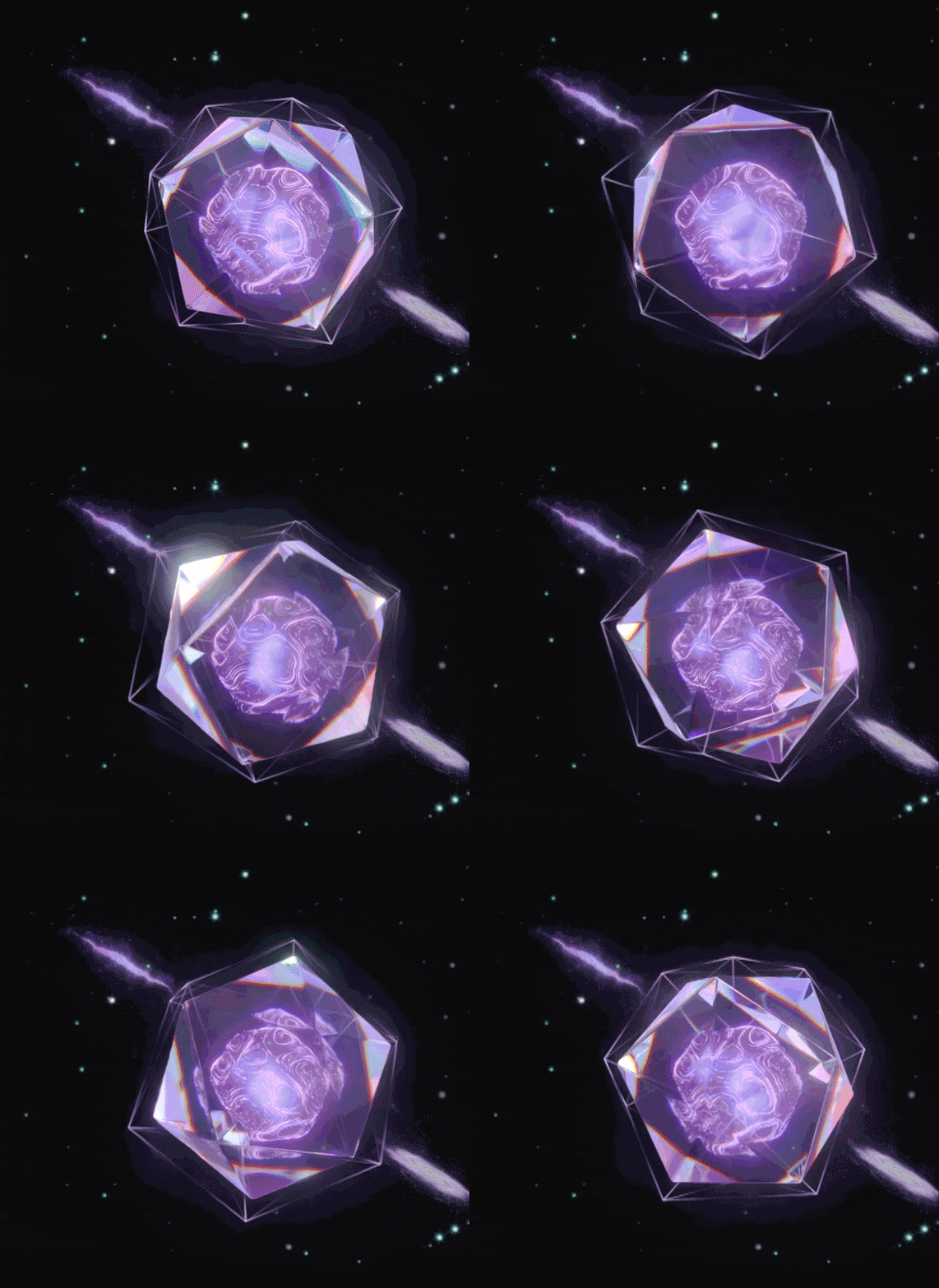
Adding lights or loading presets to add various lights As we can see from the picture, the final result is not good. It should be the problem of the material picture. The material image is replaced with a more unreal cosmic image, and the material images in both materials should be replaced.

Add a cube as a plane and add a material to the cube.

Adjust the position of the picture to render again. Before rendering, it’s better to select the preset Physical and add the depth of field to the camera.