
 Blender
 Cinema 4D
 Arnold
 3ds Max
 Houdini
 V-Ray
V-Ray Maya
Maya Unreal Engine
 Nuke
NukeCPU vs GPU Rendering: Which Is Better for Your Projects?
 Ryan Thompson
Rendering speed can become a major bottleneck in 3D projects, especially when working with complex scenes or tight deadlines. In many cases, the issue comes down to the difference between CPU and GPU rendering, which handle tasks in a very different way.
The next question is: CPU rendering vs GPU rendering, which is better for your 3D projects? The answer affects project speed, cost, and quality. In this article, we will compare CPU vs GPU rendering to help you choose the best option for your projects.
Part 1. CPU Rendering: How It Works and When to Use It
CPU rendering is the use of a computer's Central Processing Unit to calculate and generate 2D or 3D images. It handles complex, high-quality scenes, including ray tracing and advanced lighting, by processing data in a sequential manner. Since it uses system RAM, it also handles massive scenes with high polygon counts, complex textures, and large, detailed assets that might exceed GPU memory (VRAM) limits.
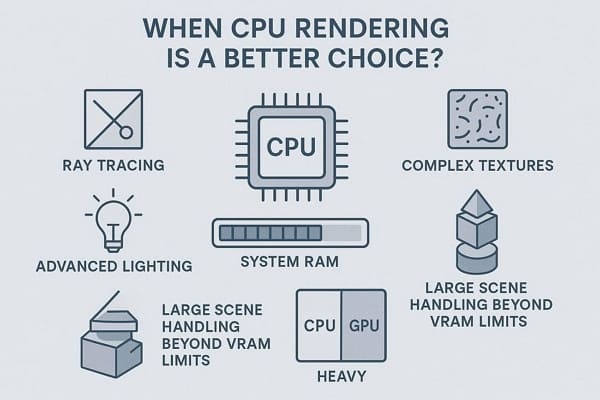
So, when choosing between CPU vs GPU rendering, the performance usually depends on how tasks are split and how well the structure uses system resources. CPU rendering often shows uneven load across cores, meaning not all processing power gets fully used during heavy rendering tasks.
When to Choose CPU Rendering?
CPU rendering is often the better choice in the following situations:
- Large Memory Scenes: CPU rendering uses system RAM, so it can handle very large scenes with 64-256 GB or more memory. So, it is best for cityscapes, heavy arch-viz scenes, millions of polygons, and high-resolution textures that exceed GPU VRAM limits.
- Full Feature Support: CPU rendering also supports more complete engine features than the GPU, which may lack or miss some tools. So, it works better with advanced shaders, volumes, hair systems, AOVs, and plugins that may not be fully GPU compatible.
- Stable Long Renders: CPU rendering is more stable for long, complex jobs that run for hours or days without interruption. Due to that, it is the preferred choice for animations, simulations, and render farm workflows where consistent output across nodes is very important.
- High Accuracy Output: CPU is more optimized for precise calculations and often handles complex lighting and global illuminations more accurately. Thus, it is ideal for scientific, engineering, and arch-viz work where low noise, no artifacts, and high fidelity are required.
- Older or Weak GPU Systems: It works well on GPUs with low VRAM or that are older and cannot handle modern, heavy scenes. Besides, it allows scaling through multi-core CPUs or render farms without depending on expensive high-end GPUs.
Limitations of CPU Rendering
While CPU rendering is reliable, it also has some limitations that may affect performance in certain projects:
- With fewer cores than the GPU, rendering takes longer for complex scenes.
- Handles fewer parallel threads; cannot efficiently process thousands of tasks at once.
- Needs many cores or dual processors, which increases overall system cost.
- Uses most system resources, making the computer slow during rendering work sessions.
- Cannot deliver real-time rendering speeds needed for interactive previews or VR walkthroughs.
Part 2. GPU Rendering: How It Works and When to Use It
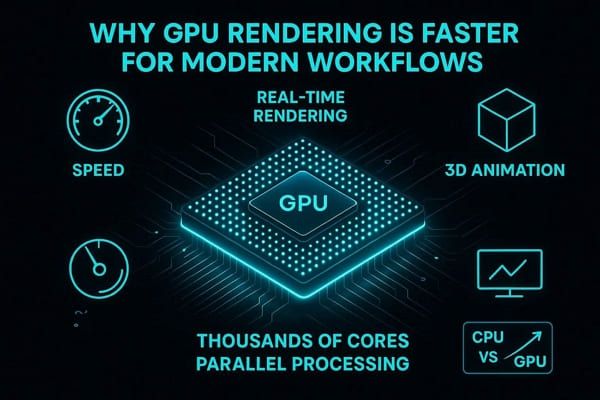
GPU rendering uses a computer graphics card to generate images and animations for 3D models instead of a CPU. It works by dividing rendering tasks across thousands of small processing cores, allowing multiple calculations to run at the same time. GPU rendering can offer significantly higher efficiency and faster rendering.
When to Choose GPU Rendering?
GPU rendering works best for projects that require fast processing and real-time feedback. Here are the most common situations where it is preferred:
- Faster Render Speed Needs: The GPU has thousands of cores that handle multiple tasks simultaneously, enabling it to render frames quickly. Therefore, it's best for tight deadlines, animations, client work, and fast test or final renders in minutes instead of hours.
- Real-Time Feedback: GPU rendering provides instant updates as lights, materials, or camera settings change in a scene. Based on this, it is ideal for interactive previews, VR walkthroughs, and smooth design changes during look development.
- Higher Productivity Output: A GPU can finish more renders in less time, so a single machine can produce more work daily. It helps studios and freelancers complete more shots while giving better performance per cost and power.
- Modern Engine Support: Most modern render engines are built or optimized for GPU performance and speed. Furthermore, tools such as Octane, Redshift, V-Ray, Cycles, and Unreal leverage GPU features, including real-time ray tracing and AI denoising.
- Easy Scaling Options: GPU rendering scales easily by adding more GPUs or using cloud rendering services. It allows fast rendering of large animation projects using powerful multi-GPU or cloud-based systems.
Limitations of GPU Rendering
Despite its speed, GPU rendering also comes with several limitations:
- The GPU has limited VRAM, so large scenes can easily exceed memory limits.
- May lack support for some advanced features and plugins.
- Heavy scenes can cause crashes due to drivers, heat, or memory limits.
- High-end GPUs are expensive and often require upgrades to support modern workflows.
- GPU setups require proper drivers and can be harder to manage.
Part 3. CPU vs GPU Rendering: Key Differences
To help you compare CPU and GPU rendering more clearly, the table below lists the key differences in factors such as speed, performance, cost, and use cases.
|
CPU Rendering |
GPU Rendering |
|
|
Raw Render Speed |
Slower on most modern engines |
Much faster on supported engines |
|
Memory Capacity |
Large (system RAM, e.g., 64–256 GB) |
Limited to VRAM (often 8–48 GB per card) |
|
Feature Coverage |
Usually, a full feature set, legacy features |
Sometimes missing/partial advanced features |
|
Scene Complexity Tolerance |
Very high (handles heavy geo/textures) |
Can fail or slow when VRAM is exceeded |
|
Interactivity / IPR |
Slower feedback in the viewport |
Near real‑time feedback and look‑dev |
|
Hardware Cost Efficiency |
Cheaper per core, slower per frame |
Better speed per dollar at mid/high end |
|
Power Efficiency |
Lower performance per watt |
Higher performance per watt |
|
Stability On Long Jobs |
Very stable for long offline renders |
More sensitive to drivers/overheating |
|
Setup & Maintenance |
Simpler, fewer driver issues |
Needs careful driver/version management |
|
Scalability On a Farm |
Easy to scale with many CPU nodes |
Scales well but needs GPUs + VRAM planning |
|
Ideal Use Cases |
Final film frames, huge BIM/arch‑viz scenes |
Look‑dev, product shots, arch‑viz animations |
Choose CPU when scenes are very large, need full features, and require strong stability over speed. On the contrary, when scenes fit in VRAM and fast output is important, the GPU is the preferred choice. It gives quicker results, real-time feedback, and better performance for modern tools, animation, and interactive work.
Part 4. A Better Alternative to Local Rendering Hardware
After comparing CPU vs GPU rendering, it’s clear that both options have their strengths. However, they still rely on local hardware, which means performance is limited by your system’s RAM, VRAM, and overall computing power. When projects become more complex, these limits can slow down rendering or even cause instability. In such cases, using a cloud render farm becomes a more scalable solution.
Fox Renderfarm provides both CPU and GPU rendering on powerful remote servers, allowing you to handle large scenes and high-resolution outputs without relying on local hardware. By distributing rendering tasks across multiple machines, it helps reduce render time and improves overall workflow efficiency. This makes it easier to choose the best rendering approach without being limited by your local machine.
This render farm also supports major 3D software such as Blender, Maya, 3ds Max, and Cinema 4D, along with popular render engines like V-Ray, Arnold, and Redshift. With dedicated plugins and simple submission tools, you can send projects directly from your software without complex setup, making the rendering process faster and more convenient.

FAQs about CPU vs GPU Rendering
1. Does rendering affect system performance while working?
Yes, rendering uses significant system resources and can slow your computer down. To make it more precise, CPU rendering affects overall system speed, while GPU rendering may limit graphics performance.
2. Which rendering method is better for large scenes?
Large scenes usually perform better on the CPU rendering due to higher support for system RAM. On the other hand, the GPU rendering may struggle in rendering if the scene exceeds the VRAM limits.
3. Can CPU and GPU rendering be used together?
Yes, some render engines support hybrid rendering using both CPU and GPU. This can improve performance, but results depend on software and setup.
4. Does rendering quality differ between CPU and GPU?
Both can produce high-quality results depending on the rendering engine used. However, the CPU may handle complex lighting and effects more accurately.
Conclusion
To sum up, CPU and GPU rendering each have their own strengths, depending on your project type, performance needs, and workflow. Choosing the right option can improve both efficiency and final output quality.
However, both approaches are still limited by local hardware. For more demanding projects, a render farm solution like Fox Renderfarm can help you render faster and handle complex scenes without these constraints.



 Ryan Thompson


