The plugin submission process for Blender primarily consists of four steps:
1. Download & Install;
2. Launch;
3. Submit;
4. Upload;
5. Rendering and download;
6. Uninstall the plugin.
In the following sections, we will provide a detailed description of each of these steps.
Step1: Download & Install
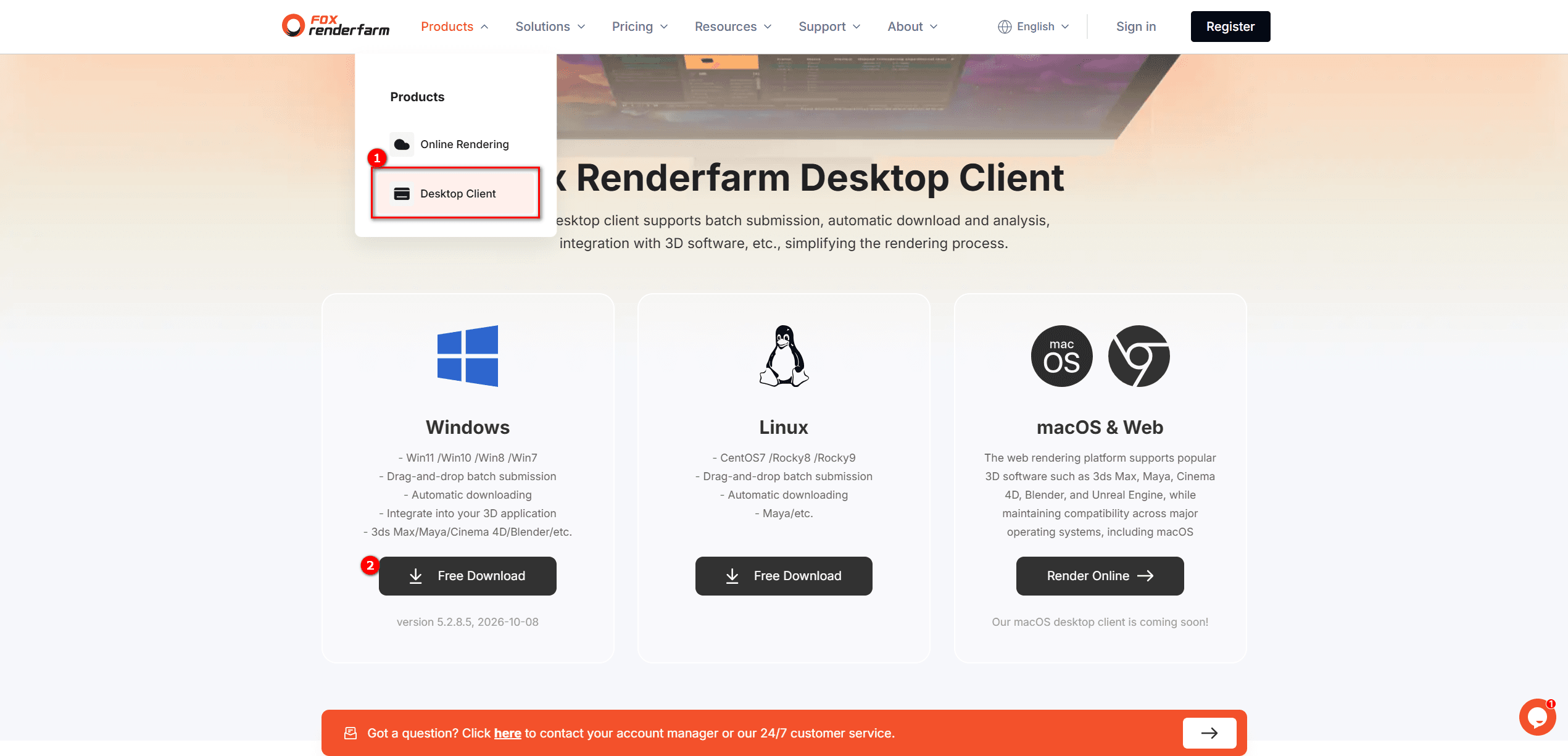
1.Visit the official website and download the cloud rendering client that matches your local operating system, plugin submission is only supported on Windows. The plugin is compatible with Blender 3.0 and later, including the latest official release.
2. Install the Fox Renderfarm client; the plug-in will be automatically installed along with the installation process.
Step2: Launch
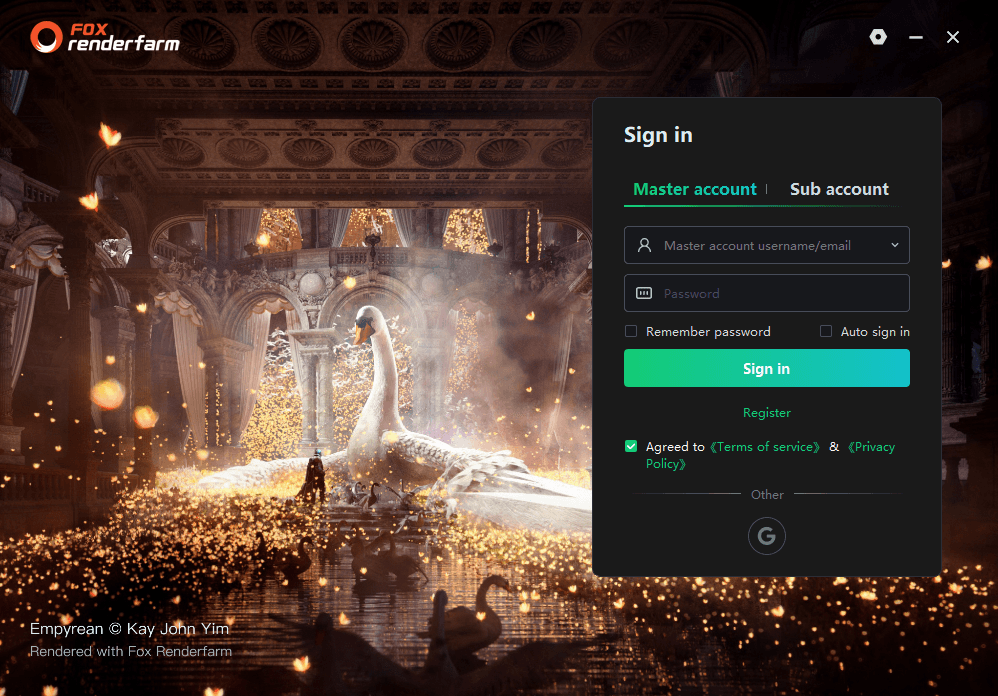
1.After starting the client, please log in first. For users without an account, click [Register] to start creating an account.
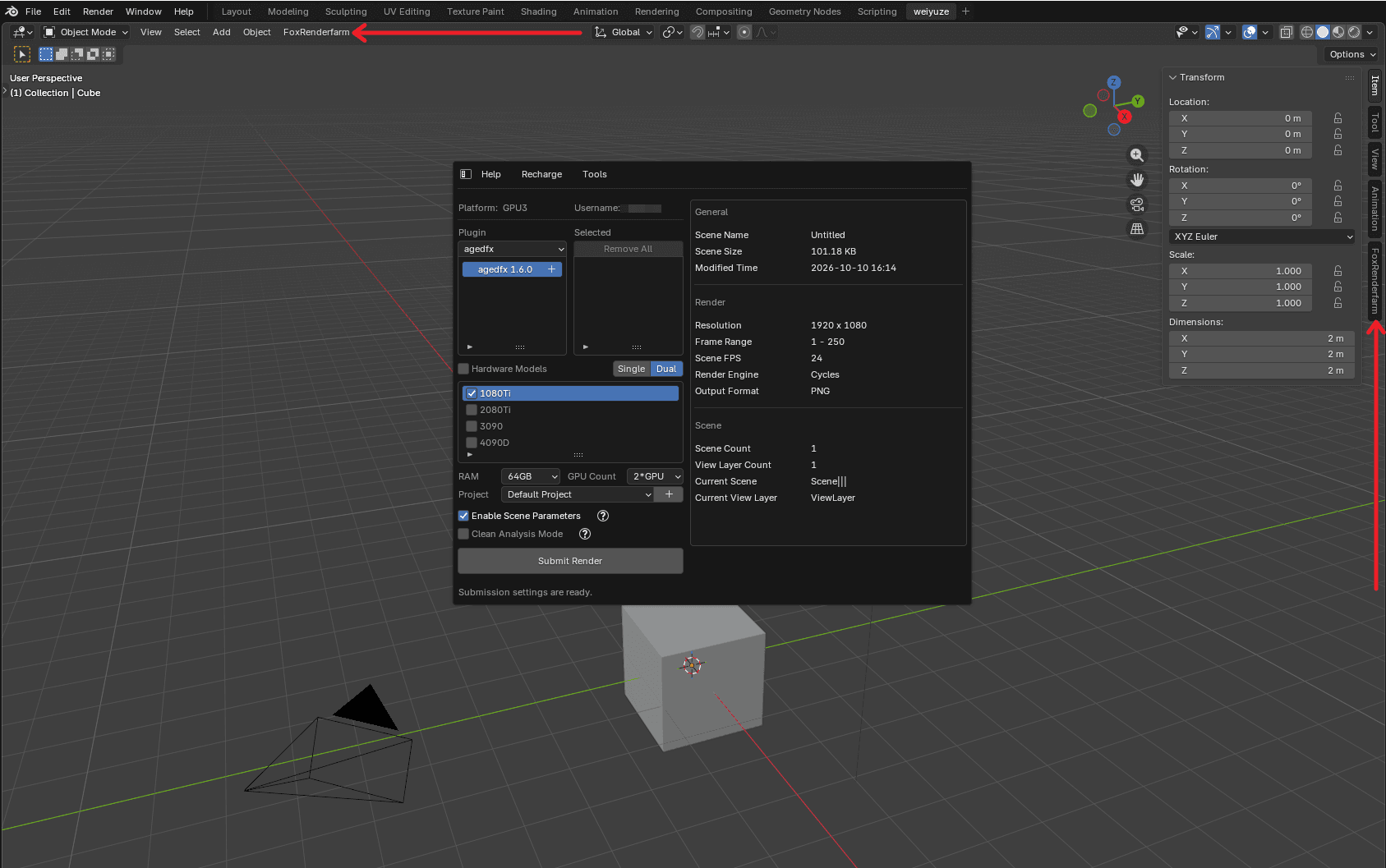
2.In the 3D Viewport header, click FoxRenderfarm → Open Submission Window. You can also press N to open the sidebar and click Submit for Rendering in the FoxRenderfarm tab.
Step3: Submit
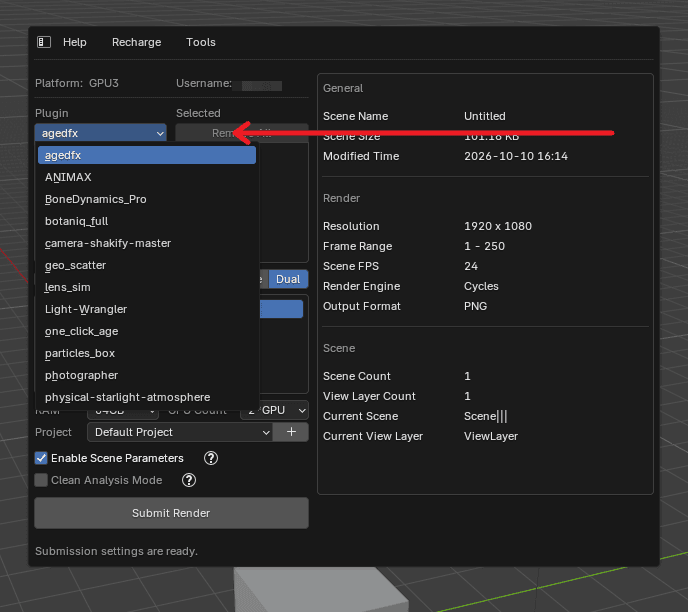
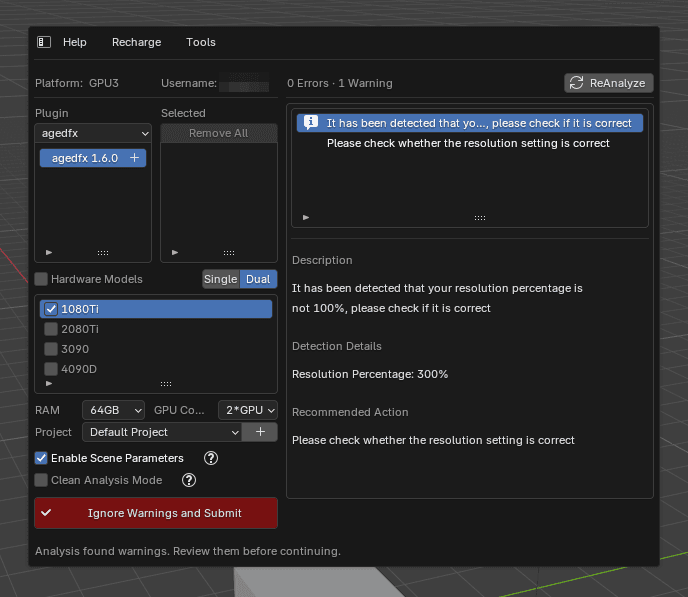
Select Plugin: Choose a plugin from the plugin dropdown list, double-click the version to add it to the selected list.
Select Machine Type: Switch between single-GPU / multi-GPU mode, check the machine type, and configure physical memory and GPU count.
Select Project: Pick an existing project from the dropdown, or click + to create a new project.
Submission Options (Optional):
Enable Scene Parameters: A parameter window pops up after scene analysis, allowing secondary parameter adjustment.
Clean Analysis Mode: Run background analysis with Blender factory default settings, without loading other local plugins. Use this when analysis is unstable or suspected of interference from local plugins.
If neither option is checked, the task will be submitted directly using the default parameters in preferences once scene analysis passes.
5. Click Submit Render. The system will automatically create the task, analyze the scene and upload assets.
6. Analysis Results
When the analysis finds issues, the issue list appears on the right. Click an issue to see its description and recommended action.
Warning: if it does not affect your render, click Ignore Warnings and Submit;
Error: fix the scene in Blender, save it, then click ReAnalyze.
7. Set Render Parameters
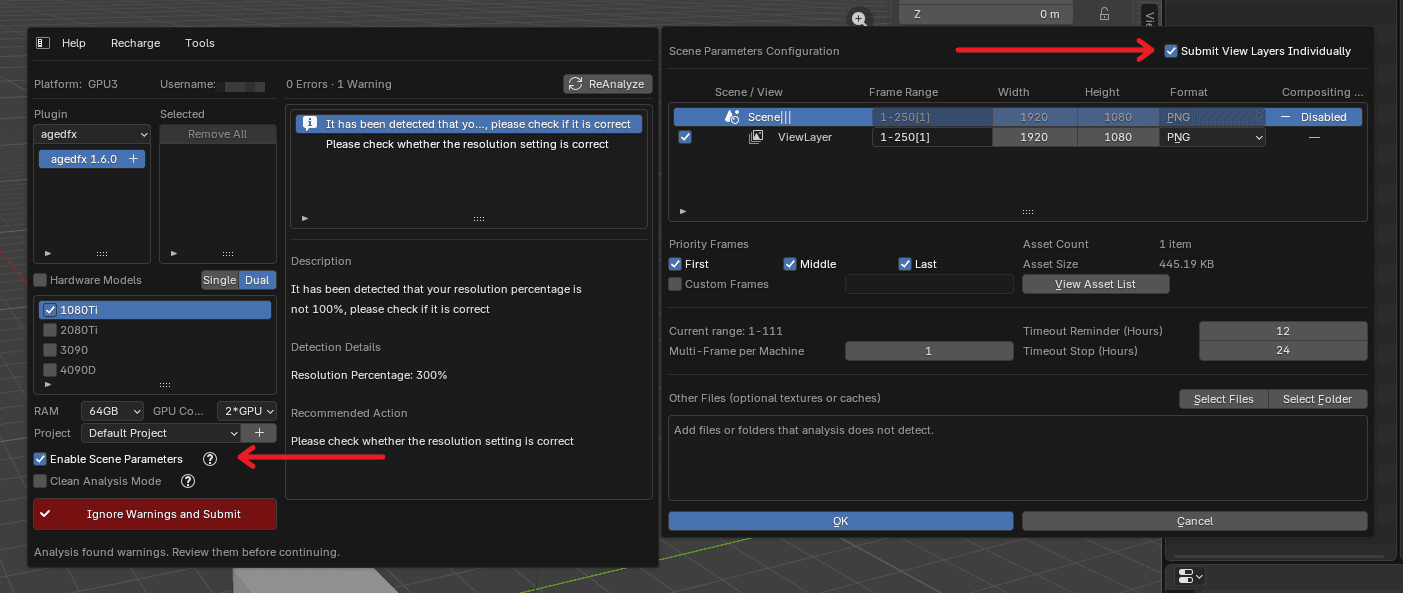
After checking Enable Scene Parameters, the parameter configuration window will pop up once scene analysis completes for configuration:
1) Scene & View Layer: The table lists analyzed scenes. You may uncheck scenes that do not need rendering, with at least one scene retained. Check Submit View Layers Separately to expand entries by scene / view layer and select items for submission individually. Frame range, output resolution and output format can be edited directly in the table.
2) Priority Frames: Custom test frames are allowed, with a maximum of 10 frames that can be entered.After the test frames are rendered, confirm that they meet your expectations. If so, click [Full Render] in the [Render List].
3) Multiple Frames per Machine: Set the number of frames rendered by each machine.
4) Timeout Alert (Hours): When rendering a single frame exceeds the set duration, alerts will be sent via SMS, email and in-site message.
5) Timeout Stop (Hours): When rendering a single frame exceeds the set duration, the task will be automatically terminated, with notifications sent via SMS, email and in-site message.
6) Other Files: If textures, caches or other assets are not detected automatically, you can manually add individual files or entire folders in the Other Files section. After addition, the asset count and total size will be updated synchronously.
Step 4: Upload
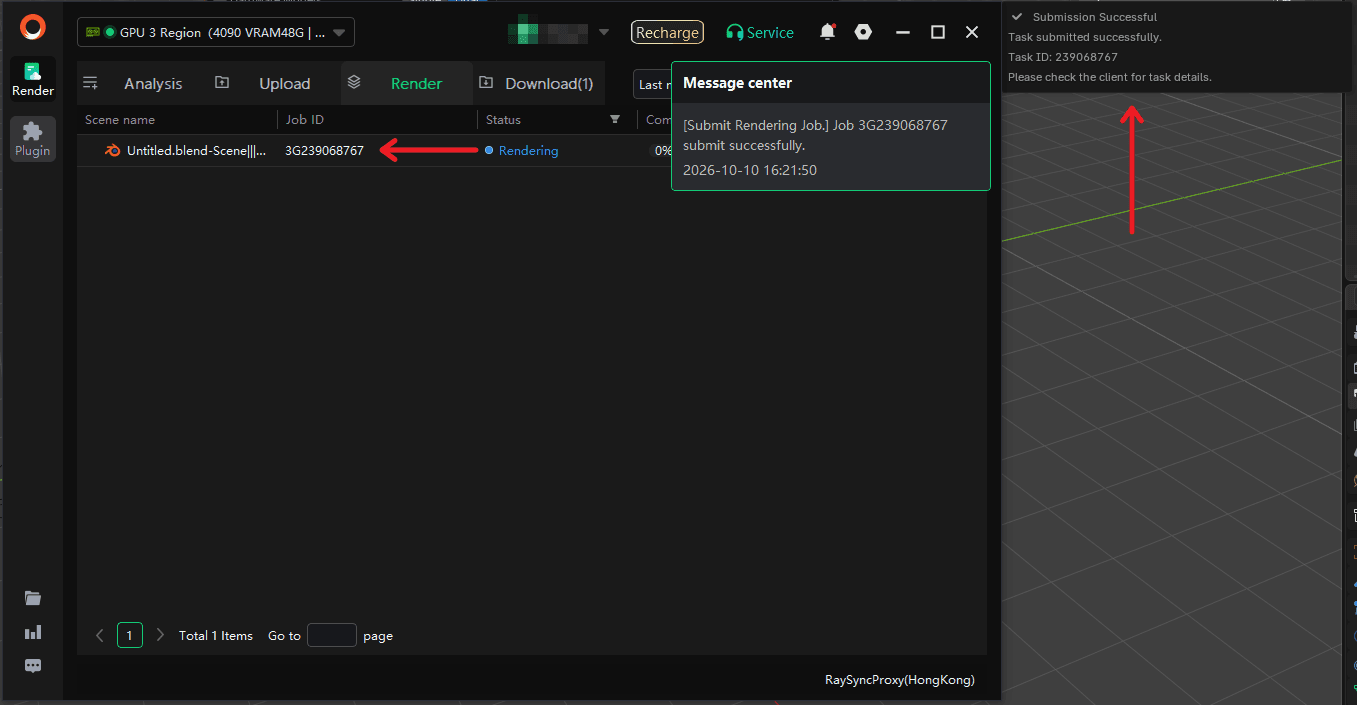
After submission, the plugin shows the Task ID and the client shows a notification. Check render progress and results in the client's Render list.
Step 5: Rendering and download
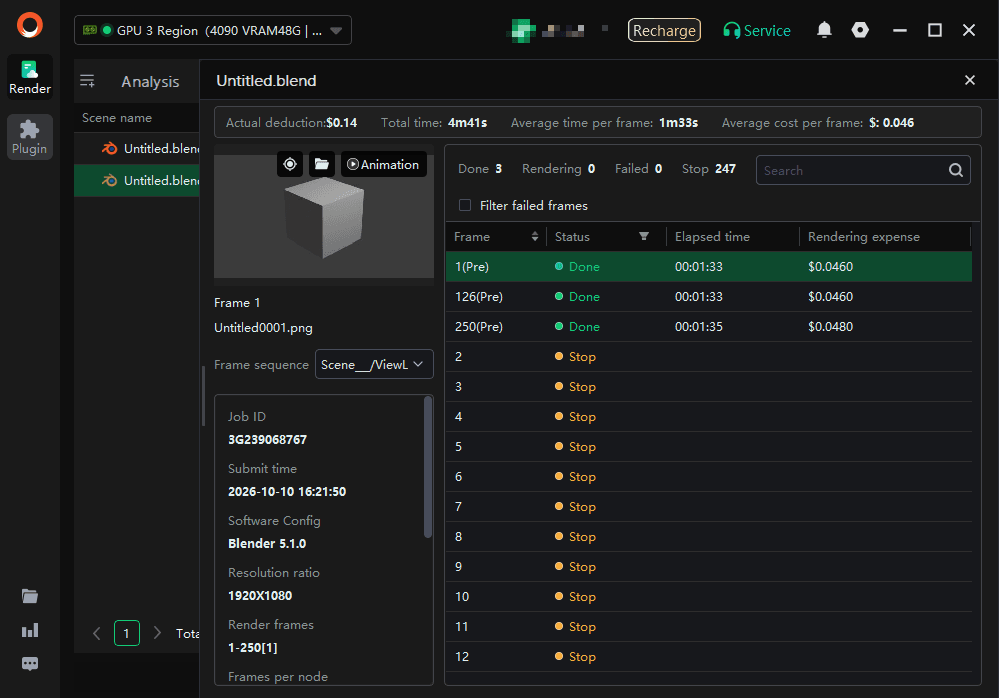
During rendering, you can click the job to view rendering details at any time. After rendering completes, output files will be automatically downloaded to your local computer.
Step 6: Uninstall the plugin
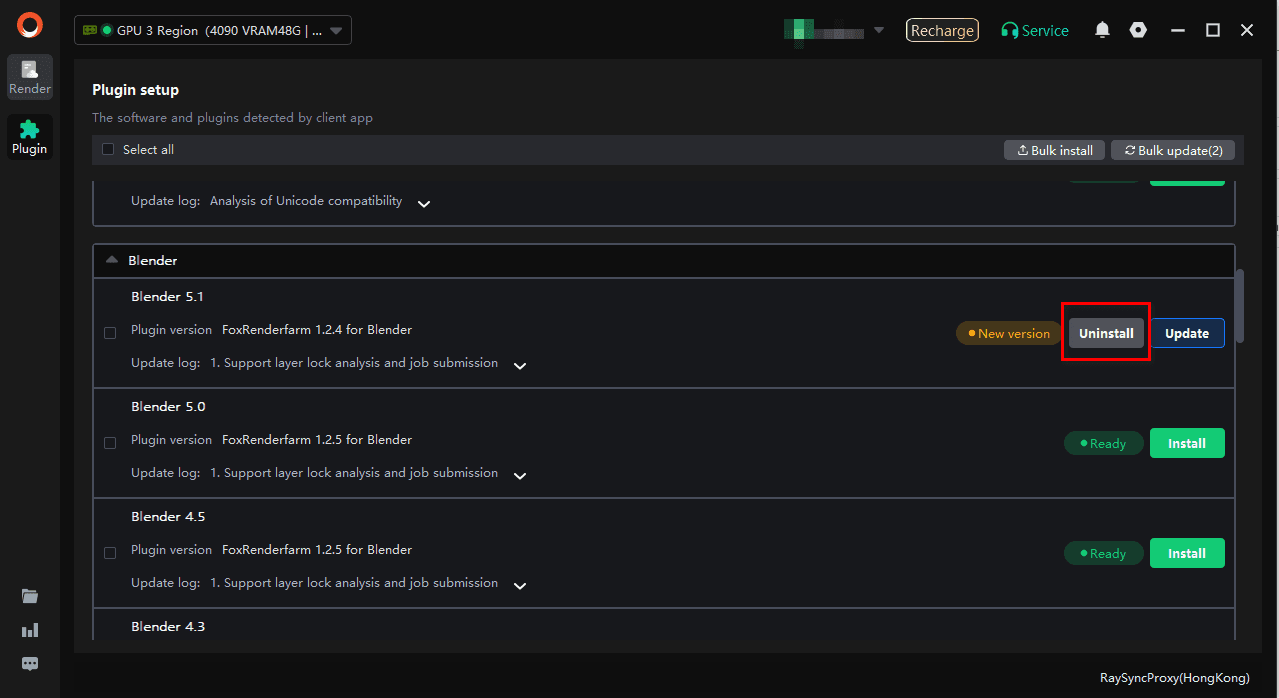
Launch the animation client, click Plugins in the left sidebar, select the plugin version to be uninstalled and click Uninstall to complete the operation.
Can't find what you're looking for?
Contact us to get your issue resolved as soon as possible.

 Blender
 Cinema 4D
 Arnold
 3ds Max
 Houdini
 V-Ray
V-Ray Maya
Maya Unreal Engine
 Nuke
Nuke Pricing
 New User Bonus
 Cost Estimator
 India Diwali Offer