 Blender
 Cinema 4D
 Arnold
 3ds Max
 Houdini
 V-Ray
V-Ray Maya
Maya Unreal Engine
 Nuke
Nuke Pricing
 New User Bonus
 Cost Estimator
 India Diwali Offer

V-Ray Standalone Web Submission
The web submission process for primarily consists of three steps:
1. Upload;
2. Submit;
3. Rendering and download.
In the following sections, we will provide a detailed description of each of these steps. Includes video tutorials and text description tutorials.
Video for V-Ray submission
Step 1: Upload
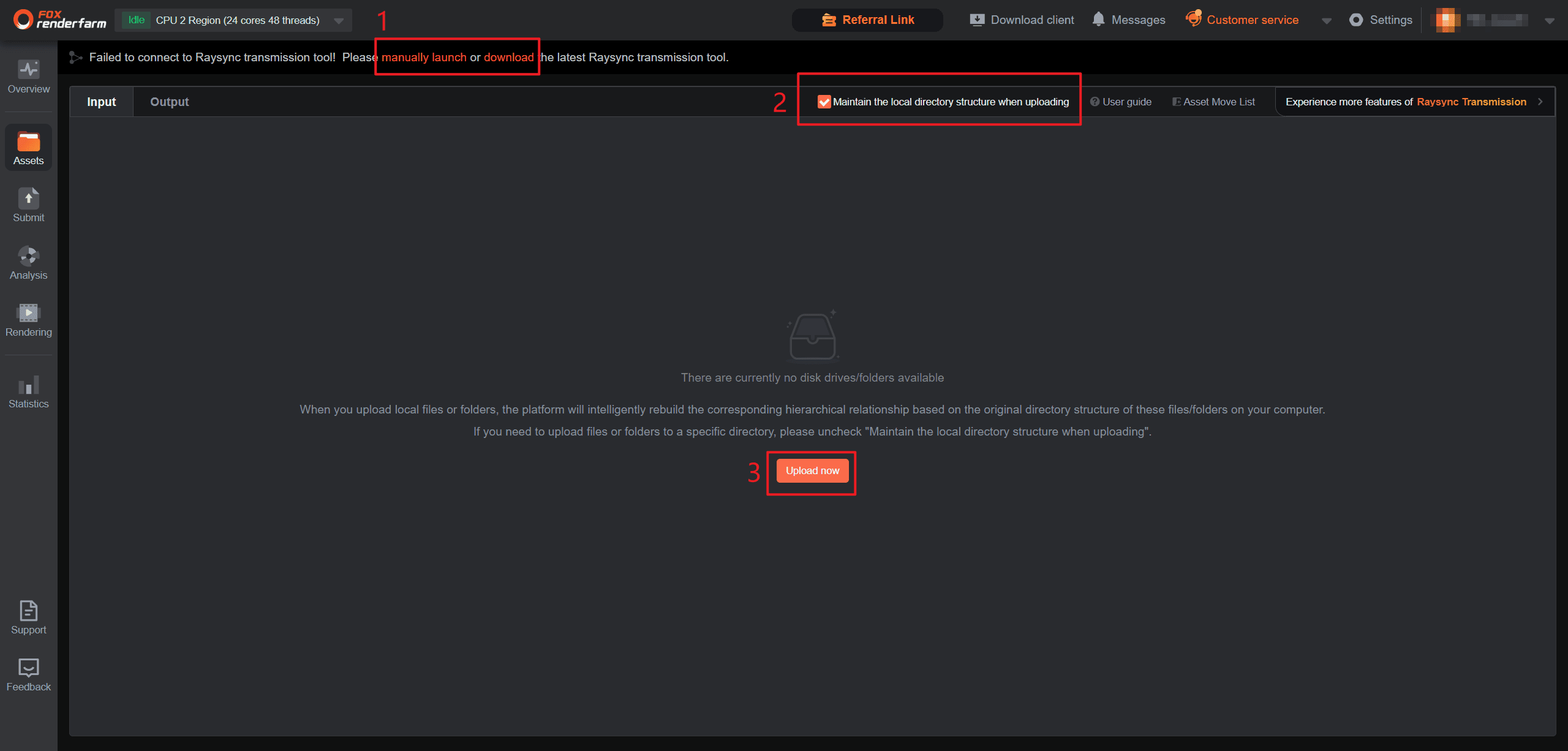
1. Upon logging into the web interface, navigate to the Assets page, then download and install the transfer tool. Once the installation is complete, click to launch the transfer tool.
2. Select the checkbox labelled "Maintain the local directory structure when uploading." If selected, the cloud will replicate the local directory structure, ensuring consistency between the cloud and local storage paths. If unchecked, you'll need to create folders in the cloud before uploading files;
Comparison of local and cloud asset catalogs:

3. Open the local folder containing your project files, select the project file you want to render, and click "Upload." (Note: Before uploading, please ensure you have modified and saved your rendering settings.)
4. Click the submit icon to enter the submission section.
Step 2: Submit
1. File Submission
We currently offer two convenient methods for file submission. You may choose the one that best suits your workflow.
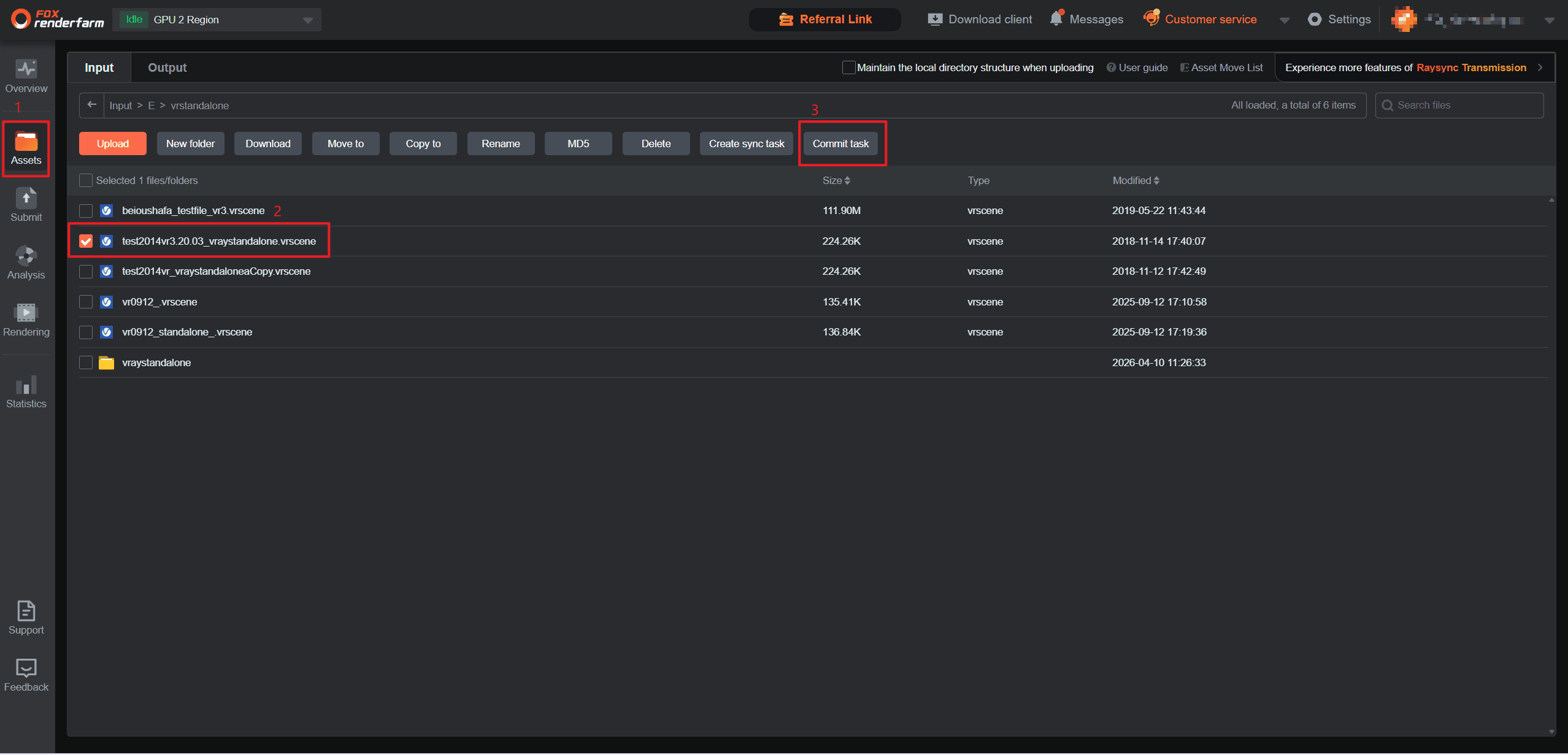
Method 1: Submission via Asset Page
Navigate to the Asset Page, select the files you wish to render, and click the [Submit Job] button located at the top of the page. This will direct you to the Software and Plugin Configuration stage.
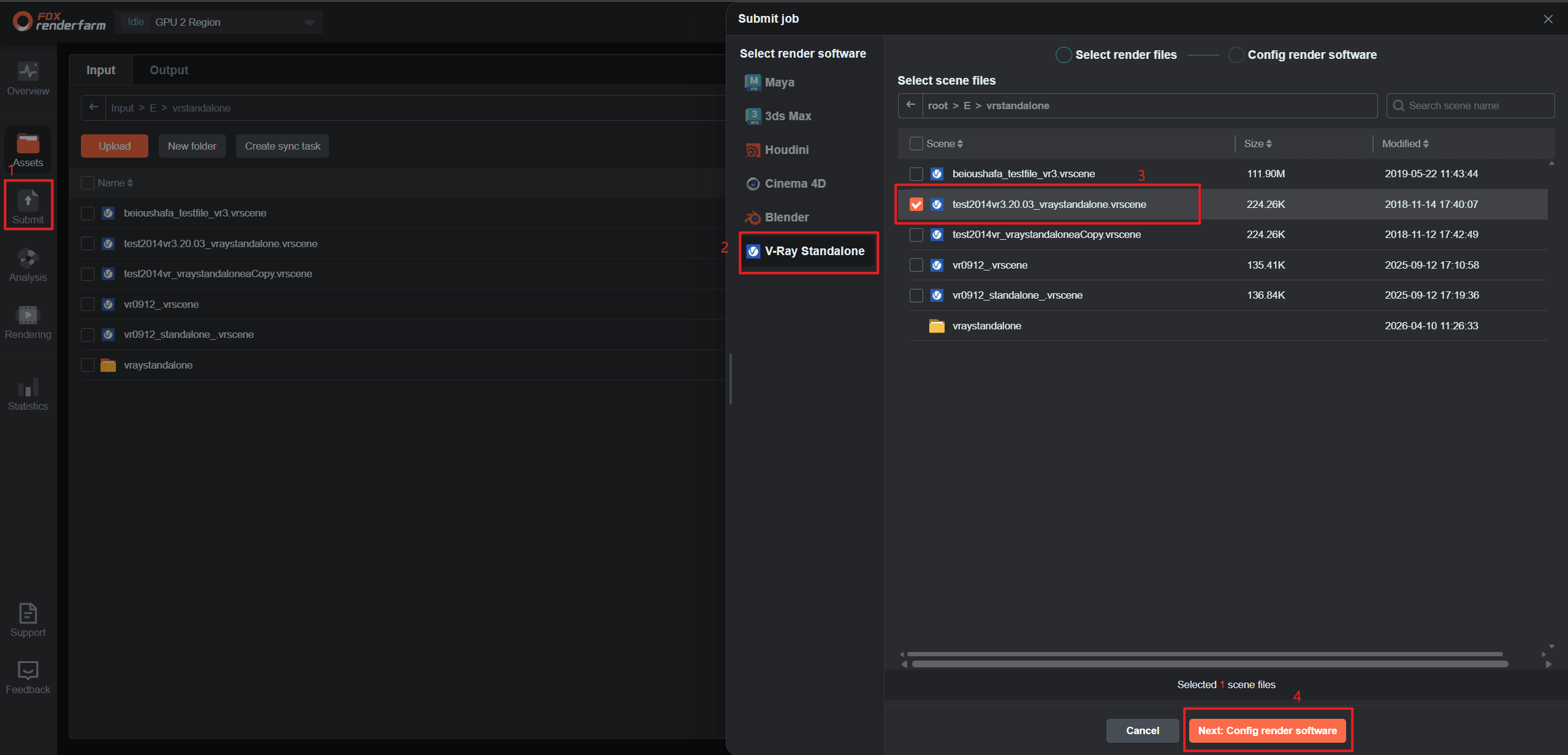
Method 2: Submission via Dedicated Submit Page
Go directly to the Submission Page. First, select the software type corresponding to your rendering file, then choose the scene file to be rendered. Click "Next: Config render software" to proceed to the configuration stage.
Note: Regardless of the submission method chosen, the operational workflow within the "Software & Plugin Configuration" stage is identical.
2. Proceed with software configuration.
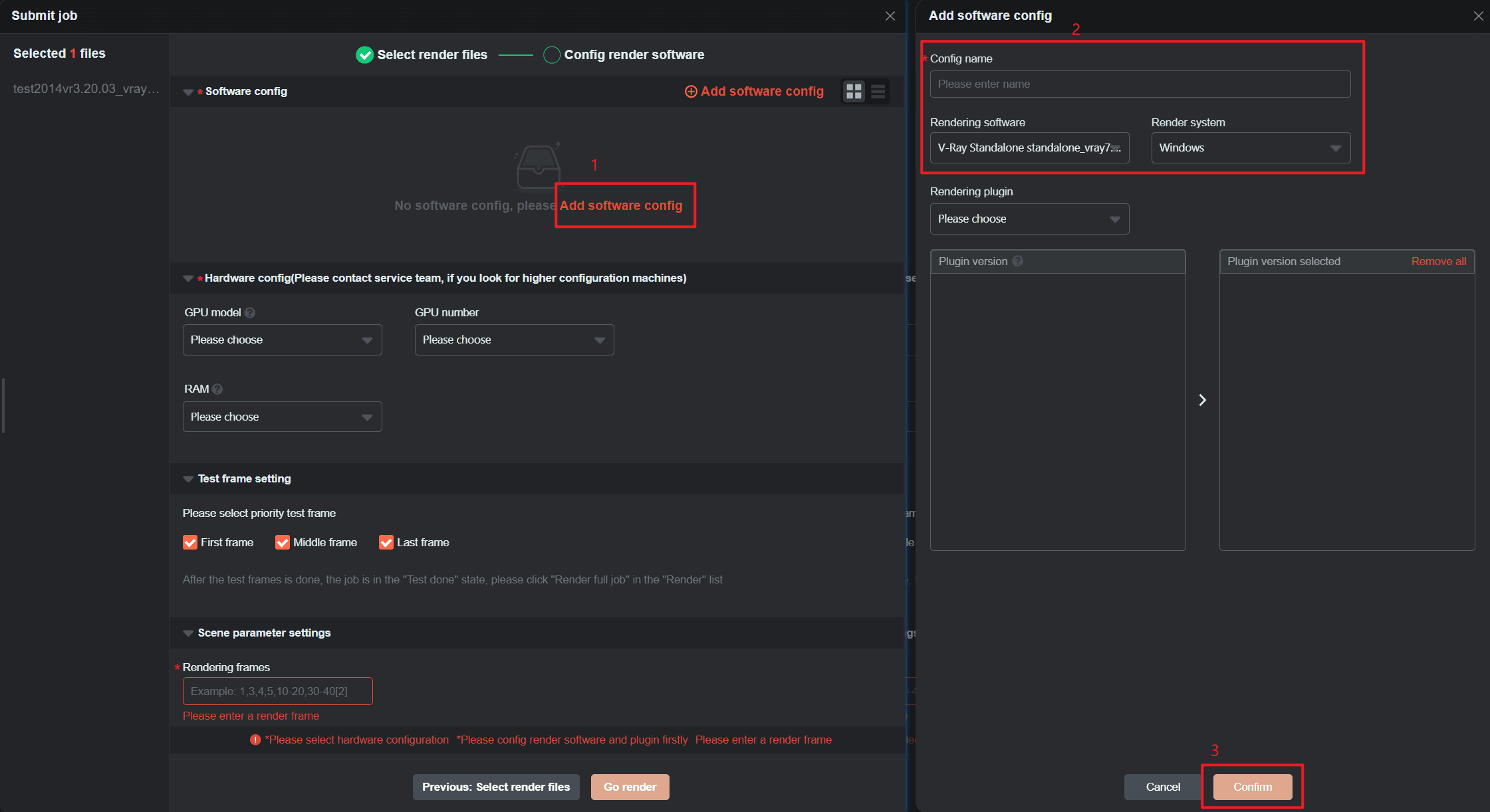
Click [Add Config] to add software and plugin configurations. In the configuration box, set up Config name, Rendering softwaare, Render system, and Plugin step by step.
If the required plugin information is not found, you can provide feedback to customer service for addition. After the settings are completed, click [Confirm].
3. Software config
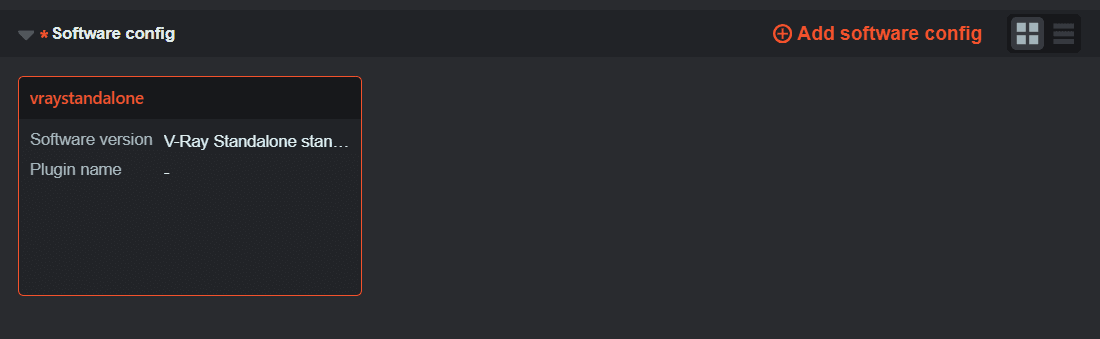
Upon completing the setup, you will enter the Software & Plugin Configuration stage. Please select the appropriate software and plugin versions according to your project requirements.
4. Hardware config
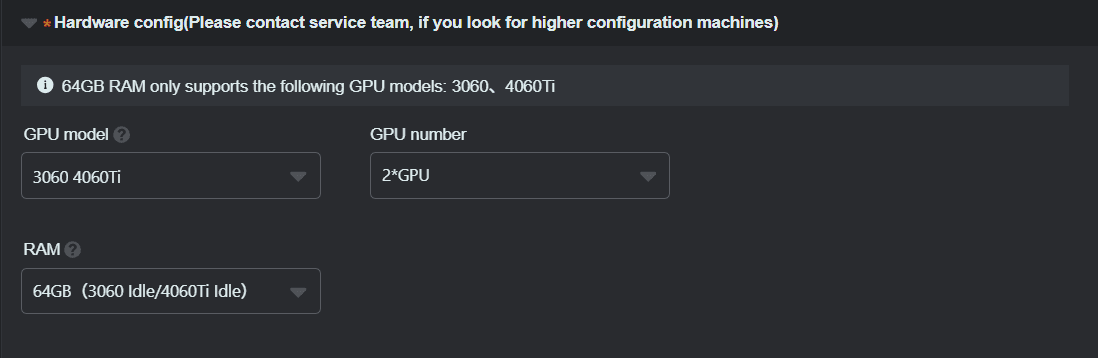
Select the rendering machine type that best fits your project needs. Generally, machines with higher specifications offer faster rendering speeds (Please contact service team, if you look for higher configuration machines)
5. Test frame setting
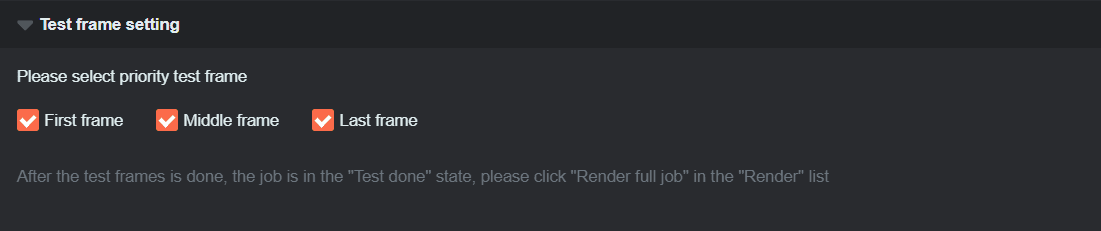
To ensure optimal results, we recommend that you prioritize test frames before clicking [Submit]. After the test frames are rendered, confirm that they meet your expectations. If so, click [Full Render] in the [Render List]. If you have any questions, please contact our online customer service.
In the initial state, three frames—the first frame, middle frame, and final frame—are automatically selected.
 1
1
6. Scene Parameter Settings
This section supports setting the frame range

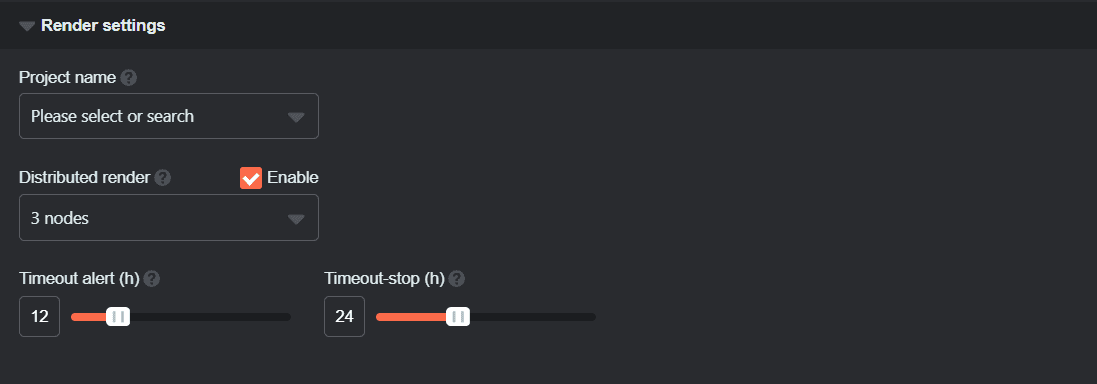
7. Render Settings
Project name: You can create a new project or select an existing project name. Adding a project will facilitate subsequent project management and billing statistics;
Distributed render: Disabled by default. Options include 3 nodes, 6 nodes, or 9 nodes. When enabled, each frame task is rendered simultaneously across multiple nodes to reduce processing time (supported for single frames only)
Timeout alert(h): An email alert will be sent if the rendering frame time exceeds the set limitation. The receiving email can be configured by yourself in Web->Message seetings->Job message settings;
Timeout stop(h): If the time - consuming of a rendering frame exceeds the set limitation, it will be automatically stopped and you will be informed via email. The receiving email can be configured by yourself in Web->Message seetings->Job message settings.
8. Once all settings above are completed, click [Start Render] to enter the rendering stage.
Step 3: Rendering and download
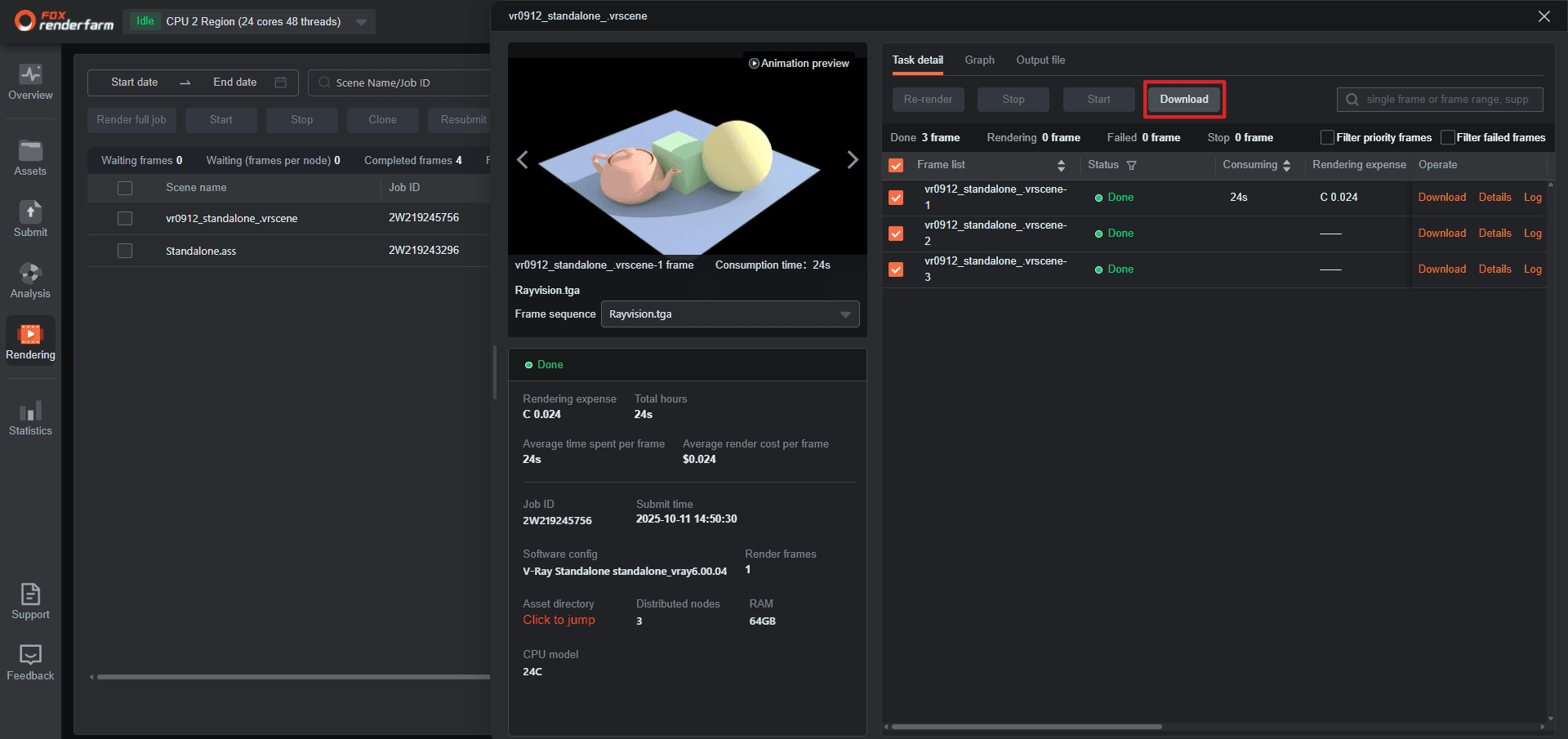
1. During the rendering process, you can click on jobs to view rendering details;
2. After rendering is completed, go to the Task Details page, select the output files to be downloaded, and then start the download process.