
 Blender
 Cinema 4D
 Arnold
 3ds Max
 Houdini
 V-Ray
V-Ray Maya
Maya Unreal Engine
 Nuke
NukeBest 3D Art Programs and Modeling Software for Beginners
 Ryan Thompson
Starting 3D can feel confusing because every program seems to promise the same thing: modeling, animation, rendering, and professional results. For beginners, the harder question is not “Which software is the most powerful?” but “Which one fits what I want to create first?”
This guide helps you compare beginner-friendly 3D art programs by learning curve, creative use case, workflow, and long-term value, so you can choose a tool without wasting months on the wrong starting point.
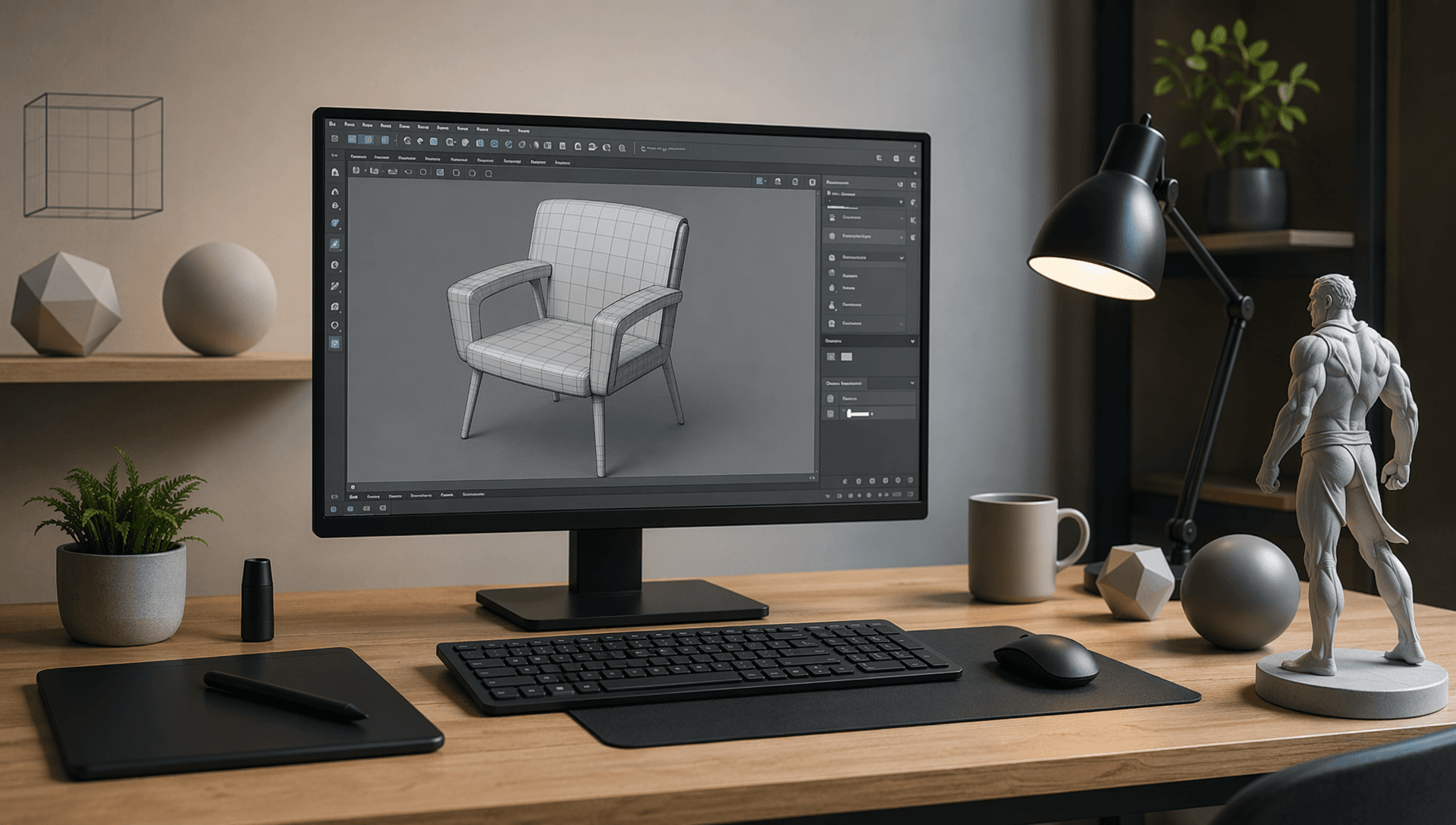
Quick Comparison of Beginner 3D Software
Before choosing a 3D program, it helps to compare what each tool is actually good at. Some software is easier for learning basic modeling, while others are better for character animation, architectural visualization, motion graphics, sculpting, or procedural VFX. The right choice depends on your goal, budget, and how much time you want to spend learning the interface.
|
Software |
Best For |
Learning Difficulty |
Free or Paid |
Good Starting Point For |
|
Blender |
Free all-in-one 3D creation |
Medium |
Free |
Modeling, animation, rendering, and general 3D art |
|
Autodesk Maya |
Character animation and professional pipelines |
Hard |
Paid |
Film, game animation, rigging, and character work |
|
Cinema 4D |
Motion graphics and design-focused animation |
Easy to medium |
Paid |
Motion design, advertising, product animation, and visual content |
|
3ds Max |
Architecture and product visualization |
Medium |
Paid |
Archviz, interiors, product renders, and hard-surface modeling |
|
SketchUp |
Fast architectural and concept modeling |
Easy |
Free and paid plans |
Architecture, interior design, layout, and quick 3D concepts |
|
ZBrush |
Digital sculpting |
Medium to hard |
Paid |
Characters, creatures, collectibles, and detailed organic models |
|
Houdini |
VFX and procedural workflows |
Hard |
Free and paid plans |
Simulations, procedural modeling, effects, and technical 3D work |
How to Choose the Right 3D Modeling Program
Choosing a 3D modeling program is easier when you start with your goal instead of the software name. Many beginners compare tools by popularity, but the better question is what you want to make first: characters, buildings, product visuals, motion graphics, game assets, simulations, or general 3D art. A program that is perfect for one workflow may feel slow or unnecessary for another.
Key Factors to Consider
- Your creative goal: Think about the type of work you want to create most often. Modeling a room, animating a character, sculpting a creature, and building a VFX simulation all require different strengths.
- Learning curve: Some tools are easier to open and start using, while others take longer because they are built for professional or technical workflows.
- Budget: Free software can be a smart starting point, especially if you are still exploring 3D. Paid tools may make sense later if they match your career direction or studio pipeline.
- Available tutorials: A strong learning community matters. Beginners make faster progress when they can find clear tutorials, project files, courses, and troubleshooting help.
- Hardware requirements: 3D software can be demanding. Before choosing a program, check whether your computer can handle modeling, viewport previews, simulations, and rendering.
- Rendering workflow: If you plan to create final images or animations, look at the software’s render engines, material workflow, lighting tools, and support for external or cloud rendering.
- Industry relevance: If you are learning for a job, research what tools are commonly used in the field you want to enter.
- Long-term flexibility: A beginner-friendly tool should help you learn core 3D concepts, not lock you into a workflow that becomes limiting too quickly.
Blender: Best Free 3D Program
Blender is often the best starting point for beginners because it gives you a complete 3D creation workflow without a software cost. Instead of learning one tool for modeling, another for animation, and another for rendering, beginners can practice many core 3D skills in one program. It may feel complex at first, but its large tutorial community and flexible toolset make it one of the most practical 3D art programs to learn first.
Main Features
- 3D modeling: Create hard-surface models, props, environments, characters, and basic game assets.
- Sculpting: Shape organic models such as creatures, faces, and detailed surface forms.
- Animation and rigging: Build rigs, animate characters, and create camera or object animation.
- Rendering: Use built-in render engines to create still images, animations, and visual previews.
- Simulation: Work with cloth, particles, smoke, fire, fluids, and physics-based effects.
- Compositing and editing: Adjust rendered shots, combine elements, and make simple video edits inside Blender.
Pros
- Free and open-source, making it accessible for students, hobbyists, and new artists.
- Covers many parts of the 3D pipeline in one program.
- Strong community support, with many tutorials, courses, plugins, and learning resources.
- Good for exploring different 3D paths before committing to a specialized tool.
- Useful for modeling, animation, rendering, game assets, motion graphics, and indie production.
Cons
- The interface can feel overwhelming for complete beginners.
- Advanced workflows may require add-ons, custom settings, or extra learning time.
- Large or complex scenes can become heavy to render on a local computer, especially for animation or high-resolution final frames.
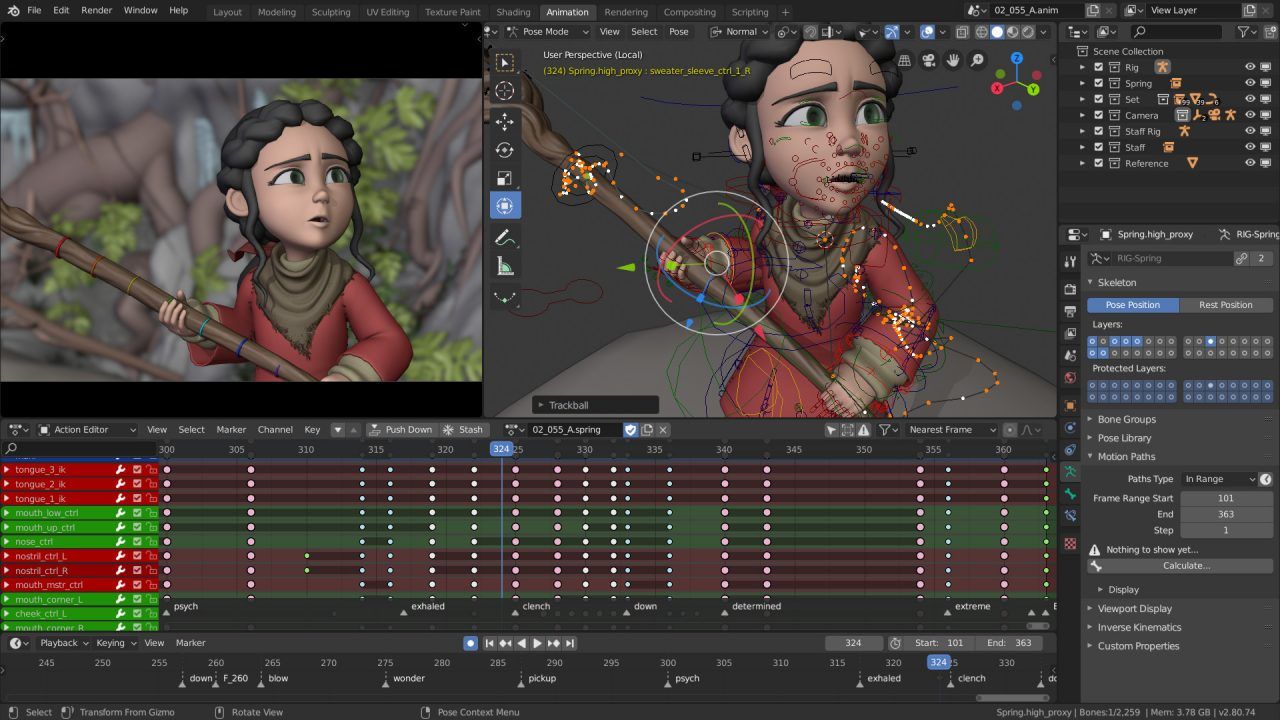
Autodesk Maya: Best for 3D Animation
Autodesk Maya is best suited for beginners who want to move toward character animation, film production, game animation, or professional 3D pipelines. It is widely used for animating characters, building rigs, creating cinematic shots, and managing complex animation scenes, and artists who continue into production may also explore Maya plugins and add-ons to improve specific parts of the workflow. For someone whose main goal is to become an animator rather than a general 3D hobbyist, Maya is one of the most relevant programs to learn.
Main Features
- Character animation: Create expressive body movement, facial animation, walk cycles, action scenes, and performance-driven shots.
- Rigging tools: Build skeletons, controls, constraints, and deformation systems for characters and creatures.
- Graph Editor: Fine-tune animation curves, timing, spacing, and motion transitions with detailed control.
- Modeling tools: Create characters, props, environments, and hard-surface assets for animation and games.
- Simulation and effects: Work with cloth, particles, fluids, and other effects used in animation and VFX scenes.
- Pipeline support: Connect with common production tools for texturing, rendering, game engines, and studio workflows.
Pros
- Strong choice for students who want to enter film, game, or animation studios.
- Excellent tools for character rigging and keyframe animation.
- Commonly used in professional animation and VFX pipelines, which makes it valuable for career-focused learning.
- Good for complex scenes that need detailed animation control.
- Large learning ecosystem, including tutorials, courses, plugins, and industry training materials.
Cons
- Paid software, which may be a barrier for hobbyists or casual learners.
- The interface and toolset can feel technical at the beginning.
- Not always the fastest option for simple modeling or quick visual experiments.
- Complex animated scenes can become heavy to preview and render on a local machine.
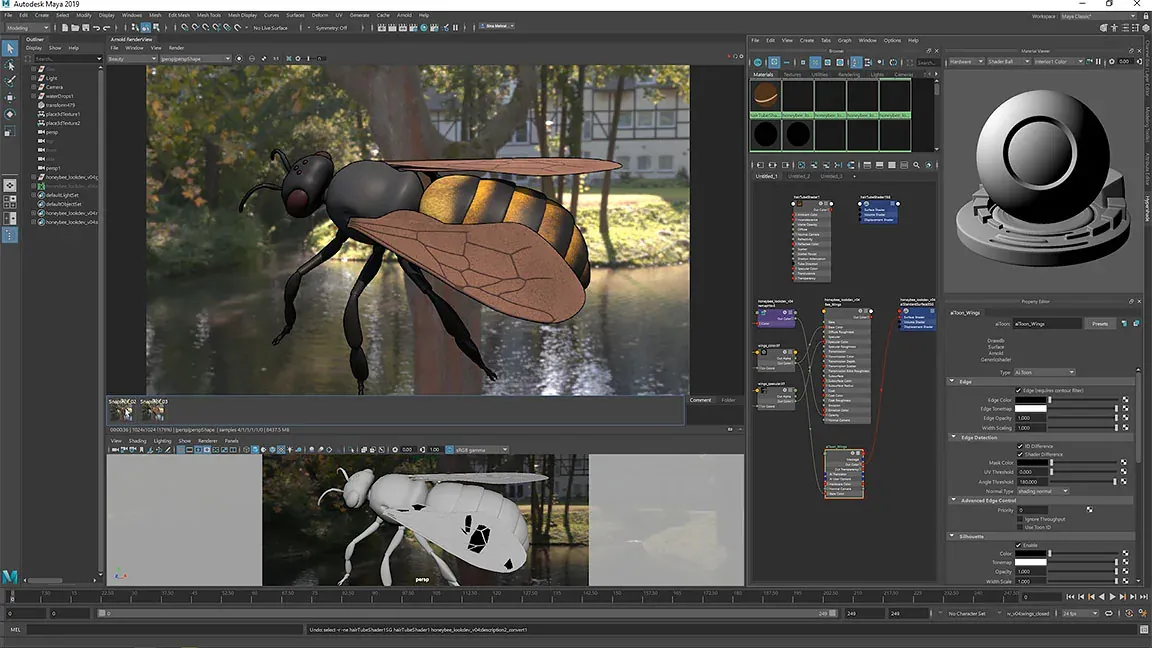
Cinema 4D: Best for Motion Graphics
Cinema 4D is a strong choice for beginners who want to create motion graphics, product animations, title sequences, abstract visuals, broadcast design, or social media content. It is popular among designers because its workflow feels more approachable than many high-end 3D programs, especially when the goal is to make polished visual content rather than build a full character animation pipeline.
Main Features
- Motion graphics tools: Create animated text, repeated objects, abstract forms, and procedural design elements with MoGraph.
- Product animation: Build clean product shots, turntables, lighting setups, and commercial-style visuals.
- Animation workflow: Animate objects, cameras, materials, and effects with a designer-friendly timeline.
- Modeling tools: Create basic models, hard-surface objects, and scene elements for visual design projects.
- Rendering support: Work with built-in rendering tools and popular third-party render engines.
- Adobe integration: Connect well with After Effects, making it useful for motion designers who already work in 2D animation or video production.
Pros
- Easier to approach than many professional 3D tools.
- Excellent for motion graphics, advertising, product visuals, and design-driven animation.
- Strong MoGraph toolset for creating procedural animations quickly.
- Good choice for designers moving from 2D motion design into 3D.
- Widely used in studios that produce commercials, brand films, event visuals, and broadcast graphics.
Cons
- Paid software, so it may not be the cheapest starting point for beginners.
- Less focused on advanced character animation than Maya.
- Not as broad as Blender for free all-in-one learning.
- Some advanced rendering workflows may require third-party engines or plugins.
- Complex motion graphics scenes with many clones, lights, materials, or simulations can become slow to render locally.
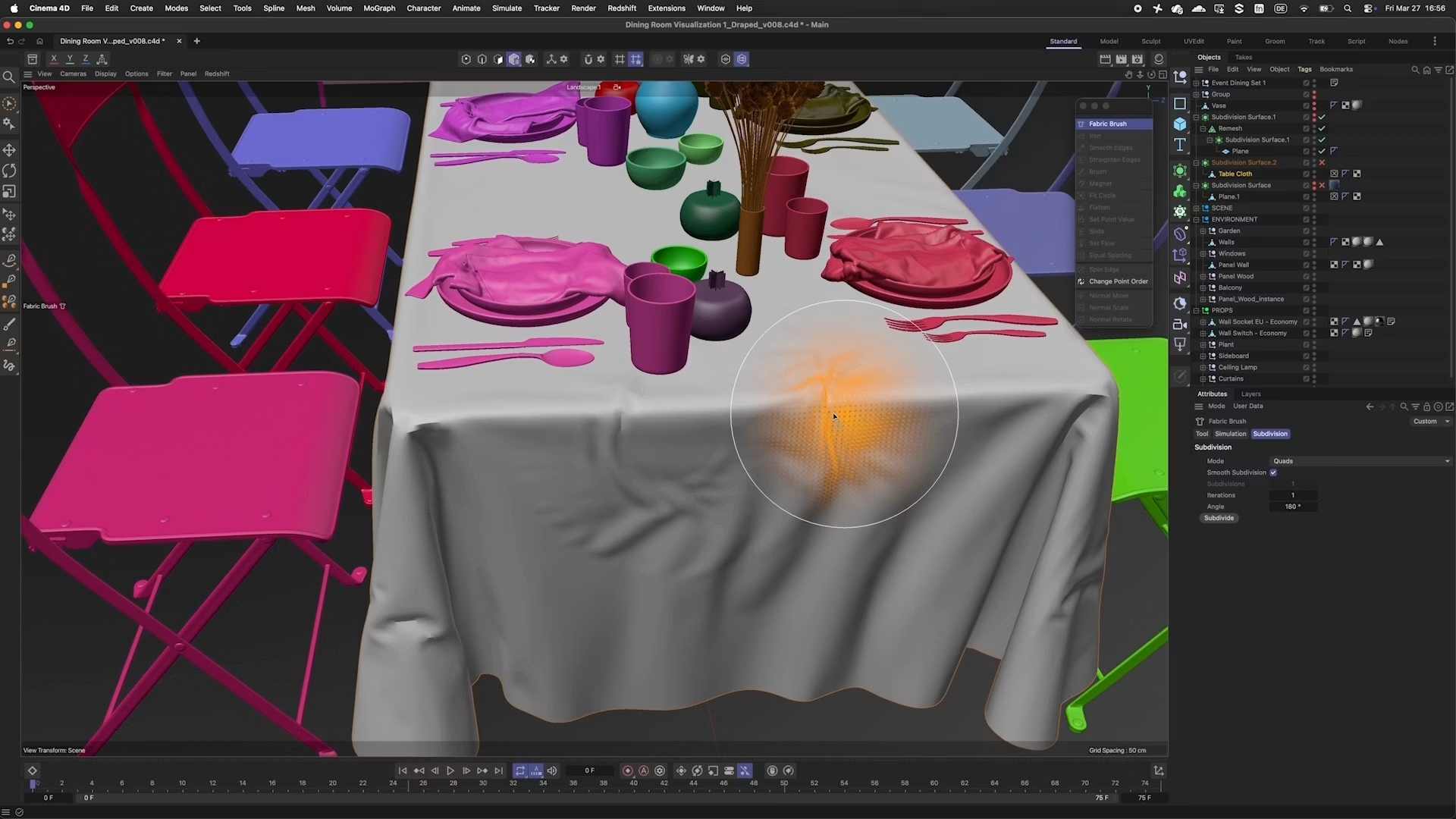
3ds Max: Best for Architecture and Product Visualization
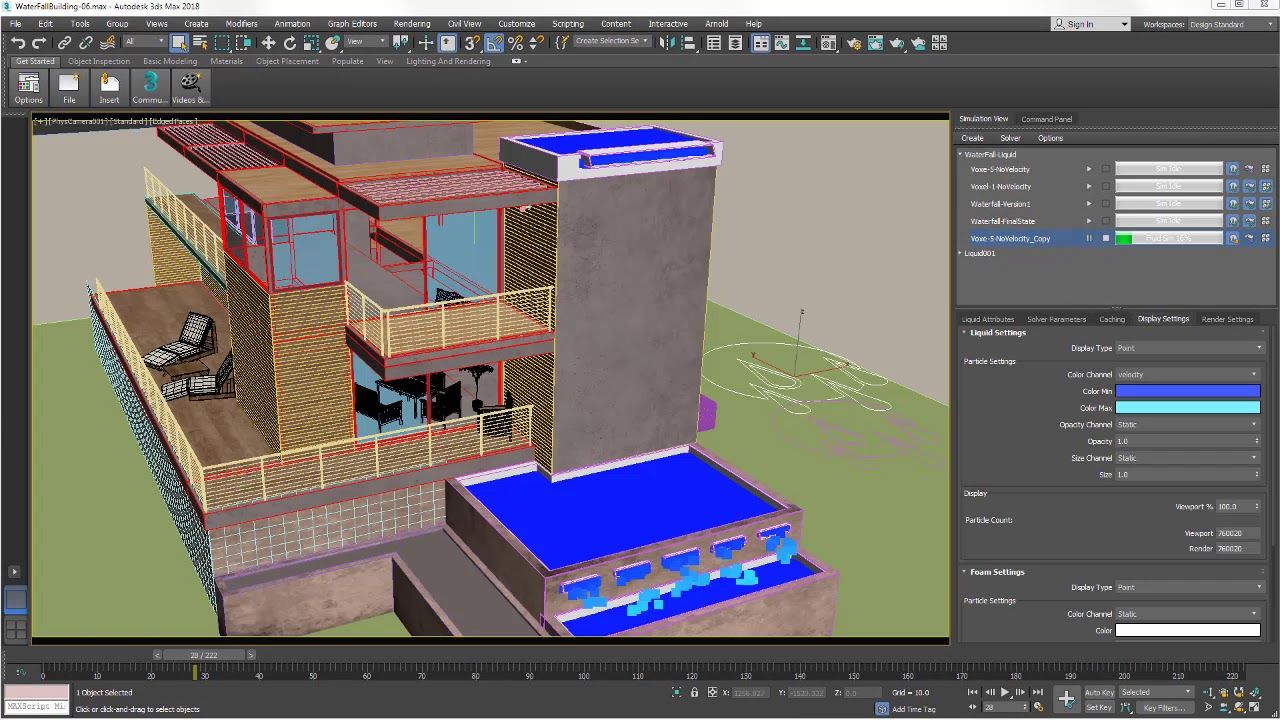
3ds Max is a strong choice for beginners who want to focus on architectural visualization, interior design, product rendering, furniture modeling, or hard-surface scenes. It is widely used in archviz and design studios because it handles detailed models, structured scenes, realistic materials, and render-ready environments well. For learners who want to create buildings, interiors, products, or polished still images, 3ds Max is one of the most relevant programs to consider.
Main Features
- Hard-surface modeling: Create buildings, furniture, products, props, and detailed man-made objects.
- Architectural visualization: Build interior and exterior scenes for design presentations, property marketing, and client previews.
- Material and lighting workflows: Set up realistic surfaces, lights, cameras, and environments for high-quality renders.
- Renderer support: Work with popular render engines often used in archviz and product visualization.
- Scene management: Handle complex scenes with many objects, materials, references, and layers.
- CAD and design workflow support: Fit into architecture, design, and visualization pipelines that use imported technical models.
Pros
- Excellent for architecture, interiors, product visualization, and hard-surface modeling.
- Strong ecosystem of plugins, model libraries, materials, and rendering workflows.
- Good fit for students who want to work in archviz, real estate visualization, product design, or design studios.
- Handles detailed scenes and realistic render setups well.
- Widely recognized in professional visualization pipelines.
Cons
- Paid software, which can be expensive for casual beginners.
- Less beginner-friendly than SketchUp for very fast architectural concept modeling.
- The interface and workflow may feel heavy if you only want to learn basic 3D modeling.
- Large architectural scenes with high-resolution textures, many lights, and complex render settings can take a long time to render on a local computer.
SketchUp: Best for Fast Architecture Modeling
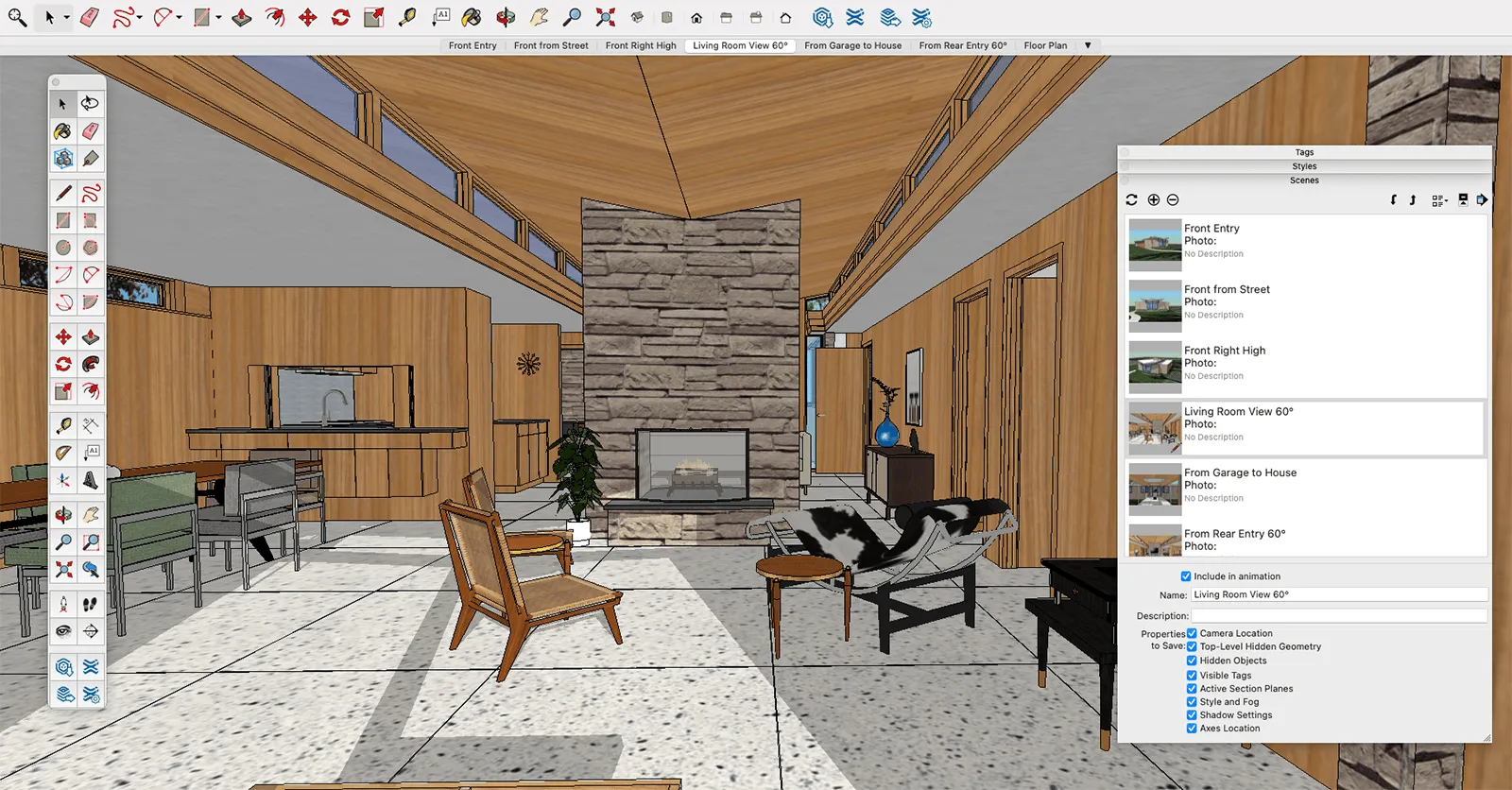
SketchUp is best for beginners who want to create architectural models, interior layouts, furniture concepts, urban scenes, or simple 3D design ideas quickly. It is known for its straightforward modeling workflow, which makes it easier to start building shapes, rooms, and structures without learning a heavy 3D interface first. For architecture students, interior designers, and beginners who think in spaces rather than characters or effects, SketchUp can be a very practical first 3D program.
Main Features
- Fast architectural modeling: Create buildings, rooms, floor plans, furniture layouts, and exterior concepts quickly.
- Push-pull modeling: Turn 2D shapes into 3D forms with an intuitive modeling approach.
- Design visualization: Build simple scenes to test proportions, space, layout, and design ideas.
- Large model library: Use ready-made components, furniture, fixtures, and architectural assets to speed up concept work.
- Presentation tools: Create views, scenes, and basic visual materials for design reviews or client discussions.
- Plugin ecosystem: Extend the workflow with tools for rendering, documentation, terrain, layout, and more detailed modeling.
Pros
- Easier to learn than many full 3D production tools.
- Very fast for architecture, interiors, spatial concepts, and early design models.
- Good fit for students, architects, interior designers, and real estate visualization beginners.
- Large library of ready-made models can speed up early projects.
- Useful for communicating design ideas before moving into more detailed rendering or visualization tools.
Cons
- Less suitable for character animation, VFX, sculpting, or advanced 3D animation.
- Built-in rendering and materials are more limited than dedicated visualization workflows.
- Some professional features, extensions, and workflow tools require paid plans or plugins.
- For photorealistic architecture renders, users often need a render engine or another tool in the pipeline.
ZBrush: Best for Digital Sculpting
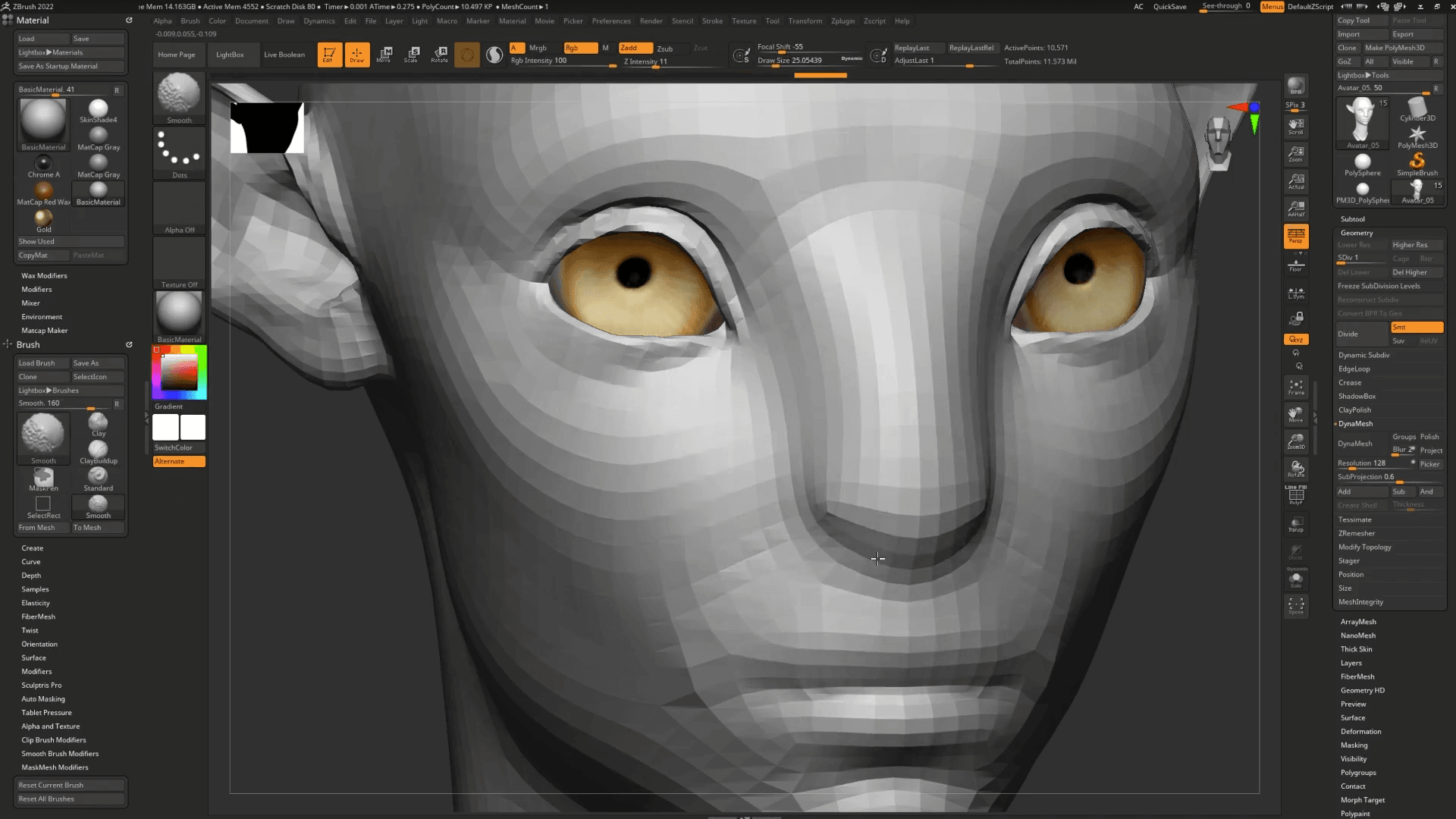
ZBrush is best for beginners who want to create characters, creatures, collectibles, monsters, detailed props, or organic models with a sculpting-first workflow. Instead of building everything with traditional polygon modeling, artists use ZBrush more like digital clay, shaping forms, adding surface detail, and refining anatomy or texture directly on the model. It is especially useful for anyone interested in character art, game assets, concept design, toys, miniatures, or high-detail 3D prints.
Main Features
- Digital sculpting: Shape characters, creatures, props, and organic forms with brush-based tools.
- High-detail modeling: Add wrinkles, pores, scales, armor details, fabric folds, and surface texture.
- Dynamic sculpting workflow: Build forms quickly without worrying too much about clean topology at the early stage.
- Character and creature creation: Create heads, bodies, anatomy studies, fantasy creatures, and stylized models.
- Retopology support: Prepare high-resolution sculpts for animation, games, or rendering workflows.
- Export for other tools: Send models to other 3D programs for UVs, texturing, rigging, animation, and final rendering.
Pros
- Excellent for character artists, creature designers, toy designers, and sculpting-focused beginners.
- Feels more natural for artists who come from drawing, painting, or traditional sculpture.
- Allows very high levels of detail compared with basic modeling tools.
- Strong industry presence in games, film, collectibles, and concept art.
Cons
- Not the easiest first 3D program if you want general modeling, animation, or rendering.
- Often needs to be paired with another tool for animation, scene layout, UVs, or final production.
- High-resolution sculpts can become heavy on local hardware.
- Beginners may need extra time to learn anatomy, form, topology, and asset cleanup.
Houdini: Best for VFX and Procedural Work
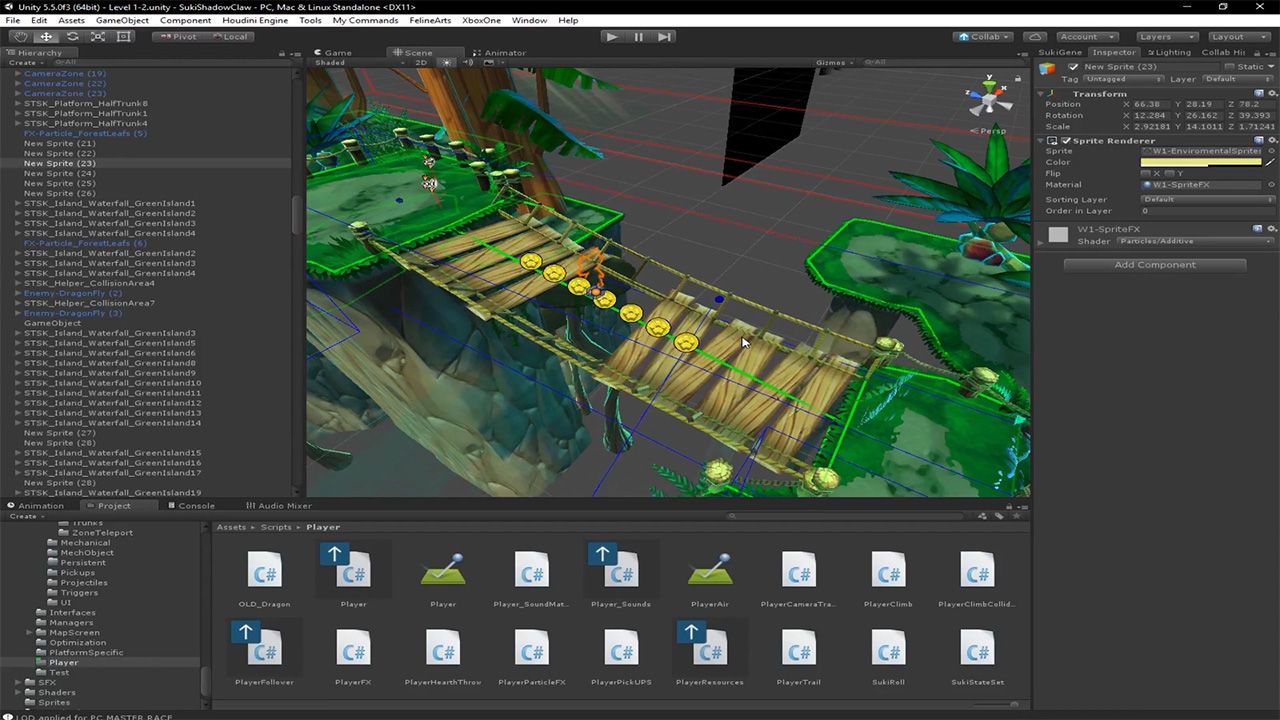
Houdini is best for beginners who are serious about visual effects, procedural modeling, simulations, technical art, or large-scale 3D systems. It is not the easiest 3D program to learn first, but it is one of the most powerful choices for artists who want to create effects such as fire, smoke, destruction, particles, crowds, oceans, and complex procedural environments. If your goal is VFX rather than simple modeling, Houdini is worth considering early.
Main Features
- Procedural workflow: Build node-based setups that can be adjusted, reused, and scaled across different shots or assets.
- VFX simulations: Create smoke, fire, fluids, destruction, particles, cloth, crowds, and other effects-heavy scenes.
- Procedural modeling: Generate environments, patterns, buildings, terrains, and complex structures through rules and systems.
- Node-based control: Manage modeling, animation, materials, simulations, and rendering through a flexible node network.
- Pipeline support: Fit into professional VFX, game, animation, and technical art workflows.
- Rendering and look development: Prepare complex effects and scenes for lighting, shading, and final rendering.
Pros
- Excellent for VFX, simulations, procedural modeling, and technical 3D work.
- Strong choice for learners who want to enter film, game VFX, or procedural environment creation.
- Node-based workflow makes complex setups more controllable and reusable.
- Can handle effects that would be difficult or inefficient in many general 3D tools.
Cons
- Steeper learning curve than most beginner 3D software.
- Not ideal if you only want simple modeling, quick architecture concepts, or basic animation.
- Node-based thinking can feel intimidating at first.
- Simulation-heavy scenes can be demanding to cache, preview, and render on local hardware.
What Is the Best 3D Art Program for Beginners?
The best 3D art program for most beginners is Blender because it is free and covers modeling, animation, sculpting, rendering, and basic compositing in one place. However, the best choice depends on what you want to create: choose Maya for character animation, Cinema 4D for motion graphics, 3ds Max for architecture and product visualization, SketchUp for fast architectural modeling, ZBrush for digital sculpting, and Houdini for VFX or procedural work.
If you are not sure which area of 3D you want to focus on yet, start with a flexible all-in-one tool and complete a few small projects first. Once you understand the basics of modeling, lighting, materials, cameras, and rendering, it becomes much easier to decide whether you need a more specialized program for your long-term creative or career goals.
Why Rendering Matters After You Learn 3D
Learning 3D does not stop at modeling. Once you start adding materials, lighting, cameras, simulations, detailed assets, and animation, rendering becomes one of the most important parts of the workflow. A simple viewport preview may be quick, but final images and animations can take much longer, especially when scenes include high-resolution textures, complex lighting, reflections, particles, or long frame ranges. For beginners, this is often the moment when a project starts to feel limited by local hardware rather than creative skill.
That is where Fox Renderfarm can help. Fox Renderfarm is a professional cloud rendering service for 3D artists, animation teams, VFX studios, architectural visualization artists, and designers who need more render power without relying only on a local computer. It supports CPU and GPU rendering, works with many popular 3D tools and render engines, and helps artists render still images or animation sequences more efficiently when deadlines, scene complexity, or hardware limits become a problem.

For beginners, a render farm may not be necessary for every practice project. But as your scenes become larger and more polished, cloud rendering can help you test final frames, complete animation projects, and avoid waiting for one machine to process everything overnight. It is especially useful when you are preparing portfolio work, client visuals, product renders, architectural scenes, or animation shots that need higher quality output.
FAQ about Best 3D Art Programs
What is the best 3D program for beginners?
For most beginners, Blender is the best 3D program to start with because it is free and includes tools for modeling, animation, sculpting, rendering, and basic compositing. However, the best choice depends on your goal. Maya is better for character animation, Cinema 4D is strong for motion graphics, SketchUp is easier for architecture concepts, and ZBrush is best for digital sculpting.
Is Blender enough for beginners?
Yes. Blender is more than enough for beginners who want to learn core 3D skills such as modeling, materials, lighting, animation, and rendering. It is powerful enough for serious projects, but beginners should expect a learning curve because it includes many tools in one program.
Is Maya better than Blender for beginners?
Maya is better than Blender for beginners who specifically want to learn character animation, rigging, or a studio-style animation pipeline. Blender is usually better as a general first 3D program because it is free and covers more creative areas without a paid license.
What is the easiest 3D modeling software to learn?
SketchUp is one of the easiest 3D modeling programs to learn for architecture, interiors, and simple spatial design. Its push-pull modeling workflow is easier to understand than many full 3D production tools.
Which 3D software is best for animation?
Maya is one of the best 3D programs for animation, especially character animation, rigging, and professional film or game pipelines. Blender is also a strong option for beginners who want a free tool for animation practice, while Cinema 4D is a good choice for motion graphics and design-focused animation.
Which 3D software is best for architecture?
SketchUp is a strong choice for quick architectural modeling and early design concepts, while 3ds Max is better for detailed architectural visualization, interior scenes, product visuals, and photorealistic rendering workflows. Many architecture learners start with easier concept tools before moving into more advanced visualization software.
Do beginners need a render farm?
Beginners do not need a render farm for every practice project. A local computer is usually enough for simple models, basic scenes, and early learning. A render farm becomes useful when scenes are large, render times are too long, or you need to finish high-quality images, animations, architectural visuals, or portfolio projects faster.
Conclusion
Choosing the best 3D art program as a beginner depends on what you want to create first. If you need a flexible starting point, choose a tool that lets you practice the basics of modeling, materials, lighting, animation, and rendering. If you already have a clear goal, such as character animation, architectural visualization, motion graphics, sculpting, or VFX, a more specialized program may help you learn in the right direction faster.
As your scenes become more detailed and render times grow longer, cloud rendering services like Fox Renderfarm can also help you handle larger final images and animations without being limited by local hardware.

 Ryan Thompson
 Ryan Thompson
 Ryan Thompson