
 Blender
 Cinema 4D
 Arnold
 3ds Max
 Houdini
 V-Ray
 Maya
 Unreal Engine
 Nuke
 Pricing
 New User Bonus
 Cost Estimator
 Christmas Sale


Download and share results
Overview
There are two ways to take a render away: download it to your machine, or create an output link and send it to someone. A job only needs finished frames — the whole sequence does not have to be done.
Downloads can start from the Rendering list, from Assets, from the task detail drawer, or from the desktop client. They are the same function; use whichever entry is closest. To hand results to someone else, see the output link section below.
Downloads run through the local Raysync transfer tool. If the page says it is not detected, start it from the prompt or install the latest version and retry.
Download a job
Any one of these entries works:
-
Rendering list (Monitor a job): tick the job, click Download.

-
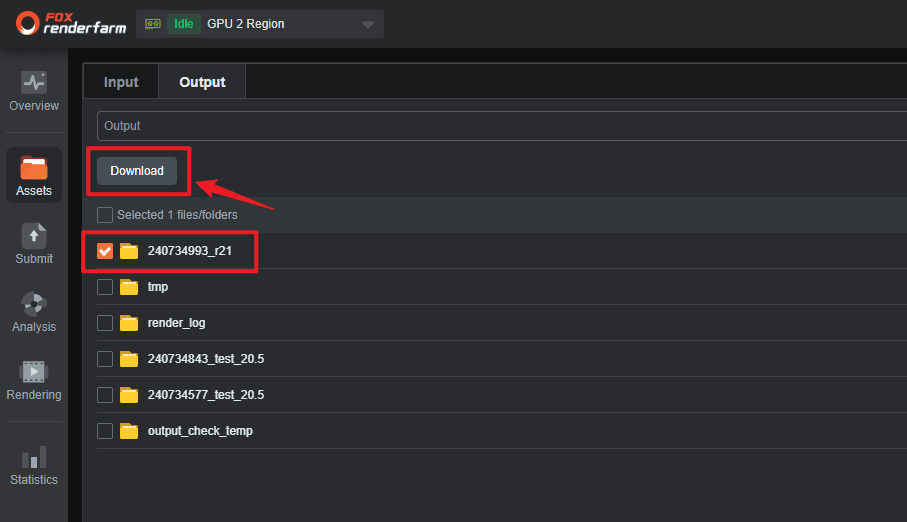
Assets (Output tab in Manage your assets): find the directory named after the job and click Download; or open the directory, tick the files you need and download those.
-
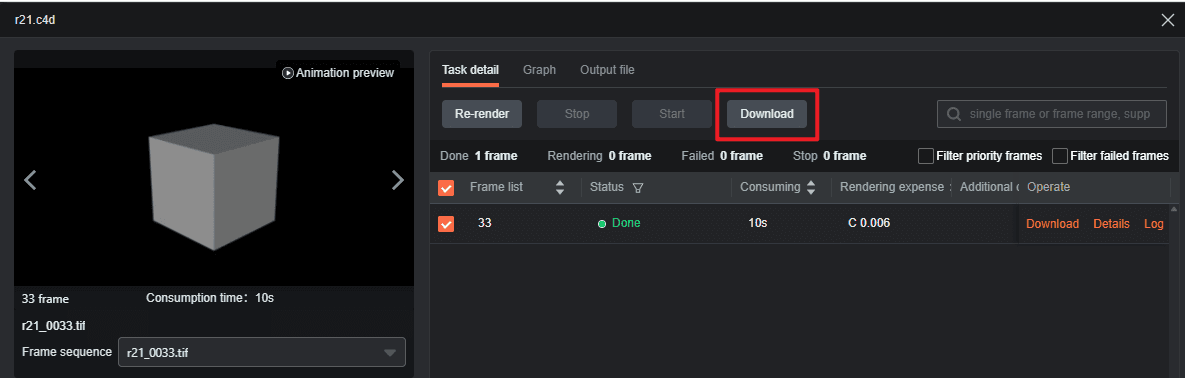
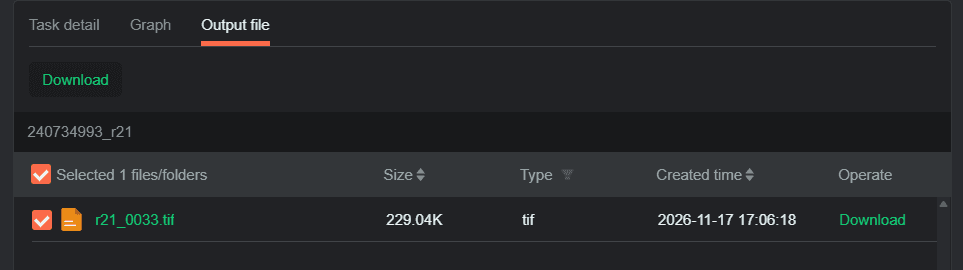
Task detail drawer: open the job row in the Rendering list, tick frames in Task detail or files in Output file, then click Download. Output file lists file name, size, type and creation time, with the current directory shown in the path bar above.
-
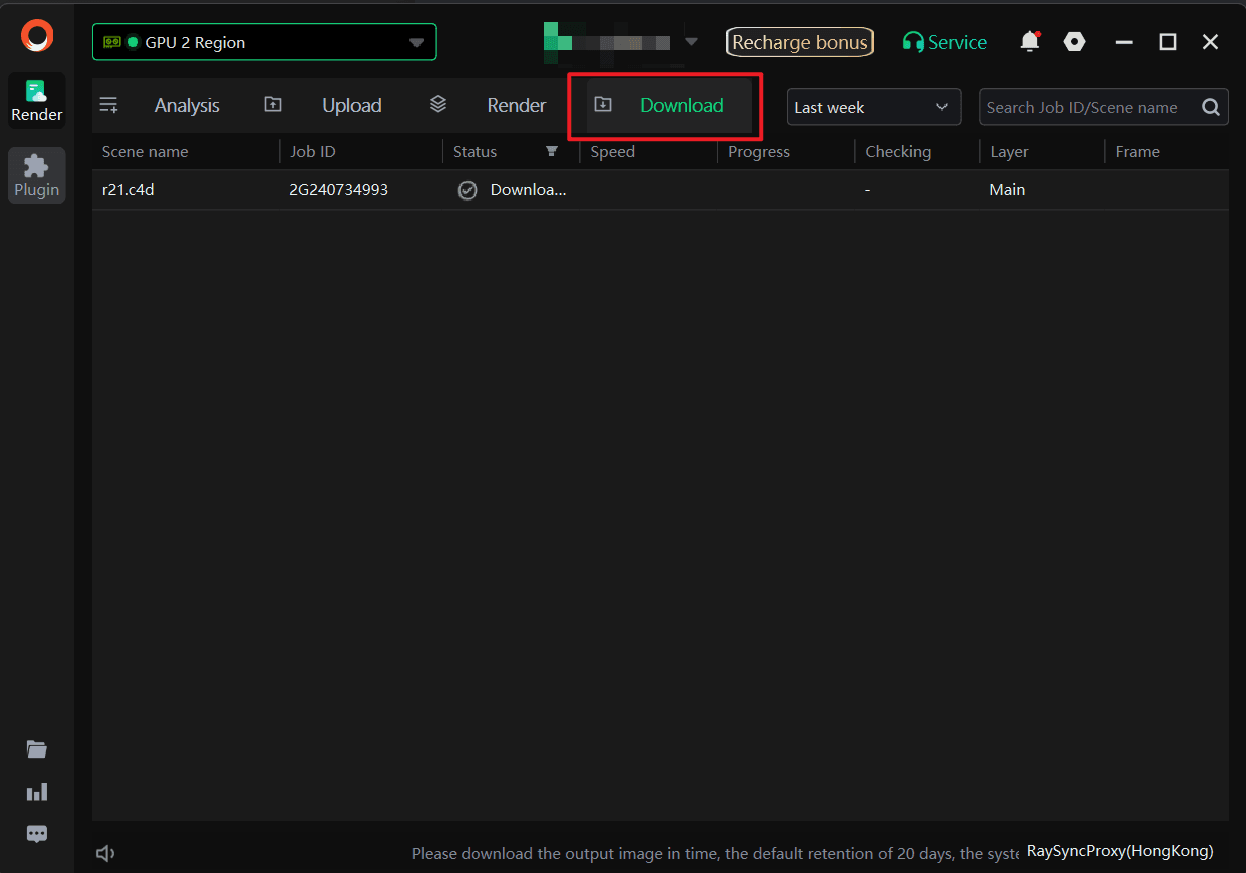
Desktop client: use the Download tab, and turn on automatic download so results are collected without clicking each job.
If some frames failed, resubmit them first and download once they finish — see Stop, start, resubmit, and clone jobs.
Select results by frame range and sequence (3ds Max only)
Select results for download is another entry that picks results by frame range and sequence. It works only for 3ds Max jobs with finished frames; photon tasks cannot use it.
-
Tick the job and click Select results for download.
-
Enter the frame range: leave it empty to take every finished frame, or enter something like
10-50for that stretch only. -
Tick the sequences to download; several can be picked.
-
Click OK. Only the output files of the ticked sequences inside that frame range are downloaded; unticked sequences are skipped.
Create an output share link
A link lets someone else view and download the results without moving the files.
-
Tick the jobs to share in the Rendering list and click Output Link Sharing; up to 50 jobs at a time.
-
Set Link Validity Period — required: 1, 5, 10 or 30 days. Until it is set, Copy Sharing Link stays grey.
-
To limit who can open it, add allowed IPs under Allow Access Only from the Following IPs; leave it empty to keep the link open.
-
Click Copy Sharing Link and send it to the recipient.
-
The recipient opens the link, signs in to a Fox Renderfarm account, and can view and download the results.
The link points at your assets: send it only to the people who need it, not to a public channel. The following jobs cannot have a share link: jobs containing photon or simulation tasks, a multi-job selection whose storage types differ, jobs flagged for an outstanding balance, and jobs running in a few regions that do not support sharing — the page tells you when that applies.
Retention
Results have a retention window: an animation job shows as expired 20 days after completion, a still-image job after 7 days. An expired job can only be inspected — download and resubmit are unavailable. Download anything worth keeping before then.


