
 Blender
 Cinema 4D
 Arnold
 3ds Max
 Houdini
 V-Ray
V-Ray Maya
Maya Unreal Engine
 Nuke
Nuke|
Area |
Contents |
|
Top menu |
☰ (Language), Help, Recharge, Tools |
|
Left: submission settings |
Platform and username, Plugin, Hardware Models, RAM, GPU Count, Project, submission options, and the Submit Render button |
|
Right: scene information |
General, Render, and Scene information of the current file. When analysis finds issues, this area shows the issue list instead |
|
Bottom status bar |
Current progress and messages, such as "Submission settings are ready." |
Fox Renderfarm is Compatible with Blender Submission Plugin!
Last edited on: 2026-10-21
Cloud Rendering Tutorial | Fox Renderfarm News
Fox Renderfarm | Blender

Whether you are creating 3D animation, architectural visualization, or product design, Blender plays a central role in modern digital creation. However, render times and stability often dictate project deadlines. While cloud rendering solves hardware bottlenecks, traditional workflows force artists to step out of their creative environment—manually packing assets, switching platforms, and disrupting their workflow.
To eliminate this friction, Fox Renderfarm, the leading cloud rendering and render farm service provider in the CG industry, is officially compatible with the Blender Plugin, which seamlessly integrates cloud rendering directly into the native Blender interface.
Without ever leaving your familiar workspace, you can complete the entire pipeline—from scene analysis and parameter configuration to task submission—right inside Blender. This greatly streamlines the submission path, weaving cloud rendering effortlessly into your creative process to make your workflow smoother than ever.
1. Overview
The Fox Renderfarm Blender plugin bridges your local workspace and cloud rendering infrastructure. Key capabilities include:
- Selecting required plugins, hardware models, and projects directly inside Blender.
- Automatically analyzing scenes to catch potential render failures before submission.
- Customizing scene parameters (such as frame ranges, resolutions, formats, priority frames, multi-frame per machine configurations, and timeouts) and attaching supplementary files.
- Checking account balances and accessing the recharge portal.
- Receiving automatic notifications and handling plugin updates.
2. Before You Start
Ensure the following prerequisites are met before submitting a render job:
1. Fox Renderfarm Client: The local desktop client must be installed and actively logged in. The plugin relies on this client to package and upload jobs.
2. Supported Blender Version: Blender 3.0 or later on Windows is fully supported. If your specific version is unavailable in your region, the submit button will read "Software Version Unavailable"—please contact support in this scenario.
3. Saved Scene: The plugin analyzes blend files saved locally on your disk. Unsaved changes or brand-new, unsaved scenes cannot be processed. Press Ctrl + S to save your work before submission.
4. Client-Managed Installation: Install the plugin exclusively via the Fox Renderfarm client rather than Blender's built-in "Install from Disk" option.
3. Open the Submission Window
Access the submission interface using either of these pathways:
- 3D Viewport Menu: Click FoxRenderfarm in the 3D Viewport header, then select Open Submission Window.
- Sidebar (N Panel): Press N inside the 3D Viewport, navigate to the FoxRenderfarm tab, and click Submit for Rendering.
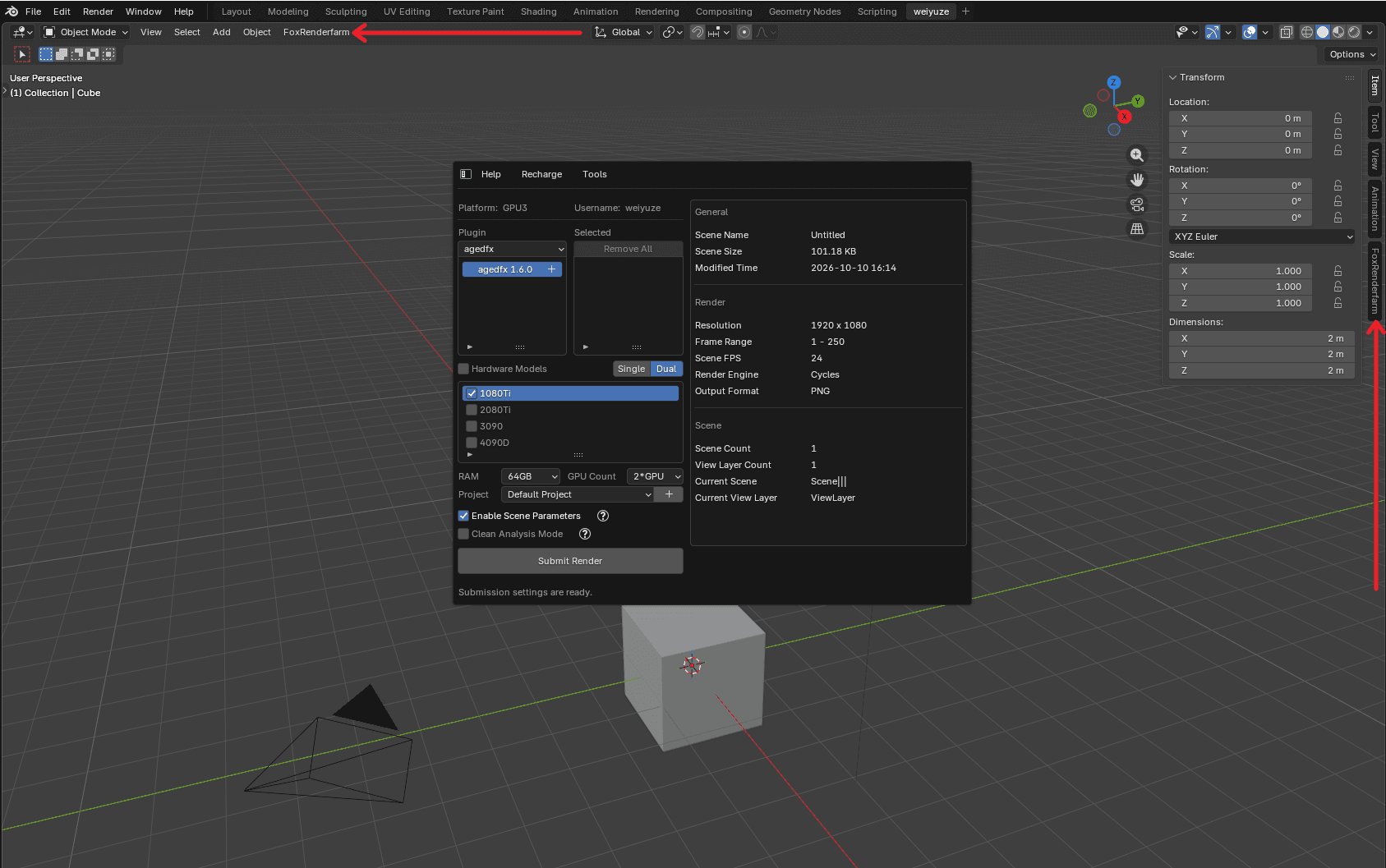
Figure 1: Entry points via the 3D Viewport header / sidebar tab, opening the primary submission window.
Upon opening, the plugin instantly loads your active account details, plugin libraries, and hardware configurations. The main button reads "Loading Submission Settings..." until initialization completes.
4. Window Layout
The submission window is divided into four main sections:
Scene metadata breakdowns include:
- General: Scene Name, Scene Size, Modified Time.
- Render: Resolution, Frame Range, Scene FPS, Render Engine, Output Format.
- Scene: Scene Count, View Layer Count, Current Scene, Current View Layer.
Check these values before submitting to make sure your render settings are correct.
5. Submit a Job
5.1 Check the Platform and Account
The top-left of the window shows your Platform and Username. If either is wrong, switch it in the FoxRenderfarm client and reopen the submission window.
5.2 Select Plugins
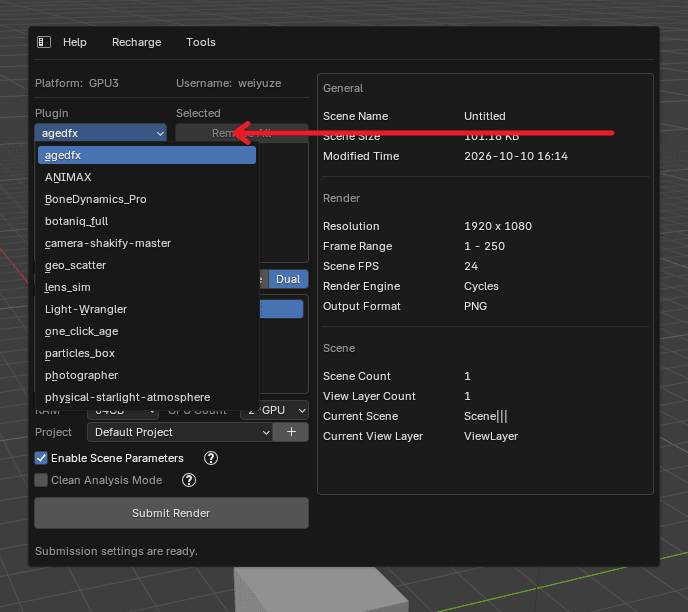
Figure 2: Choose a plugin from the Plugin drop-down
If your scene relies on external render engines or third-party effects plugins:
1. Choose the required plugin name from the Plugin drop-down menu to view available versions.
2. Double-click your target version to move it to the Selected list on the right.
3. Double-click any selected item to remove it, or click Remove All to clear the list.
Note: Only one version of each plugin can be selected. Double-clicking another version of the same plugin replaces the previous one.
5.3 Select Hardware
1. Choose Single or Dual GPU configurations next to Hardware Models, then check your preferred hardware configurations.
2. Specify your desired system RAM and GPU Count.
5.4 Select a Project (Optional)
Projects help categorize and organize rendering tasks:
- Keep the Default Project selected to submit immediately without grouping.
- Alternatively, choose an existing project from the drop-down menu.
- To create a new project, click the plus button, enter your project name, and click Create. Click Cancel to stop creating it.
While a project is being created, the submit button shows "Finish Project Selection" and you cannot submit.
5.5 Submission Options
|
Option |
Description |
When to use |
|
Enable Scene Parameters |
After analysis, opens the Scene Parameters Configuration window, where you can adjust scenes/View Layers, frame range, resolution, format, priority frames, multi-frame per machine and timeouts, and add files (see Section 7) |
When you need to change priority frames, render only some scenes or View Layers, adjust resolution or format, or add files |
|
Clean Analysis Mode |
Runs the background analysis with Blender factory settings, without loading the other add-ons on your computer |
When analysis is unstable or other local add-ons may interfere. Note: data from third-party add-ons may not be detected |
Hover over the ?mark icon next to each option to see its description.
If Enable Scene Parameters is not checked, the Scene Parameters window does not open after analysis. The job is submitted directly with the default parameters in Preferences (priority frames, multi-frame per machine, timeouts, and so on). See Section 9.3.
5.6 Submit
Click Submit Render. The plugin runs the following steps, and the button and status bar show the progress:
1. Creating Task: creates the cloud rendering job on FoxRenderfarm;
2. Analyzing: analyzes the saved scene in the background (reads scene/render settings, scans assets/caches, checks compatibility, and writes analysis results);
3. Depending on the analysis result:
- No issues: the job goes straight to upload (if Enable Scene Parameters is checked, the Scene Parameters window opens first);
- Warnings or errors: the issue list appears on the right (See Section 6);
4. Queueing Upload: hands the job over to the FoxRenderfarm client for upload;
5. A Submission Successful message appears with the Task ID.
The analysis runs in the background, so you can close the submission window and reopen it later to check the progress.
6. Review Analysis Results
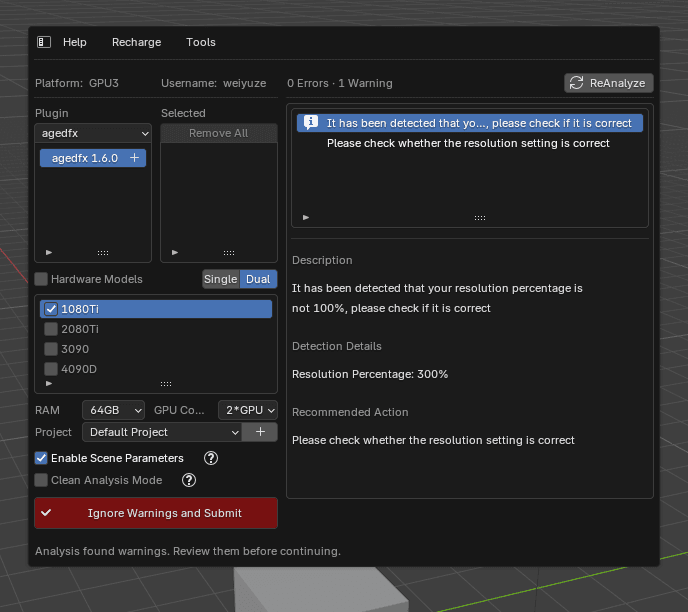
Figure 3: When analysis finds warnings, the issue list and details appear on the right
When the analysis finds issues, the right side of the window shows the issue list. The top shows the number of issues, for example "0 Errors, 1 Warning".
- Click an issue to see its details:
- Description: what the issue is;
- Detection Details: the value or scene that was detected;
- Recommended Action: how to fix it;
- Some issues also provide an Open Help button that opens a help page.
How to handle each type:
|
Type |
Submit button |
What to do |
|
Warning |
Ignore Warnings and Submit |
If the warning does not affect your render, click Ignore Warnings and Submit. You can also fix the scene first |
|
Error |
Errors Found (disabled) |
You must fix it first. Fix the scene in Blender, save it, then click ReAnalyze at the top right |
Always save the file before clicking ReAnalyze, because the plugin analyzes the saved version on disk.
7. Scene Parameters
When Enable Scene Parameters is checked, the Scene Parameters Configuration window opens after analysis.
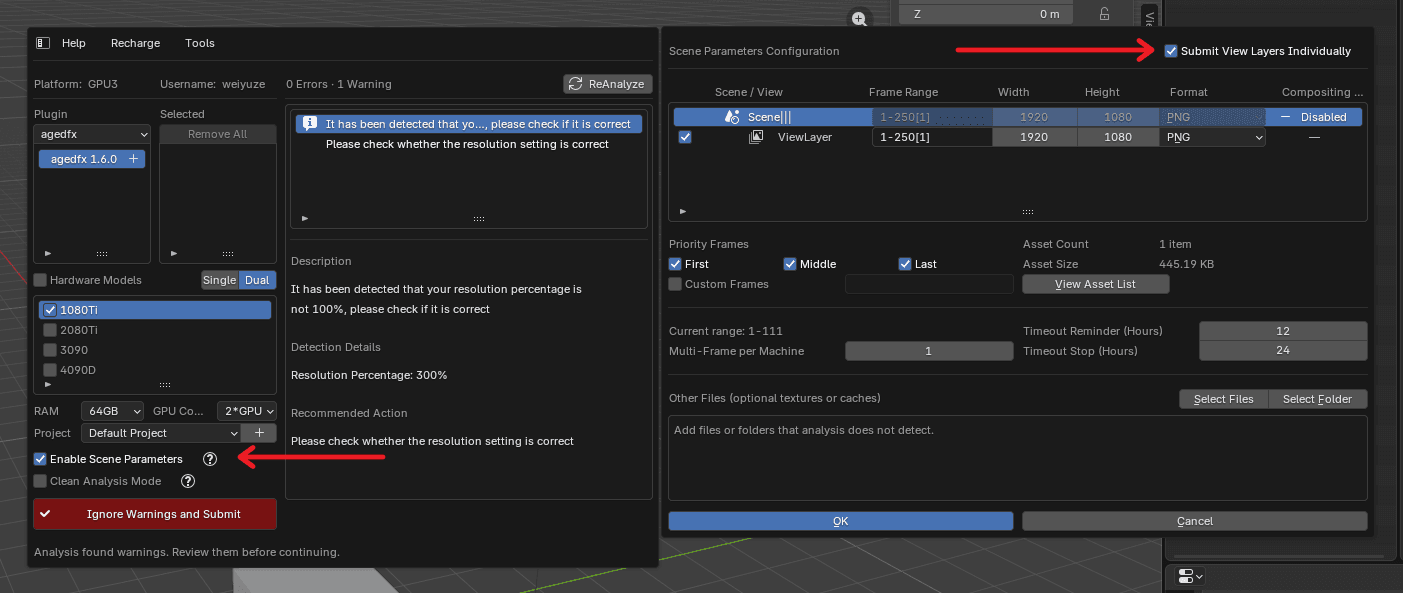
Figure 4: The Scene Parameters Configuration window opened with Enable Scene Parameters checked
7.1 Select Scenes and View Layers, and Edit Render Settings
The table lists the analyzed scenes. Uncheck any scene you don't want to render. At least one scene or View Layer must be selected.
Check Submit View Layers Individually at the top right to expand the table by "Scene / View". Each View Layer can then be selected and submitted separately.
|
Column |
Description |
|
Frame Range |
Frames to render, for example 1-250[1] |
|
Width / Height |
Output resolution in pixels |
|
Format |
Output image format |
|
Compositing |
Whether compositing is enabled for the scene (read-only) |
7.2 Priority Frames
Priority frames are rendered before the other frames, so you can check the result early.
- First / Middle / Last: check any combination;
- Custom Frames: check it and enter frame numbers, for example:
- 1,2,3 (frames 1, 2, and 3),
- 1-10 (frames 1 to 10),
- 1-10[2] (frames 1 to 10, every 2nd frame).
There is a limit on the number of custom frames. The hint below the field shows the current limit.
If the priority frames are outside the render range of the selected scenes, the plugin asks "Continue submitting this task at full speed?":
- Continue: render at full speed without priority frames;
- Cancel: go back to the Scene Parameters window to make changes.
7.3 Assets
The window shows the job's Asset Count and Asset Size. Click View Asset List to see all files detected by the analysis.
7.4 Multi-Frame per Machine
Multi-Frame per Machine is the number of consecutive frames rendered by each machine. The allowed range is shown above the field.
7.5 Timeout Reminder and Timeout Stop
|
Setting |
Description |
|
Timeout Reminder (Hours) |
You are reminded when a single frame renders longer than this |
|
Timeout Stop (Hours) |
Rendering stops when a single frame renders longer than this |
- Timeout Stop must be greater than Timeout Reminder;
- Setting either value to 0 disables both.
7.6 Add Other Files
If some textures, caches, or other files were not detected by the analysis, add them under Other Files (optional textures or caches):
- Select Files: add one or more files;
- Select Folder: add a whole folder;
- Double-click an item in the list to remove it.
Asset Count and Asset Size update after you add files.
7.7 Confirm
Click OK to upload the job. Click Cancel to cancel this submission and return to the submission window.
8. After Submission
After you submit the job, a Submission Successful message shows the Task ID. The FoxRenderfarm client also shows a "Submit Rendering Job submitted successfully" notification in its Message Center. You can find the job in the client's Render list and check its status, progress, and frame range.
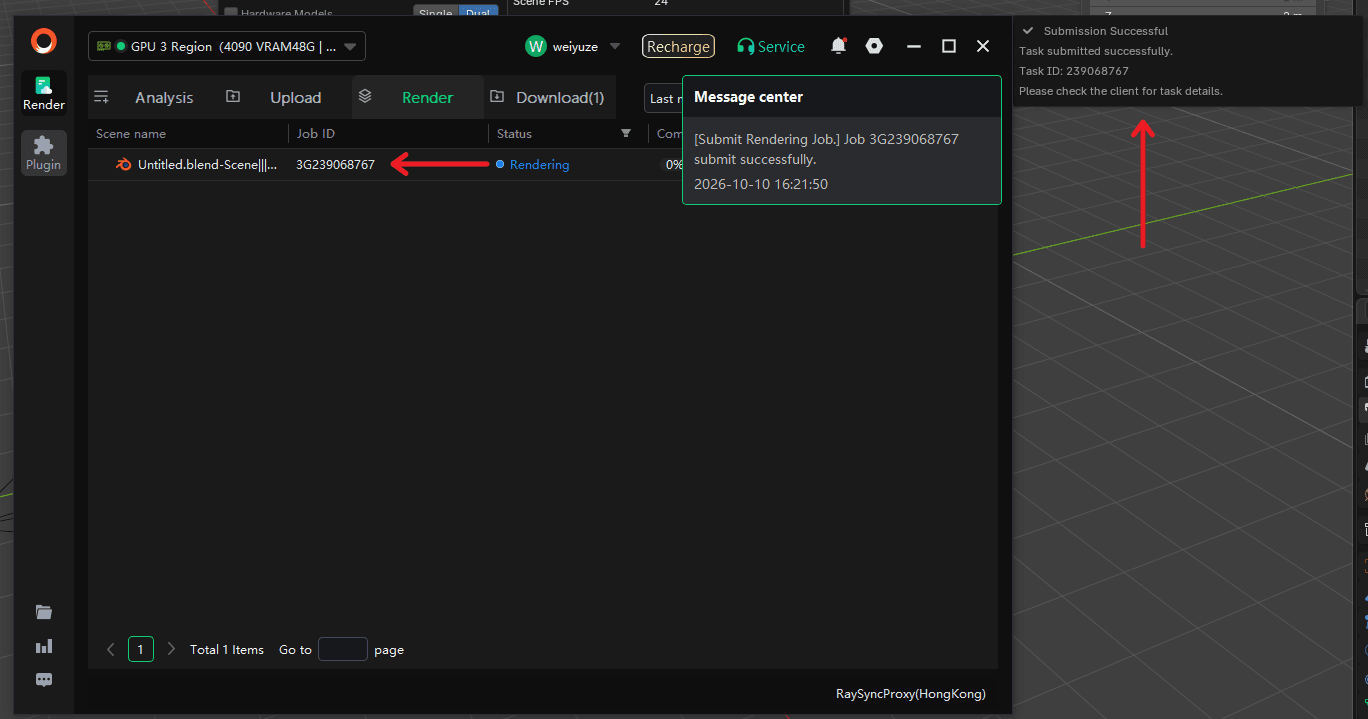
Figure 5: The plugin's "Submission Successful" message (right) and the job in the FoxRenderfarm client's Render list (left)
Note: "Submission Successful" means the job has been handed over to the FoxRenderfarm client for upload. It does not mean rendering is finished. Check upload progress, render progress, and results in the FoxRenderfarm client.
To submit another job, click Submit New Task.
9. Other Features
9.1 Language
Click the menu icon and choose Language, then select English. This changes the plugin only, not Blender's interface language.
9.2 Balance and Recharge
Open the Recharge menu at the top to see your Balance and Render Coupon. Click Recharge Account to open the recharge page in your browser.
9.3 Preferences (Default Parameters)
The plugin's advanced options are in Preferences. Click Tools and then Preferences to set default values for every submission, so you don't have to set them each time.
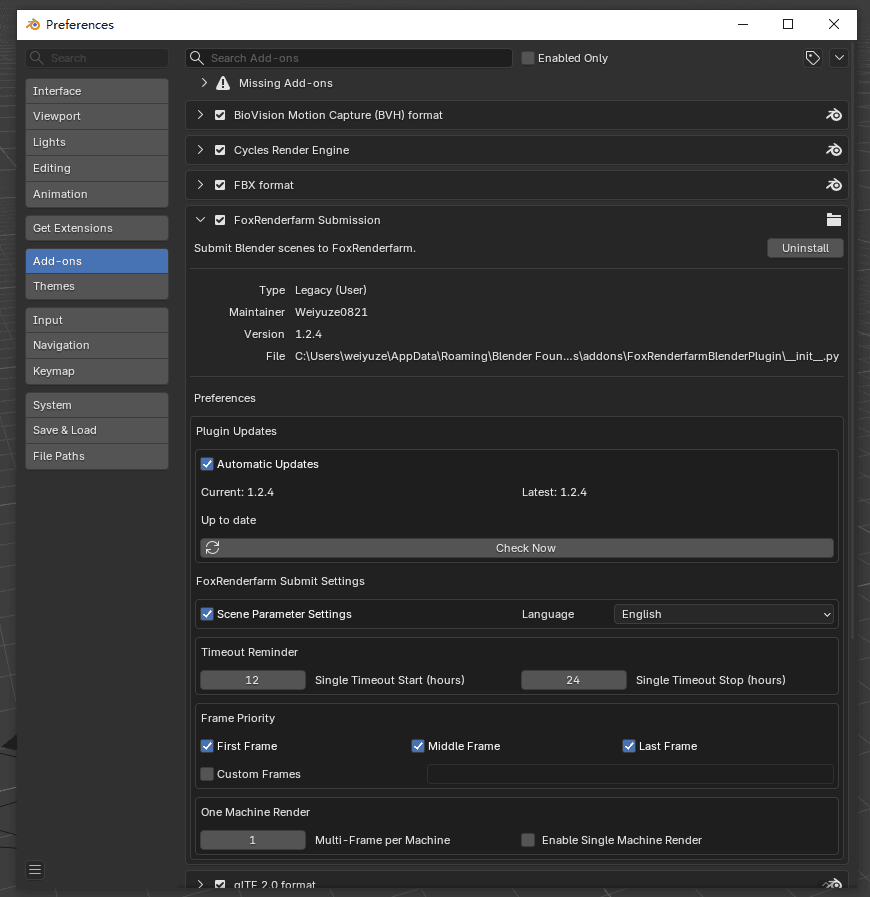
Figure 6: Plugin preferences (Plugin Updates, Submit Settings, Timeout Reminder, Frame Priority, One Machine Render)
If Enable Scene Parameters is not checked when you submit, these values are used directly. If it is checked, these values are the defaults in the Scene Parameters window, and you can still change them before submitting.
|
Setting |
Description |
|
Scene Parameter Settings |
Whether Enable Scene Parameters is checked by default |
|
Language |
Plugin interface language |
|
Timeout Reminder |
Default single-frame timeout reminder and stop times (hours) |
|
Frame Priority |
Default First / Middle / Last frame, or custom frames |
|
One Machine Render |
Default Multi-Frame per Machine. When Enable Single Machine Render is checked, Multi-Frame per Machine is fixed to 1 |
9.4 Plugin Updates
The plugin checks for new versions automatically in the background. In Tools → Preferences you can also:
- Turn Automatic Updates on or off;
- Click Check Now to check for updates manually;
- See the current and latest versions.
When a new version has been downloaded, you will see "Update ready. Restart Blender to install." The new version takes effect after you restart Blender.
9.5 Tools
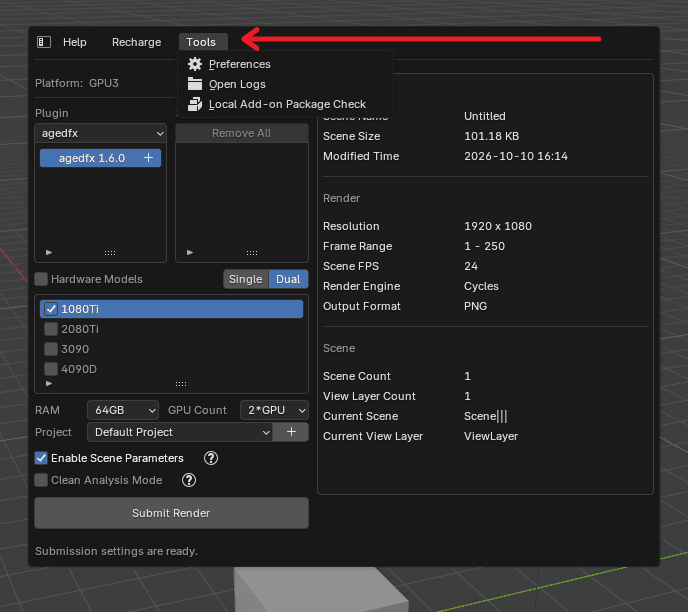
Figure 7: Tools menu
The Tools menu at the top contains handy tools. Currently available:
|
Tool |
Description |
|
Preferences |
Opens the plugin preferences. See Section 9.3 |
|
Open Logs |
Opens the current job's working folder, which contains the analysis log. You can send it to support when reporting a problem |
|
Local Add-on Package Check |
Validates an add-on enabled in your local Blender. After it passes, the add-on is uploaded together with your job |
Local Add-on Package Check is still in development. For now, it only uploads the add-on together with the job. Automatically using the add-on during cloud rendering is still in development, and we will announce it when it is available.
9.6 Help
Open the Help menu at the top:
- User Guide: opens the FoxRenderfarm rendering tutorial page;
- About Us: opens the FoxRenderfarm website;
- Plugin Version: shows the current plugin version.
10. FAQ
I see "Please log in to the FoxRenderfarm client first" or "The FoxRenderfarm client is not logged in". What should I do?
Open and log in to the FoxRenderfarm client, then click Retry in the submission window.
I see "Save the Blender file before submitting." What should I do?
The file has never been saved. Press Ctrl + S to save it, then submit again.
The submit button shows "Software Version Unavailable". What should I do?
Your Blender version is not available in your region yet. Please contact Fox Renderfarm support.
I changed my scene, but the analysis result didn't change. Why?
The plugin analyzes the file saved on disk. Save the file first, then click ReAnalyze.
Can I skip errors?
No. Errors cause render failures and must be fixed before you reanalyze. Warnings can be ignored after you confirm they don't affect your render.
Where can I see the render progress after submitting?
Check the job's upload, render progress, and results in the Fox Renderfarm client.
Latest News


Keywords
3D Art Competitions3D ToolTrailerFox Renderfarm PromotionCloud Rendering FarmAnnecy FestivalMILESTONESFox RenderfarmDesktop ClientBlenderBollywood films3DModels ContestNVIDIASilkroad Digital VisionMalaysian Animated FilmsIndiajoyArchitectural VisualizationCGarchitect Architectural 3DawardsBest cloud rendering servicesRender cloudVFXUpin & IpinGreen BookFox Renderfarm InterviewMission MangalKre8tif!Fox Renderfarm Mini ProgramCGCG Tech Summit Malaysiafilm workscloud renderingGolden Horse AwardShadowVFX BreakdownMorrigan FlebotteVWArtclub Annual *ContestAsswad Mouhamadanimation worksIMax StudioBoonie BearsRenderosityGary S. KennedyEvermotion Challenge 2018Brian BeaudryBobby BalaMohit SanchaniyaKatapix MediaFlying Car ProductionsRazerThe ShipmentFoxRenderfarmCG Tech SummitAlpacalypse ProductionsUnreal Enginepwnisher 3D ChallengeFederico CiuffoliniRalf SczepanIavor TrifonovClarisseCGTS MalaysiaIsotropixC4DTomasz BednarzV-RayCinema 4DMAXONsiggraph cafEvermotion challenge 2017CGTrader Space Competitionfilm of the yearLe Anh NhanPlanet UnknownFox Renderfarm 2017 AchievementsCSFFJulio Sotoboar 2017DeepUnreal Engine render farmChris SunGlass CageMaking Life of Bri' n Chrisanthem studiosThe RookiesPeter DraperMakuta VFXBaahubali 2CG CompetitionenchantedmobCG StudiosAcademy AwardsCGVrayweeklycgchallengeSketchUpsiggraph 2017Chris BuchalSIGGRAPH AsiaLightWaveIndigo RendererStop Motion AnimationV-Ray RTCPU RenderingNVIDIA IrayChaos GroupOctaneRenderRedshiftSTAR CORECICAFVRMr. HublotRibbitGPU RenderingLinuxMonkey IslandLuxRenderHPCRender FarmUnityWORLD LABMichael Wakelam3D RenderingOnline Render FarmAlibabaBaahubaliVAXMalaysia3D AnimationOscarSIGGRAPHCGTraderKunming Asia Animation ExhibitionEvermotionRenderMan

Categories
Fox Renderfarm InterviewFox Renderfarm NewsFox Renderfarm ProjectsCloud Rendering TutorialRender Farm TutorialCG ChallengesCG NewsTop NewsTrendingRecent News List

Fox Renderfarm is Compatible with Blender Submission Plugin!
2026-10-21

Light Up Your Renders This Diwali with Fox Renderfarm’s Exclusive Offer!
2026-10-14

What Is Unreal Engine? Uses, Features, Cost, and Rendering
2026-10-01

Empowering the Next Era of Content Creation: Fox Renderfarm at BCWW 2026
2026-09-22

Fox Renderfarm Heading to BCWW 2026 in Seoul, Korea
2026-09-14

3D Architectural Animation Guide: Process, Cost, and Software
2026-09-08

Best GPU for Blender in 2026: Benchmarks and VRAM Guide
2026-08-19

The Battle Begins: Join the 13th Pwnisher Community Challenge – Gauntlet of Gods
2026-08-03

6 Best 3D Render Farms in 2026: Comparison Guide
2026-08-03