Blender
 Cinema 4D
 Arnold
 3ds Max
 Houdini
 V-Ray
V-Ray Maya
Maya Unreal Engine
 Nuke
Nuke11 Ways to Fix Blender Crashing When Rendering
 Ryan Thompson
Blender crashing when rendering is a common issue, especially when your project is close to completion. A sudden crash can freeze your screen, close the program, and risk losing progress.
Blender crashing can be caused by different factors, such as memory limits, incorrect settings, or hardware issues. In this guide, we’ll walk through 11 practical ways to fix Blender render crashes and help you complete your Blender projects smoothly.
Part 1. Why Blender Crashes When Rendering (Common Causes)
Blender crashing when rendering is often caused by hardware limits, especially when scenes are too heavy or GPU VRAM is not enough. Large textures, complex geometry, and high render settings can quickly push your system beyond its limits.
Besides hardware issues, there are several other common causes behind Blender render crashes. Below are 5 key reasons you should check to identify the problem.
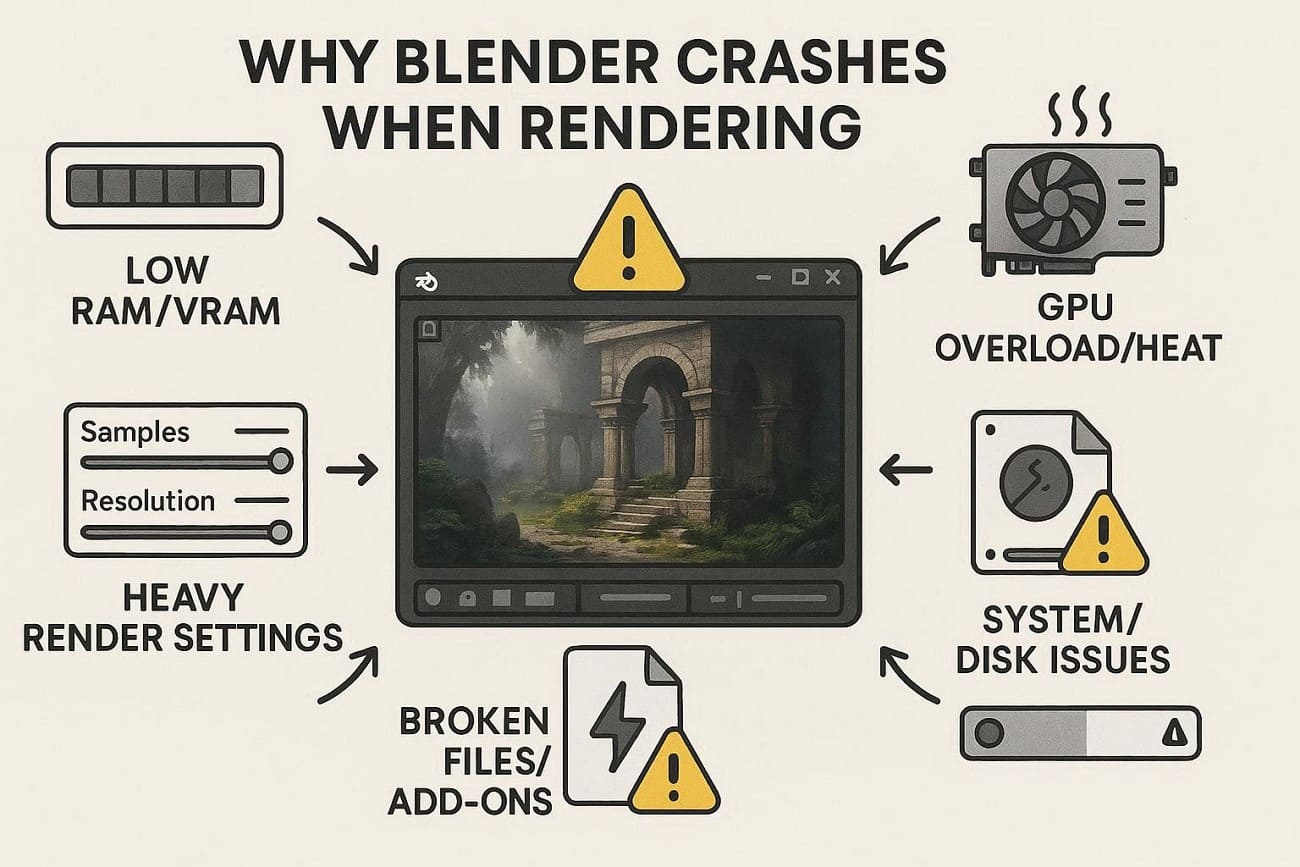
- Low RAM or VRAM: Note that rendering requires system memory to load all models, textures, and effects at once. So, if RAM or GPU VRAM runs full, Blender can close without warning. Additionally, heavy scenes with high-poly models, 4K textures, and simulations use much more memory than the viewport shows.
- GPU Overload or Heat: GPU renders use all available graphics power, which can push it to crash if the load stays too high. Moreover, old drivers, overheating, or unstable GPU settings can cause rendering to stop during the process.
- Heavy Render Settings: High sample counts, high resolution, motion blur, and complex lighting can overload the system. In some cases, Blender may start fine, but crash later when the load becomes too high.
- Broken File or Add-ons: Corrupt scene files or textures can make Blender crash at render start or mid-way. Furthermore, add-ons or linked assets may also conflict and prevent rendering.
- System or Disk Issues: Low disk space can stop Blender from saving render files and cause a crash. Besides, if you have hardware faults, a weak power supply, or software bugs, Blender can break the rendering process.
Part 2. 11 Ways to Fix Blender Crashing When Rendering
This section covers 11 practical ways to fix Blender crashing when rendering. These solutions range from adjusting render settings and reducing scene complexity to updating drivers and optimizing system performance.
By following these steps, you can also identify the main cause of Blender render crashes and improve stability during your Blender rendering process.
Method 1. Close Background Programs
This simple solution provides more RAM and VRAM for scenes, so heavy models and textures run better without memory-full errors. Additionally, it lowers CPU and GPU pressure, which helps avoid sudden spikes that can stop rendering. Since it also reduces software conflicts from tools like overlays or recorders, here is how you can do it:
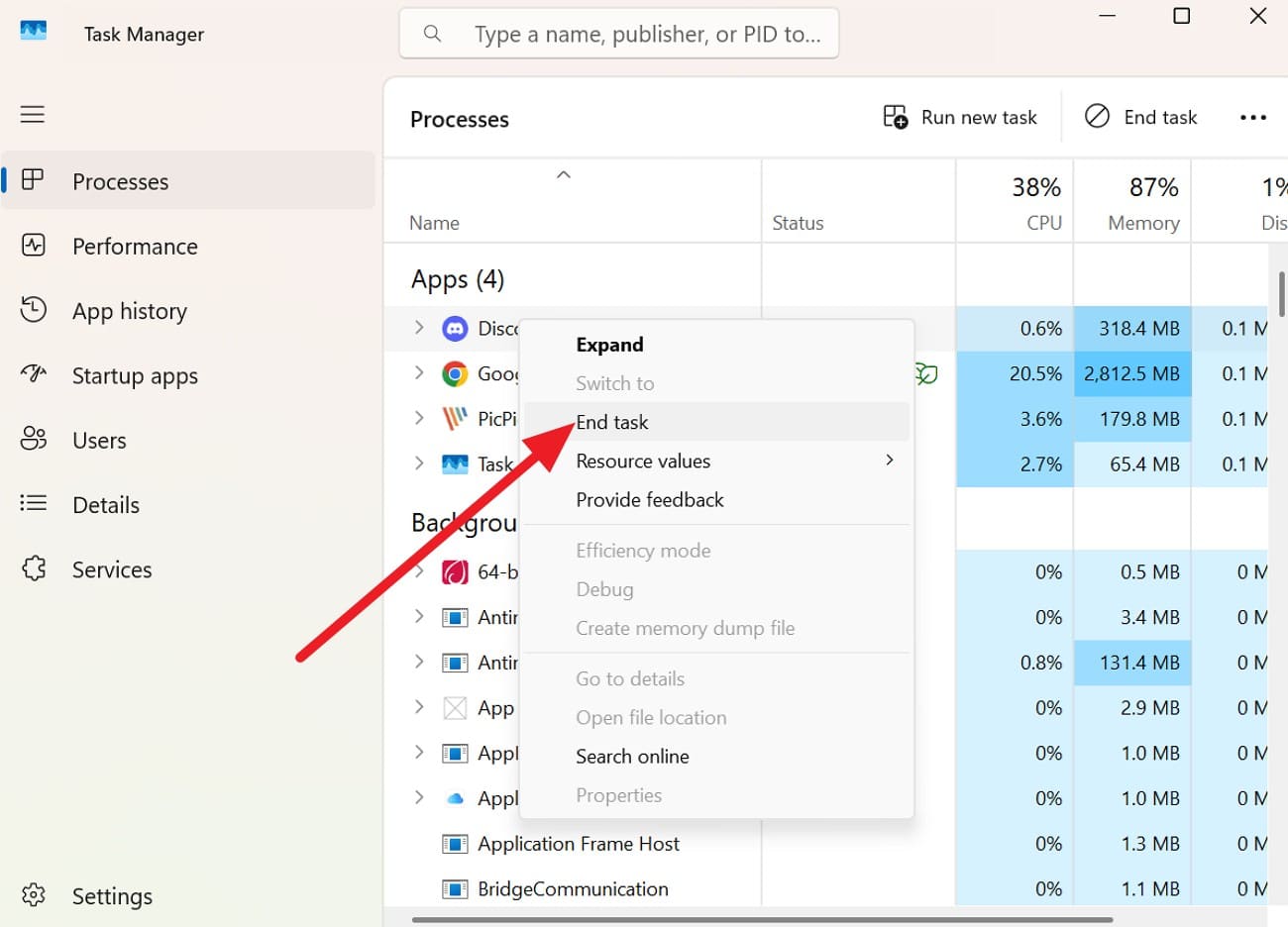
Use Task Manager (Windows):
Access the Task Manager app, then right-click the programmatic app to select the “End Task” option.
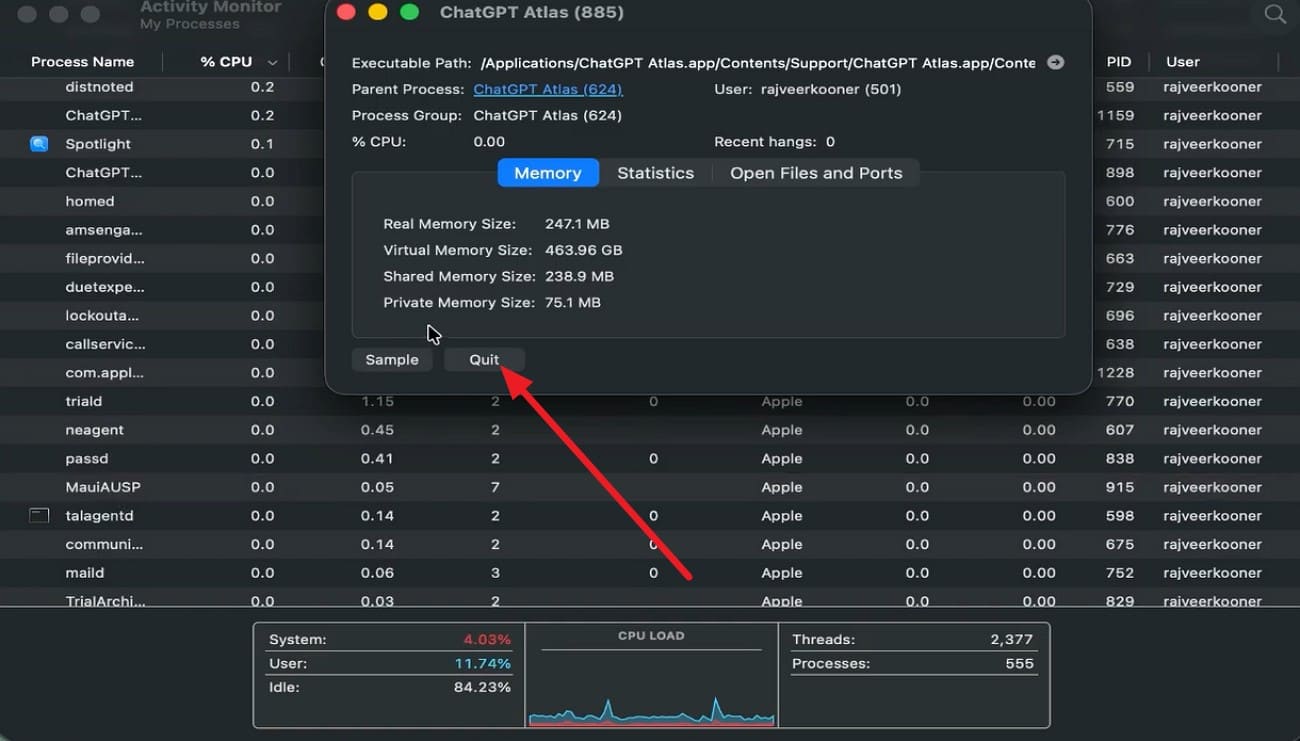
Use Activity Monitor (macOS):
Double-click on the unnecessary applications, then in the popup menu select the “Quit” option.
Method 2. Lower Render Settings
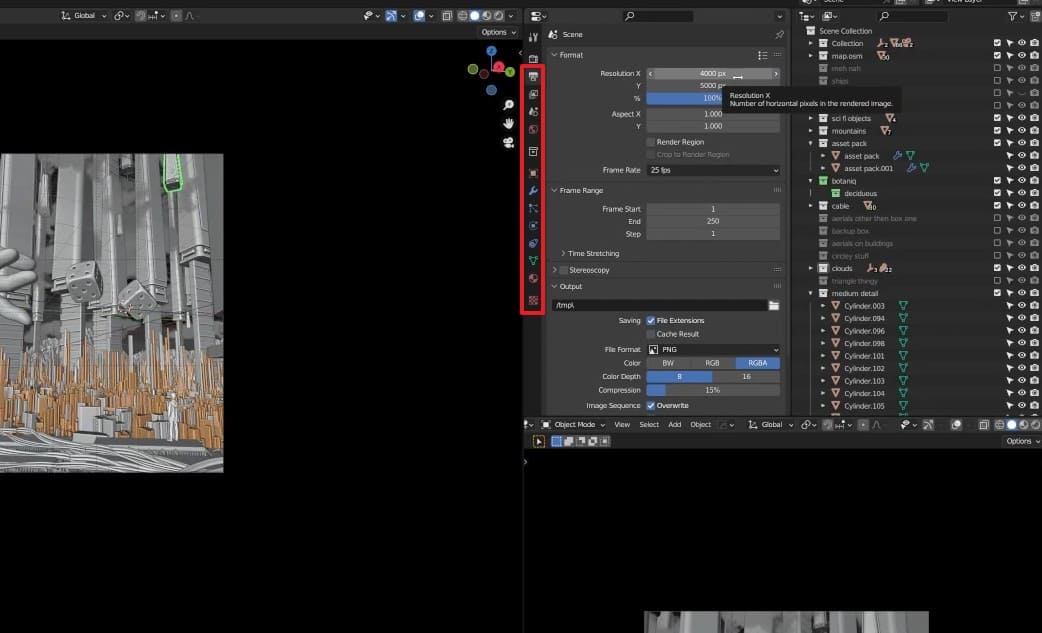
If you still encounter the Blender crashing when rendering issue, try to lower the render settings. For smooth rendering, it is recommended to lower the resolution to 50-75% during tests instead of rendering at full size. Additionally, keep sample sizes low, such as 32-64 for previews and 64-128 for final checks. Reduce the total number of light bounces in Cycles to about 4-6 to lower the load.
You can also adjust the denoising option, avoid heavy effects, and smaller tile sizes based on CPU or GPU, via the simple guide mentioned below:
- As you select the scenes, access the tab on the right and choose settings like “Resolution” and “Aspect” in each subsection to prevent crashes.
Method 3. Move to Stronger Hardware/Render Farm
When Blender keeps crashing during rendering, the problem is often related to hardware limits such as insufficient GPU memory or weak processing power. In these cases, upgrading your local machine is not always the most practical solution.
A better option is to use a render farm, where rendering tasks are processed on remote high-performance servers instead of your own computer. This helps prevent crashes caused by overloaded local hardware. For example, you can use Fox Renderfarm as a cloud rendering solution. It moves heavy rendering workloads away from your PC and processes them on powerful remote machines, making Blender much more stable during complex renders.
Fox Renderfarm also supports Blender projects through its dedicated plugin, allowing you to submit scenes directly from Blender without manual file handling. It can automatically check scene assets and reduce errors caused by missing textures or incorrect file paths.
Additionally, Fox Renderfarm uses powerful NVIDIA RTX series GPUs, including the RTX 3090 and 4090, making it useful for large scenes, high-resolution textures, and complex simulations that would normally cause Blender to crash on low-memory systems.

Method 4. Simplify Scene Geometry
When the scene complexity exceeds the available GPU or system memory, this solution can resolve the Blender crashes when rendering problems. It makes rendering faster and more stable because the CPU and GPU perform fewer calculations and ray checks, which reduces load spikes. Additionally, this keeps the viewport smoother and helps you spot issues, as guided:
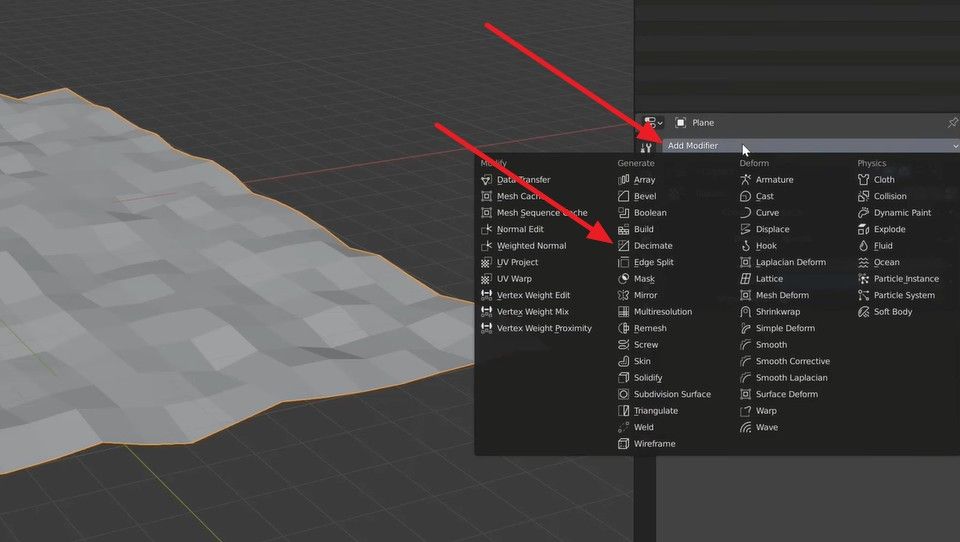
Use Decimate Modifier (Best for Mesh Reduction)
Step 1: Stretch the menu for “Add Modifier” and pick the “Decimate Modifier” from the list.
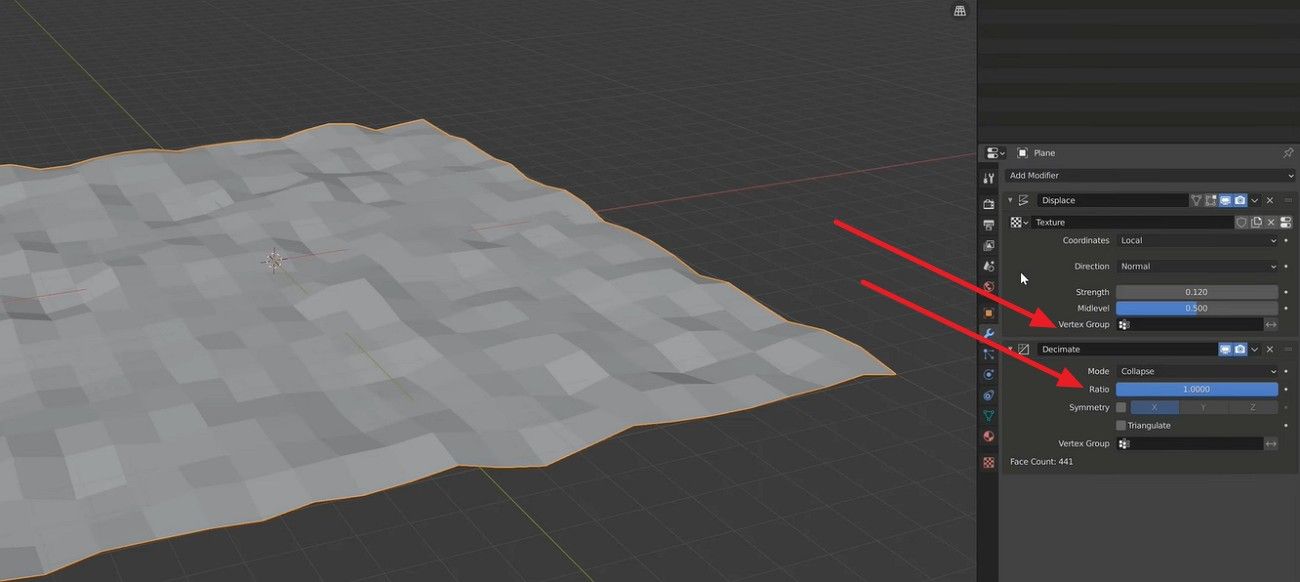
Step 2: After that, reduce the vertex while keeping the structure and adjust the “Ratio” slider downward to lower the polygon count.
Method 5. Optimize Textures and Assets
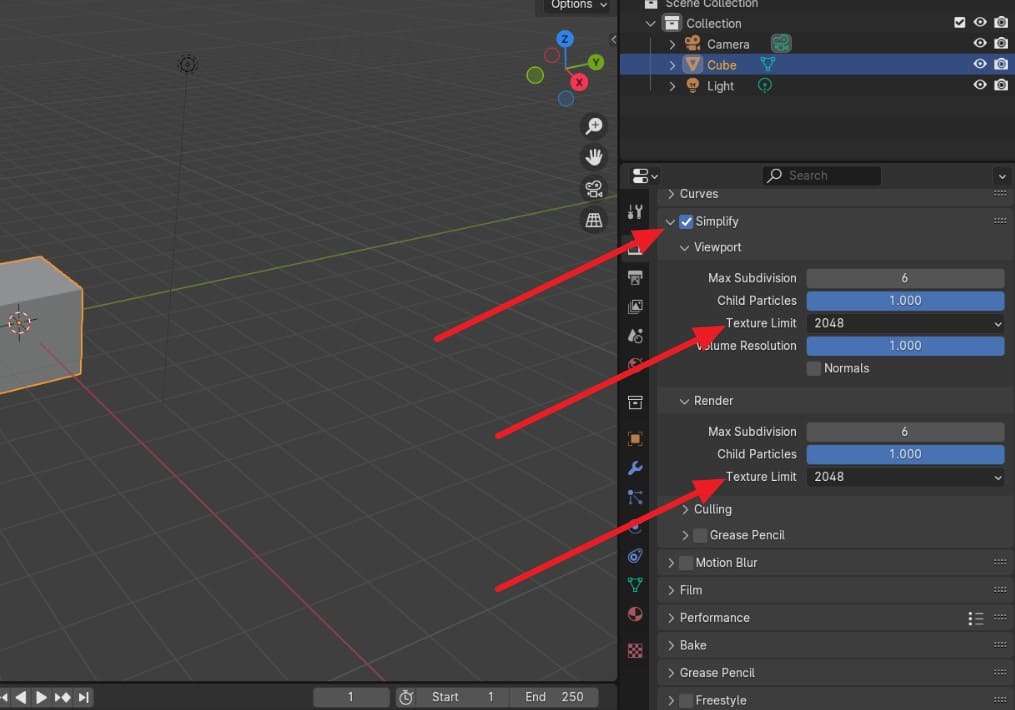
If your Blender render crash still occurs, try this fix, which uses less RAM and VRAM by replacing large textures with smaller ones and reusing materials. Thus, out-of-memory errors become less likely, and scene loading is faster and smoother because Blender handles lighter files more easily at the start of a render. So, to know how to do this, adhere to the simple guide mentioned ahead in detail:
- Turn on “Simplify” in Render settings and limit “Texture Limit” size to 1K or 2K for “Viewport” and “Render” without changing original files.
Method 6. Switch Render Device or Engine
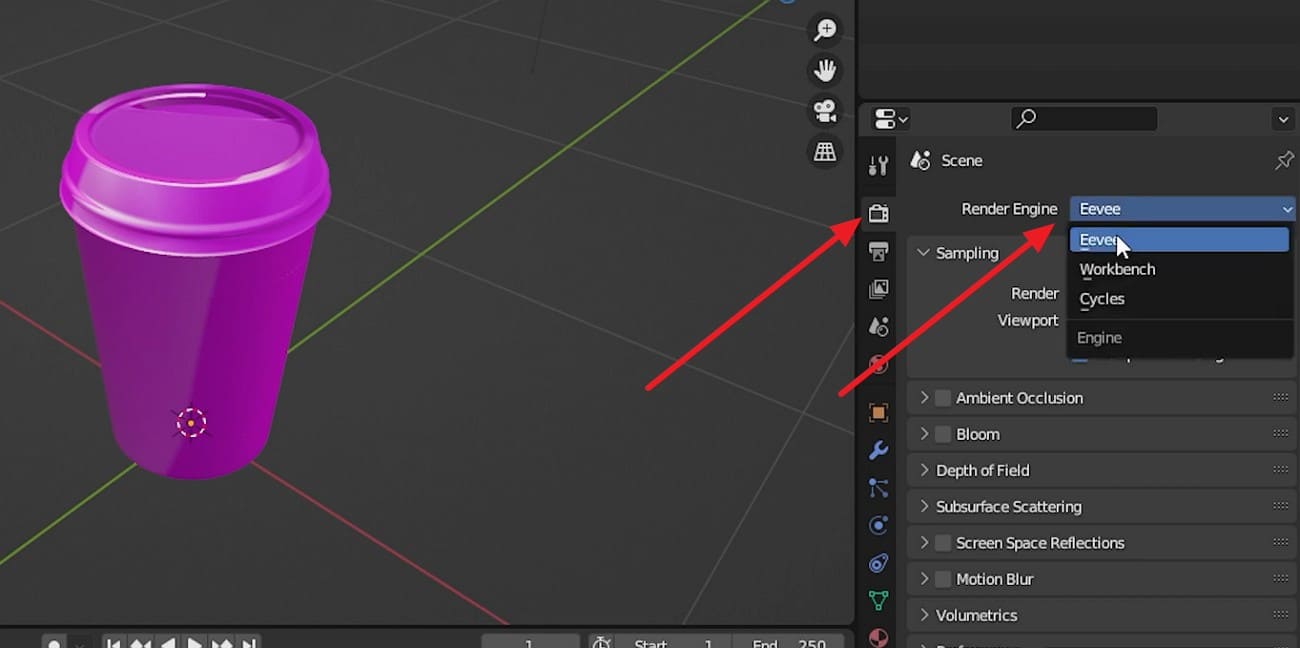
Switching the render device or engine can reduce the Blender crashes when rendering problems because it changes how your system handles the work. In addition, it helps avoid driver issues, since some crashes come from GPU errors, and CPU rendering can bypass them. So, if you use Eevee instead of Cycles, it reduces load because it is lighter and less complex, as guided:
- To change render engine, access the “Render Properties” tab and stretch the menu for “Render Engine” to choose “Eveee.”
>> Related: Eevee vs Cycles: Which Blender Render Engine is Right for You?
Method 7. Enable Autosave and Save Incrementally
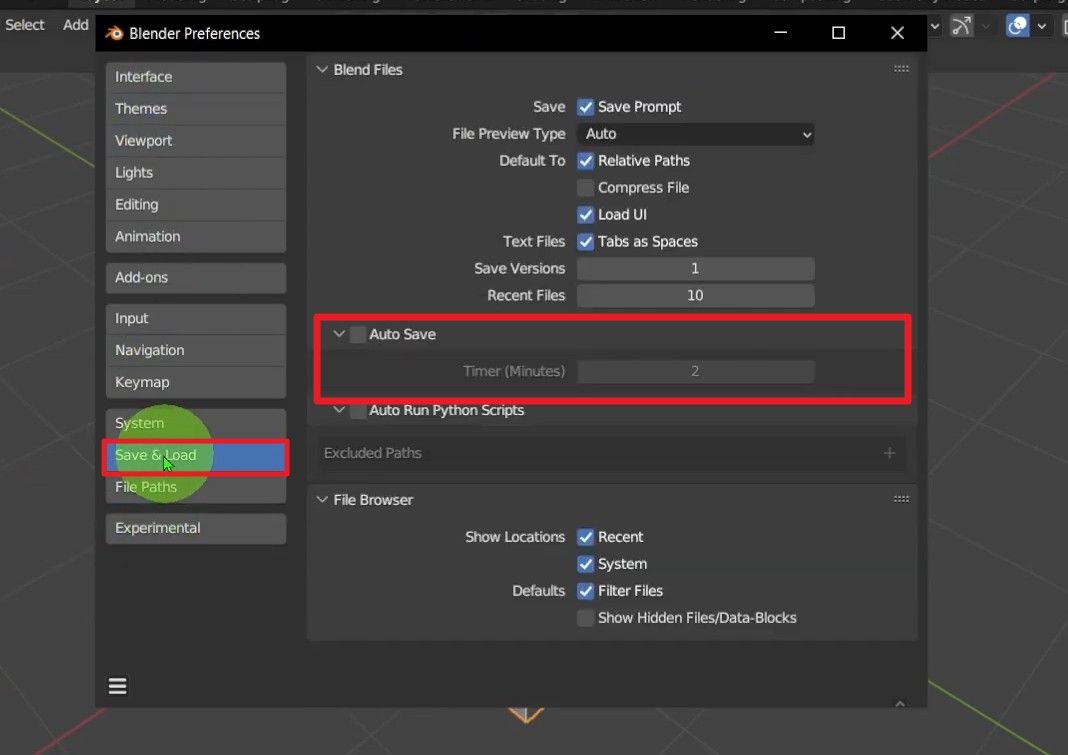
Autosave and incremental save do not stop “Blender render crash”, but they protect your work and make recovery easy. So, to be safe, Autosave creates backup files after short time gaps, so you can restore recent work after a crash. This also makes testing heavy assets or new settings safer because you always have a backup created via the mentioned steps:
Enable Autosave:
Go to Edit > Preferences and in the popup menu, locate the “Save & Load” section. There, tick the “Auto Save” option and set the “Timer” as per preferences.
Saving Incrementally:
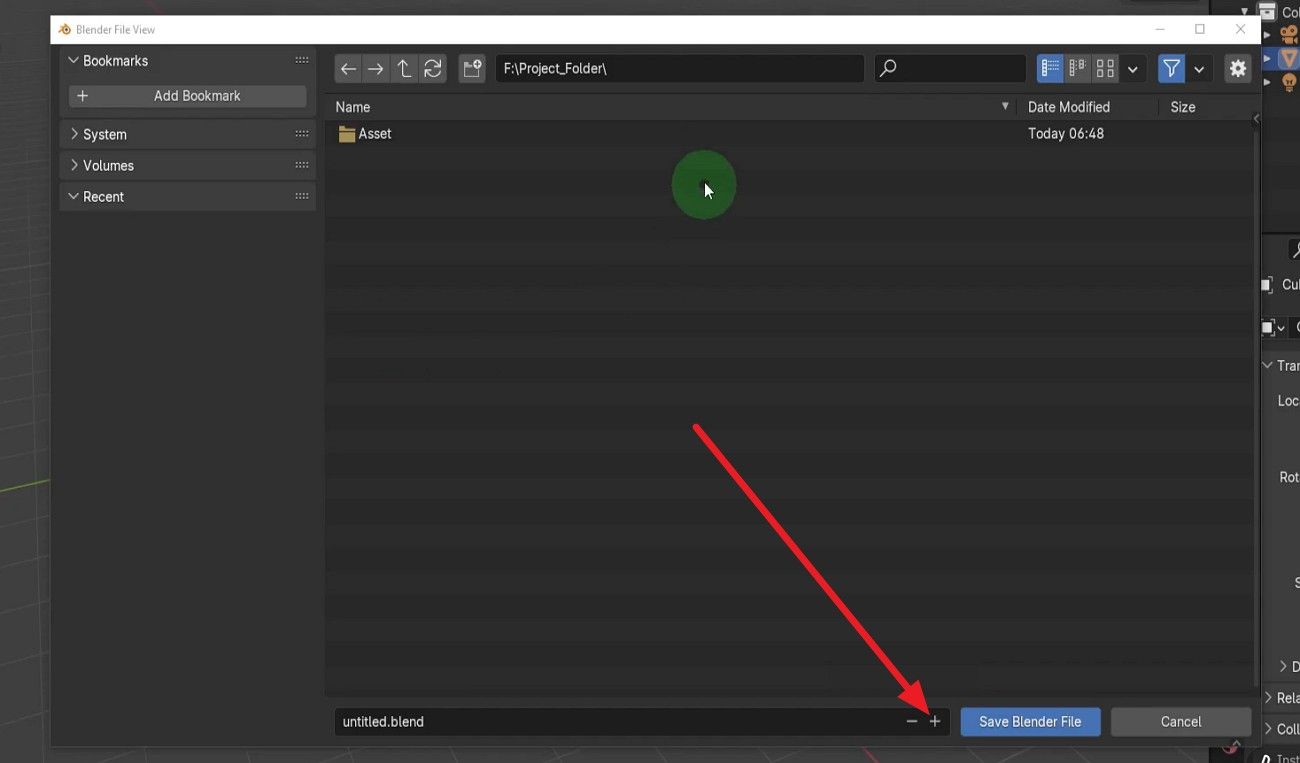
Press “Ctrl + Shift + S” to open the “Save As” menu, then click the “+” button next to the filename to increment the number.
Method 8. Disable Problematic Add-ons
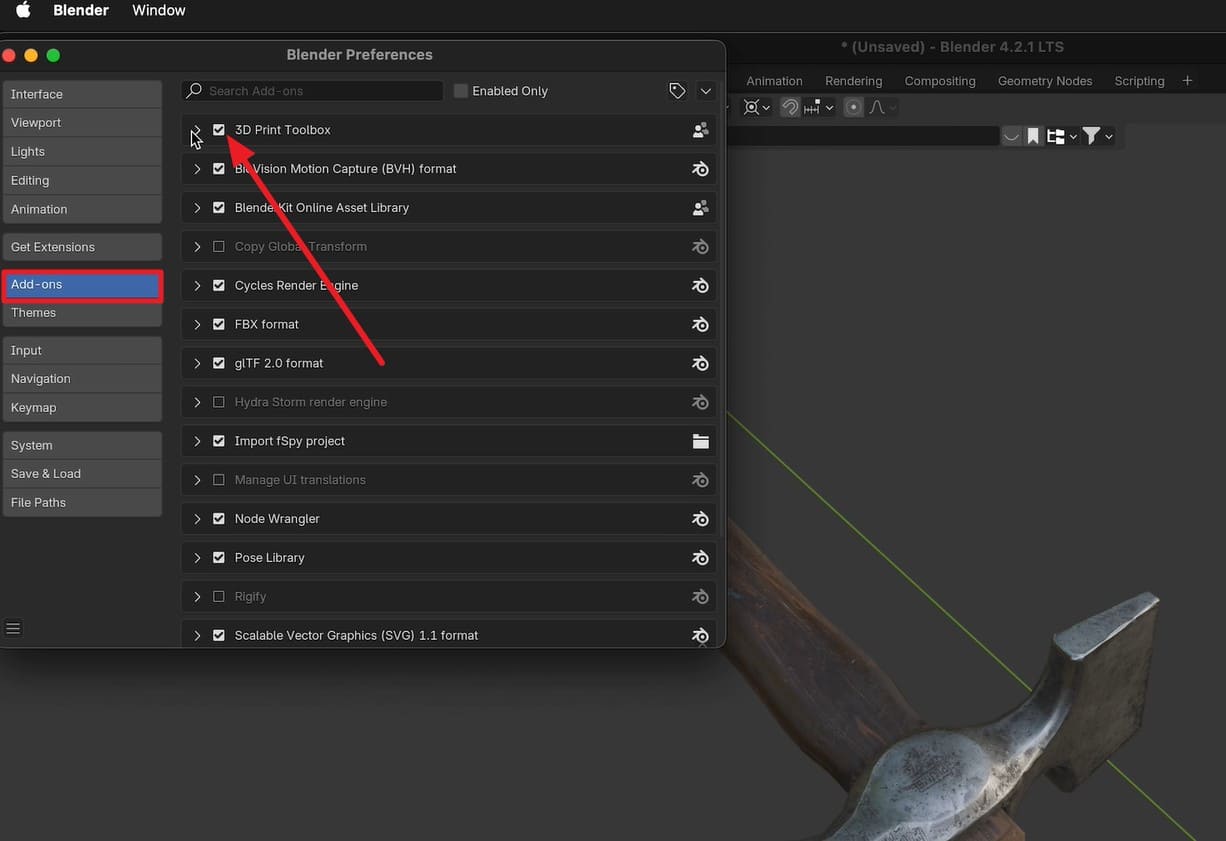
When nothing resolves the Blender crashing when rendering issue, this solution removes unstable code and conflicts that cause rendering to crash. In addition, turning them off reduces conflicts among add-ons that may interfere with each other. So, once the listed guidelines are followed, it will also free up CPU and RAM by stopping background tasks, giving Blender more resources for rendering:
- As you navigate to Edit > Preferences, go to the “Add-Ons” section and uncheck the checkbox next to the add-on name to disable it.
Method 9. Check GPU/CPU Temperatures
This simple check shows when the hardware gets too hot during heavy renders. Thus, by watching temperature with tools like HWMonitor or MSI Afterburner, you can pause or lower settings before a crash happens. In addition, it helps you confirm if the issue is here or something else, like memory or drivers.
Method 10: Update Drivers and Blender Version
Know that updates can get you out of the “Blender render crashing” issue by fixing bugs and compatibility issues. New drivers from NVIDIA, AMD, or Intel prevent crashes in Blender, and a stable or LTS version of Blender also removes many software bugs found in experimental builds. Since these updates can also improve communication between Blender and GPU, here is how they can be updated:
Update Drivers:
Step 1: Go to the NVIDIA Driver page and in the “Manual Driver Search” section, select the listed details and choose “Find.”

Step 2: When you get a list of driver updates, press the “Download” and see if the Blender crashes or not.

Update Blender:
Download Blender from blender.org by pressing the "Download Blender (Version)" button and installing it without removing the old version.

Method 11: Try Command-Line Rendering
This is also helpful for Blender crashing when rendering, as it runs without the full interface, which removes extra load from the viewport and UI. Additionally, it gives more memory and processing power to the render engine, which helps avoid overload or out-of-memory crashes. You can also bypass UI-related bugs that can appear during long renders inside the normal workspace.
Step 1: Open your .blend file in the regular Blender interface and set all render options. Choose the “Format, Frame Range, and Output” setting and “Save.”
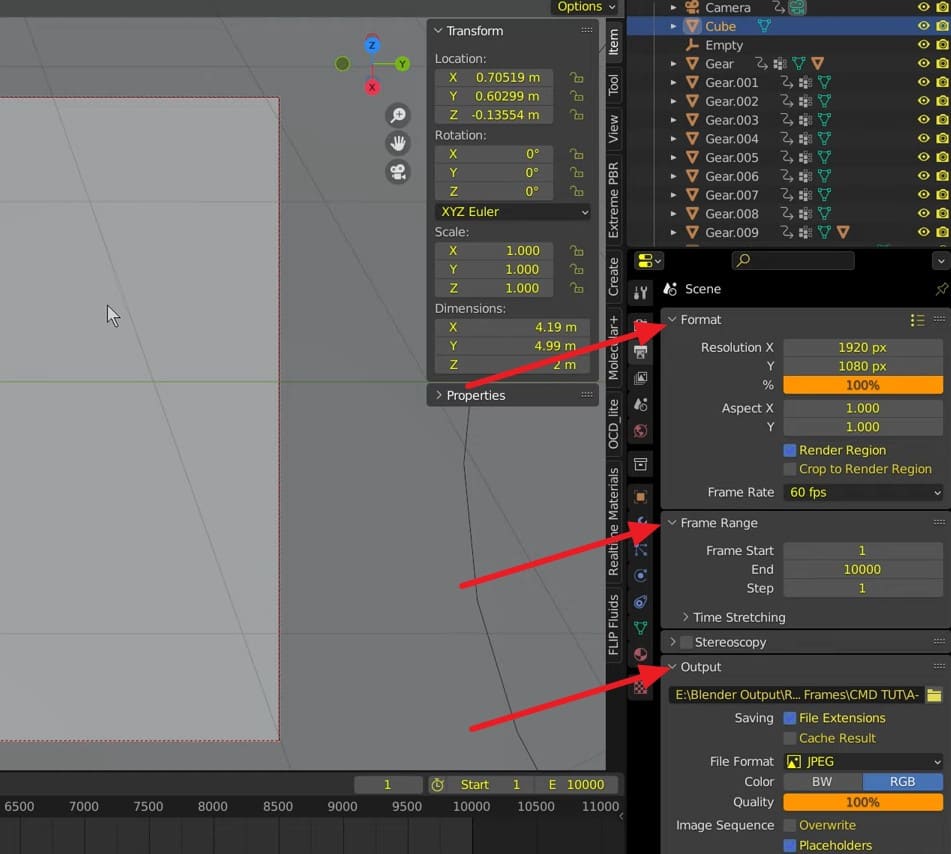
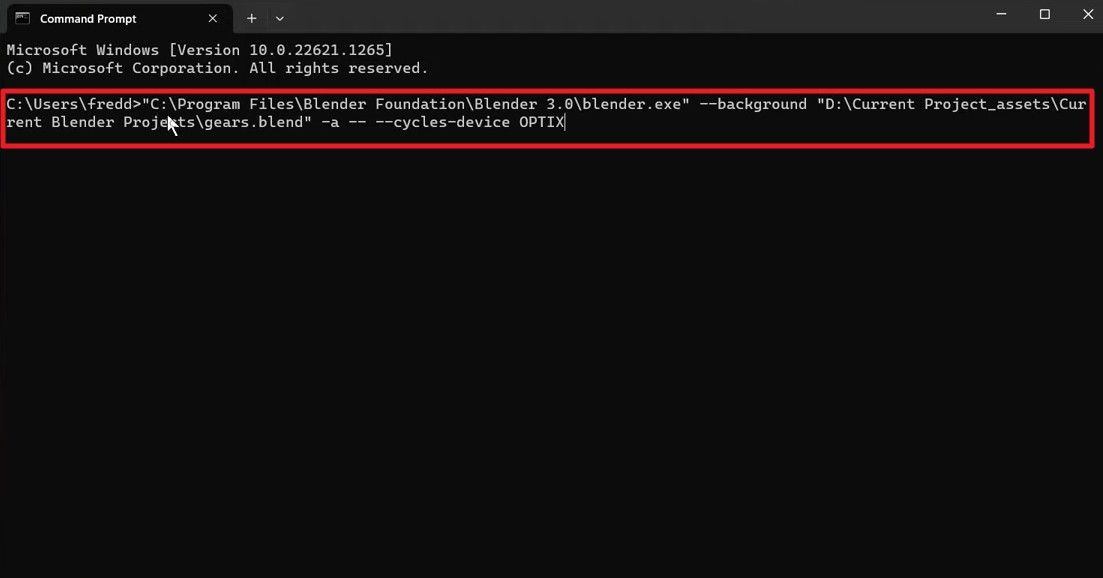
Step 2: Now, press Windows Key + R, type “cmd,” and press Enter, or open the Terminal application on a Mac.
Go to the Blender installation folder “cd “C:\Program Files\Blender Foundation\Blender 4.1.” Use the following general command, replacing the paths and arguments with your specific details:
- Windows: "blender.exe" "C:\path\to\your_scene.blend" -b -f 10
- macOS/Linux: blender "/path/to/your_scene.blend" -b -f 10
-b = background/command-line mode, -f 10 = render frame 10.
At this point, render a full frame range if the test is stable via the given command:
- "blender.exe" "C:\path\to\your_scene.blend" -b -s 1 -e 250 -a
-s = start frame, -e = end frame, -a = render animation.
Now, monitor the rendering process and see if you still face any Blender crashes.
Part 3. How Cloud Rendering Helps Fix Blender Crashing Issues?
Cloud rendering is one of the most effective ways to reduce Blender crashing during heavy rendering tasks. Instead of relying on your local computer, the workload is moved to powerful remote servers, which helps avoid memory limits and system overload.
A cloud render farm can handle large scenes, complex lighting, and high-resolution outputs more smoothly. One example of this solution is Fox Renderfarm, which offers a stable cloud rendering environment for Blender users. Below are 5 key features that show how it helps prevent Blender render crashes:
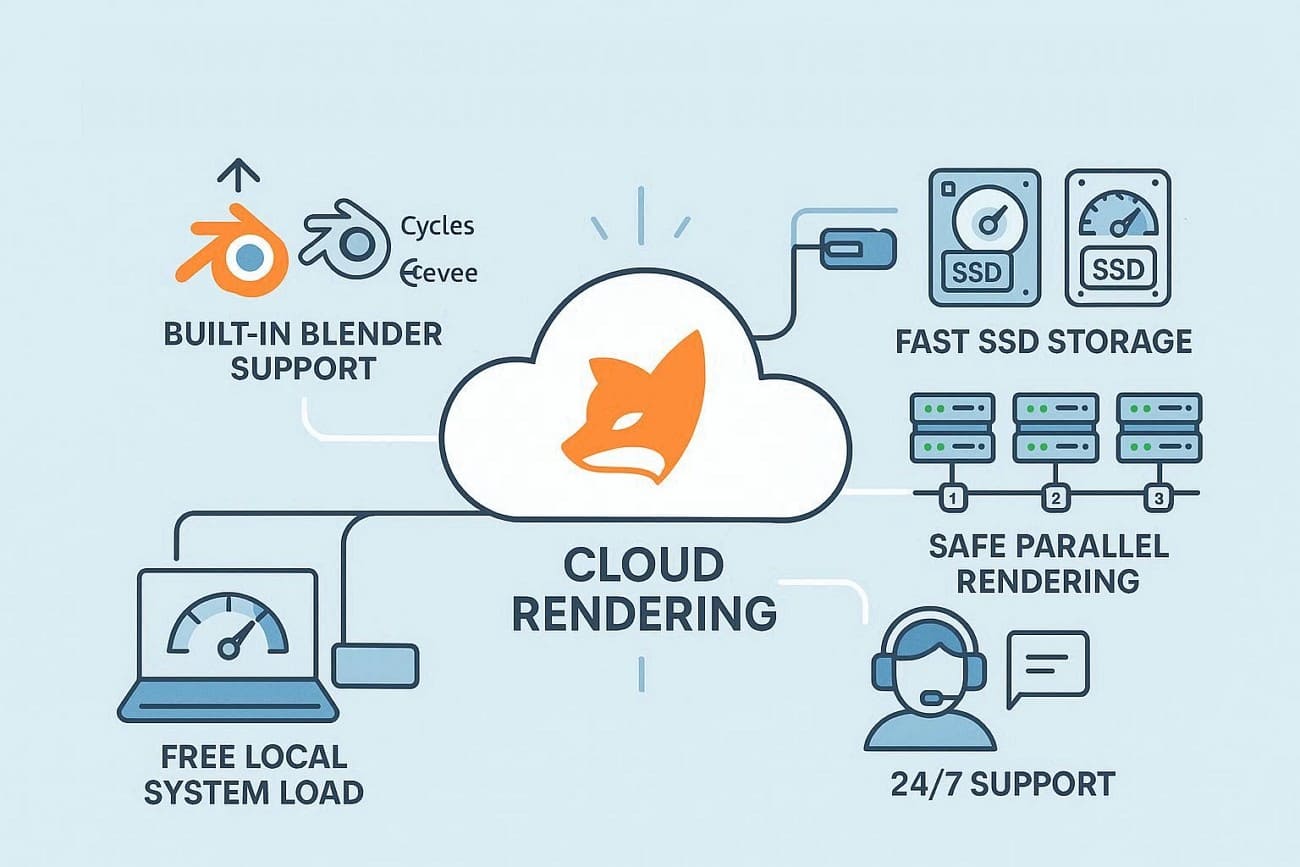
- Built-In Blender Support: Fox Renderfarm integrates directly with Blender and supports Cycles and Eevee without complex setup. Hence, you can easily upload projects and set frame ranges, reducing setup errors that often cause failed renders.
- Fast SSD Storage: Fox Renderfarm uses high-speed SSD storage for scenes, textures, caches, and output frames. Additionally, fast disk access helps avoid freezes or timeouts when Blender loads heavy assets during render.
- Safe Parallel Rendering: Frames run on multiple machines in parallel, and failed frames can be rerun on another node. Thus, this prevents a single crash from breaking the full animation render and saves a lot of time.
- 24/7 Support Help: Unlike other farms, Fox Renderfarm offers 24/7 live support and guides for Blender project upload and render setup. You can get 24/7 help to fix file or plugin issues, instead of guessing problems on your own.
- Free Local System Load: Most of all, your own PC stays free while cloud systems do the rendering work. This lowers heat, memory load, and crash risk while you keep working on other Blender tasks.
Part 4. Tips to Prevent Blender Crashing When Rendering
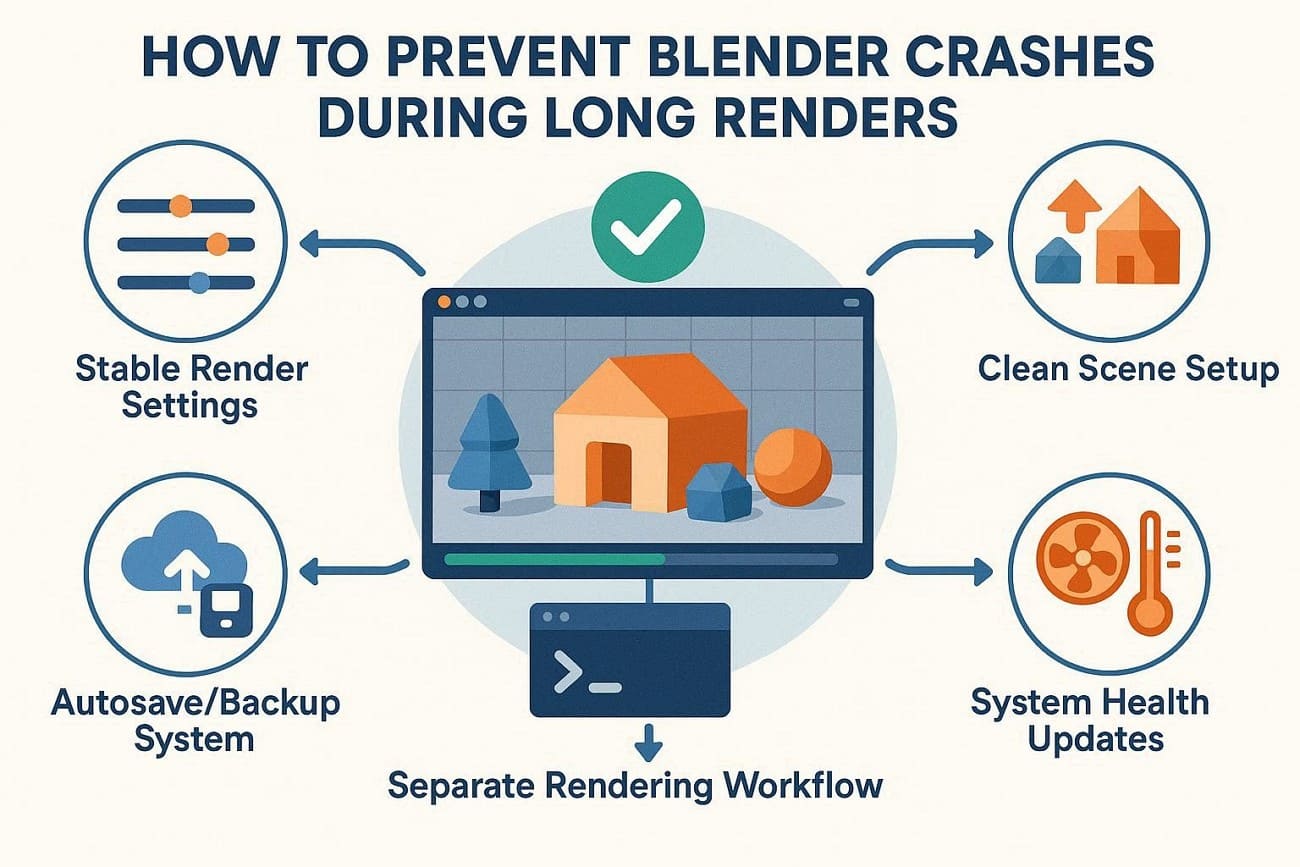
While learning ways to resolve the Blender crashing when rendering issue, follow the mentioned tips to prevent crashes in the future:
- Stable Render Settings: Use balanced settings to prevent Blender from overloading your system during long renders. Additionally, lower samples, reduce light bounces, and test at lower resolution to keep memory and GPU load stable.
- Clean and Light Scene Setup: Always keep scenes simple by using low-poly models, instancing, and removing unused objects. Smaller textures and fewer modifiers reduce RAM and VRAM usage, lowering crash risk.
- Safe Save And Backup Habits: Ensure to turn on autosave and keep multiple file versions for protection. So, if a crash happens, you can recover recent work and continue from a safe point.
- Separate Render from Other Work: Do not run heavy tasks such as modeling or playback during the final render. Instead, use a background or command-line render so Blender can use the full system power and stay stable.
- Healthy System and Updates: Keep GPU drivers and Blender versions stable and up to date to reduce bugs. In addition, check the temperature and cooling so long renders do not cause overheating or shutdowns.
FAQs about Blender Crashing When Rendering
1. Can Blender cause damage to my computer?
No, Blender cannot damage your computer because it only uses normal system resources. However, overheating may happen during heavy rendering, so good cooling remains important.
2. Does a render crash mean my PC is weak?
No, a render crash does not always mean a weak PC; many other factors can cause it. For example, a scene load or settings issue can also stop rendering even on strong systems.
3. Is GPU rendering riskier than CPU rendering?
Yes, GPU rendering can fail more often because VRAM usage fills up faster under heavy load. In contrast, CPU rendering uses system RAM, so it tends to be more stable in many cases.
4. Do all Blender versions crash during render?
No, not all Blender versions crash because stable or LTS versions are more reliable. However, text builds or older versions may cause more errors during complex render tasks.
Conclusion
To sum up, Blender rendering crashes are usually caused by hardware limits, heavy scenes, high render settings, or system-related issues. These problems can often be reduced by optimizing your workflow, such as lowering render samples, cleaning up scenes, updating drivers, and enabling autosave to protect your work.
However, when scenes become too complex for local hardware, a render farm can provide a more stable solution. Fox Renderfarm helps by moving heavy rendering tasks to powerful cloud GPUs, reducing the risk of crashes and improving overall rendering stability.